> ## Documentation Index
> Fetch the complete documentation index at: https://docs.callivox.com/llms.txt
> Use this file to discover all available pages before exploring further.
# Folders, rules and the blacklist
> Organise the inbox with folders, route conversations automatically with rules, and block senders you do not want the AI to answer.
Three Settings pages decide where a conversation lands and who deals with it: **Folders** creates the
places, **Rules** sorts conversations into them, and **Blacklist** stops the AI answering senders you
do not want it to.
Folders and Rules are **Admin only**. The Blacklist is available to everyone.
## Folders
Go to **Settings → Folders**. The page has a folder list on the left and the selected folder's
settings on the right.
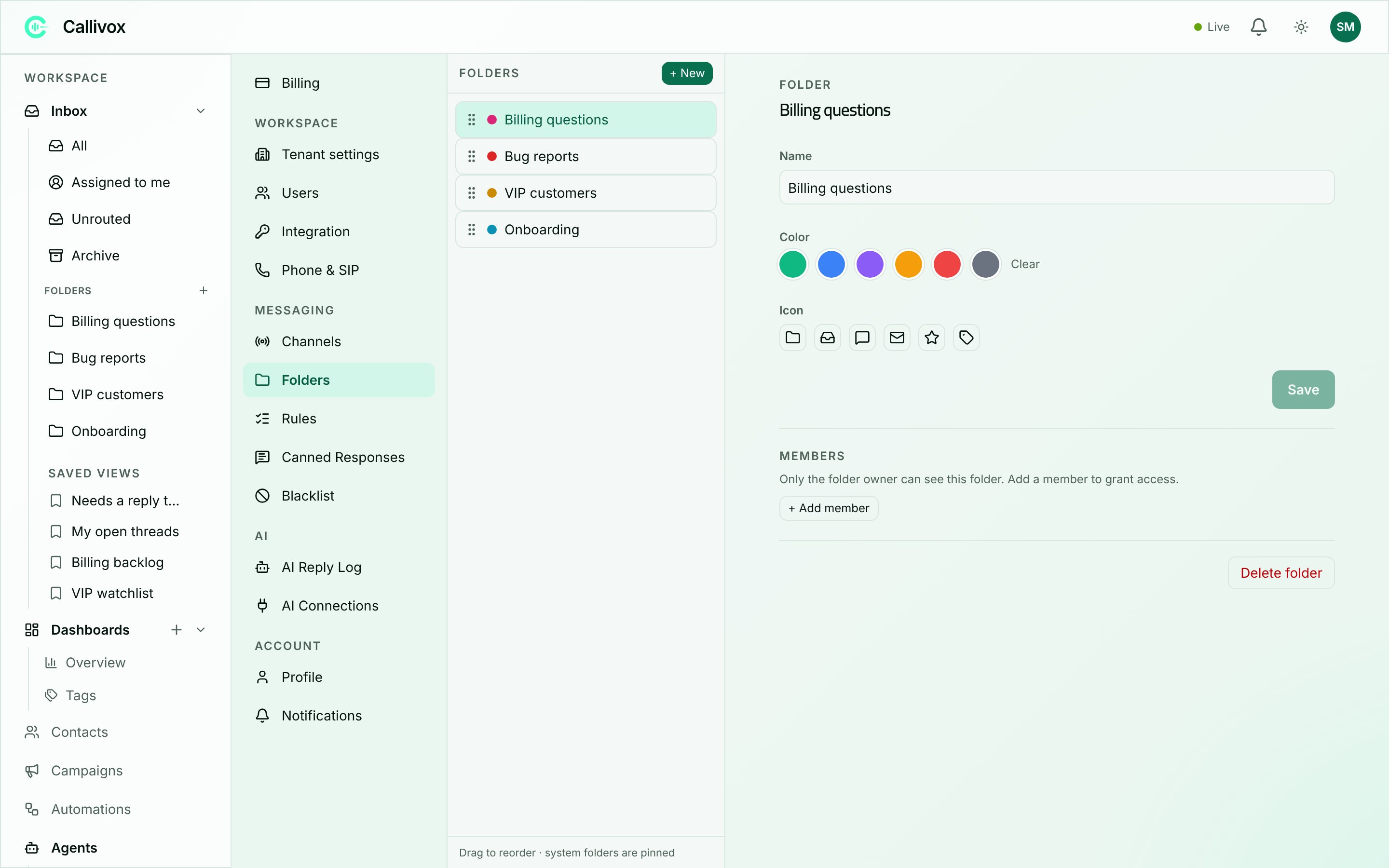 A folder is a place in the inbox where conversations sit. Agents work through folders rather than one
undifferentiated pile, and folder membership is how you decide who can see which conversations.
A folder can also carry its own AI behaviour — you can bind a specific agent to it so that agent
takes over automatically for anything filed there (see [Bindings](/ai-agents/overview#how-an-agent-gets-attached-to-a-channel)).
That is part of why getting a conversation into the right folder matters: it is not just
organisation, it decides who — or which agent — answers next.
### System and personal folders
| Kind | What it is |
| ---------------------- | ------------------------------------------------------------------------------------------------------------------------------------------------------------------------------------------------------------------------------------------------------- |
| **System folder** | Built in and marked with a **System** chip. **Unrouted** is the system folder: every new conversation lands there until a rule moves it. It cannot be renamed away, deleted or reordered — the detail pane reads *"System folder — cannot be deleted."* |
| **Folders you create** | Everything else. Created by an Admin, given a name, a colour and an icon, and shared with specific people. |
A folder you create is private to you until you add members. The Members section says so:
*"Only the folder owner can see this folder. Add a member to grant access."*
### Creating a folder
Click **+ New** above the list. Give it a **Name** (for example *Support*), pick a **Color** from
the six swatches, and pick an **Icon** — folder, inbox, message square, mail, star or tag. Click
**Create**.
The name, colour and icon can be changed at any time from the detail pane; click **Save** when you
are done.
### Ordering
Drag folders by their grip handle to reorder them; the footer reads **"Drag to reorder · system
folders are pinned"**. The order you set is the order agents see in the inbox. System folders cannot
be dragged.
### Who can see a folder
The **Members** section on the right controls access. Click **+ Add member**, search for the person,
and choose their access:
| Access | What it allows |
| ------------- | --------------------------------------------------------------------- |
| **ReadWrite** | See the folder's conversations and work in them. This is the default. |
| **Read** | See the folder's conversations without acting on them. |
Remove someone with the **✕** on their row. You can also grant folder access when you create a user
— see [Workspace and users](/settings/workspace-and-users).
### Deleting a folder
Click **Delete folder** in the detail pane. The confirmation reads `Delete '{name}'? Conversations in
this folder will move to Unrouted.` Nothing is lost — the conversations move rather than disappear.
## Routing rules
Go to **Settings → Rules**. The page is headed **Routing rules**.
A folder is a place in the inbox where conversations sit. Agents work through folders rather than one
undifferentiated pile, and folder membership is how you decide who can see which conversations.
A folder can also carry its own AI behaviour — you can bind a specific agent to it so that agent
takes over automatically for anything filed there (see [Bindings](/ai-agents/overview#how-an-agent-gets-attached-to-a-channel)).
That is part of why getting a conversation into the right folder matters: it is not just
organisation, it decides who — or which agent — answers next.
### System and personal folders
| Kind | What it is |
| ---------------------- | ------------------------------------------------------------------------------------------------------------------------------------------------------------------------------------------------------------------------------------------------------- |
| **System folder** | Built in and marked with a **System** chip. **Unrouted** is the system folder: every new conversation lands there until a rule moves it. It cannot be renamed away, deleted or reordered — the detail pane reads *"System folder — cannot be deleted."* |
| **Folders you create** | Everything else. Created by an Admin, given a name, a colour and an icon, and shared with specific people. |
A folder you create is private to you until you add members. The Members section says so:
*"Only the folder owner can see this folder. Add a member to grant access."*
### Creating a folder
Click **+ New** above the list. Give it a **Name** (for example *Support*), pick a **Color** from
the six swatches, and pick an **Icon** — folder, inbox, message square, mail, star or tag. Click
**Create**.
The name, colour and icon can be changed at any time from the detail pane; click **Save** when you
are done.
### Ordering
Drag folders by their grip handle to reorder them; the footer reads **"Drag to reorder · system
folders are pinned"**. The order you set is the order agents see in the inbox. System folders cannot
be dragged.
### Who can see a folder
The **Members** section on the right controls access. Click **+ Add member**, search for the person,
and choose their access:
| Access | What it allows |
| ------------- | --------------------------------------------------------------------- |
| **ReadWrite** | See the folder's conversations and work in them. This is the default. |
| **Read** | See the folder's conversations without acting on them. |
Remove someone with the **✕** on their row. You can also grant folder access when you create a user
— see [Workspace and users](/settings/workspace-and-users).
### Deleting a folder
Click **Delete folder** in the detail pane. The confirmation reads `Delete '{name}'? Conversations in
this folder will move to Unrouted.` Nothing is lost — the conversations move rather than disappear.
## Routing rules
Go to **Settings → Rules**. The page is headed **Routing rules**.
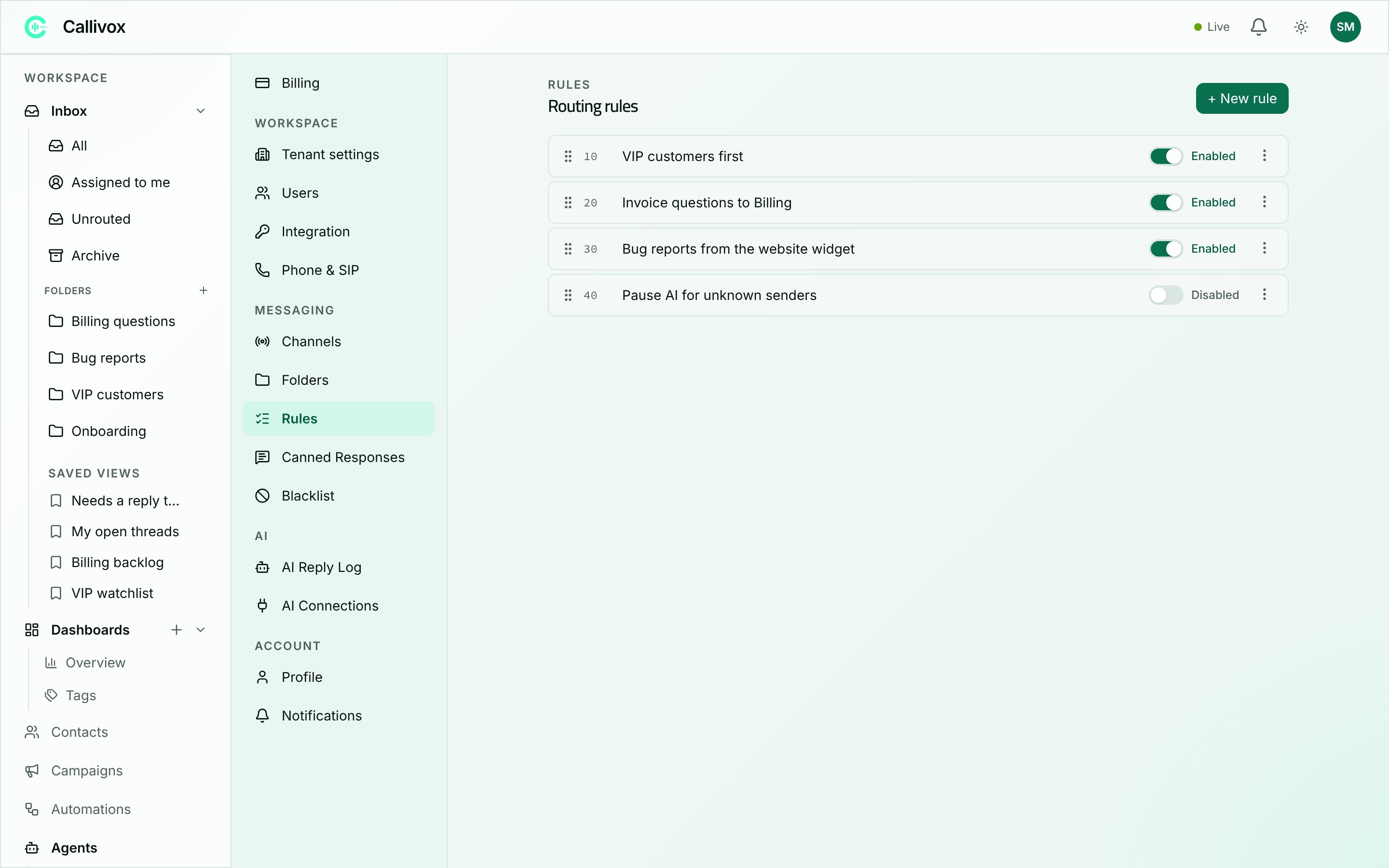 A rule watches for a conversation or message that matches your conditions, then performs actions on
it — most often moving it into the right folder. Without any rules, everything stays in **Unrouted**;
the empty state says exactly that: *"No rules yet. New conversations land in Unrouted until a rule
routes them."*
### Creating a rule
Click **+ New rule**, give it a name (for example *Route WhatsApp inquiries*), and click **Create
rule**. The new rule opens in the editor and starts **disabled**, so you can build it safely before
turning it on.
### What a rule is made of
When the rule is evaluated: **NewConversation** (a conversation is created),
**InboundMessage** (a message comes in), or **Manual** (only when run by hand).
One or more tests, all of which must pass. Available fields:
| Field | Matches on |
| ---------------------------------- | ---------------------------------------------------------------------------------------------------------------------------------------------------- |
| **Sender phone** | The sender's number — equals, not equals, contains, matches regex, exists |
| **Sender country** | The country the number belongs to — equals, not equals, in (comma list), exists |
| **Channel** | Which channel it came in on — equals, not equals, in (comma list) |
| **Message contains** | Text in the message — contains, matches regex |
| **Contact is known** | Whether the sender is already a contact — equals, not equals |
| **Linked record type** | The type of record the conversation is linked to — equals, not equals, in (comma list), exists |
| **Conversation tag (AI-assigned)** | One of your workspace's [tags](/dashboards/overview#the-tags-page), picked from a dropdown of the tags you already have — equals, not equals, exists |
What happens when the conditions match. Add them with **+ Add action** and drag to reorder.
| Action | What it does |
| --------------------------------- | -------------------------------------------------------------------------------------------------------------------- |
| **Move to folder** | Puts the conversation in the folder you pick. |
| **Assign to user** | Assigns it to a specific person. |
| **Set subject** | Sets the conversation subject. You can use placeholders such as `{{sender_phone}}`, `{{country}}` and `{{channel}}`. |
| **Mark as read** | Marks it read. |
| **Enable AI replies** | Lets the AI answer this conversation. |
| **Disable AI replies** | Stops the AI answering this conversation. |
| **Assign AI agent** | Pins a specific AI agent to the conversation. |
| **Stop processing further rules** | Ends evaluation here, so no later rule touches this conversation. |
A rule with no actions is allowed but does nothing — the editor calls it *"a marker"*.
Tick **Enabled** in the editor, or use the switch on the rule's row in the list. Click **Save
rule**; you will see **"Rule saved"**.
### Routing on AI-assigned tags
Callivox's classifier reads every conversation and tags it by topic on its own — see
[Dashboards and tags](/dashboards/overview#the-tags-page). A rule can route on that tag: set the
trigger to **InboundMessage**, add a **Conversation tag (AI-assigned)** condition, and pick the tag
from the dropdown.
The classifier assigns its first tags after the customer's **second** message, and tag rules run
right after tagging — so a tag rule fires a little later than one that matches on the sender or the
first message.
Tag rules are deliberately conservative, so they can never undo a decision a person or an earlier
rule already made:
* **Move to folder** only moves a conversation that is still sitting in **Unrouted**.
* **Assign to user** and **Set subject** only fill those in when they are not already set.
If a person filed the conversation, or an earlier rule already did, a tag rule matching later
leaves it exactly where it is.
A single condition matches one tag value. To route "any of Refund, Chargeback or Dispute" into
the same folder, create one rule per tag and give them all the same actions.
Rules are not the only way a conversation can be filed automatically — an AI agent can carry its own
**filing rules**, natural-language conditions like *"customer is asking about branch JLT" → JLT*,
with the same "never override a person or an earlier decision" guarantee. Filing rules are a
judgment call rather than a pattern match, so keep exact, deterministic routing — a specific sender,
a specific channel, an AI-assigned tag — here instead. See
[Behavior and handoff](/ai-agents/behavior-and-handoff#file-into-folders).
### Ordering matters
Rules are evaluated in priority order, and **the lowest number goes first**. Drag rules up and down
the list to renumber them.
Because every matching rule runs unless one stops the chain, order decides the outcome when two
rules both match. Put your most specific rules at the top, and finish a rule with **Stop processing
further rules** when nothing after it should apply.
### Testing before you turn a rule on
The editor has a **Dry run** panel. Fill in a sample conversation — **Sender phone**, **Country**,
**Channel**, whether the **Contact is known**, a **First message**, and a comma-separated **Tags**
list to try out a tag condition — then click **Run dry-run**.
You get either **"✓ Would match."** with the list of actions that would fire, or **"✗ Would not
match."** with the reason. It tests what is on screen, including edits you have not saved yet, so it
is the safe way to check a rule before enabling it.
### Deleting a rule
Use the **⋮** menu on the rule's row and choose **Delete**. If you only want to pause a rule, turn
its switch off instead — the rule and its settings stay put.
## Blacklist
Go to **Settings → Blacklist**. Every user can open this page, not only Admins.
A rule watches for a conversation or message that matches your conditions, then performs actions on
it — most often moving it into the right folder. Without any rules, everything stays in **Unrouted**;
the empty state says exactly that: *"No rules yet. New conversations land in Unrouted until a rule
routes them."*
### Creating a rule
Click **+ New rule**, give it a name (for example *Route WhatsApp inquiries*), and click **Create
rule**. The new rule opens in the editor and starts **disabled**, so you can build it safely before
turning it on.
### What a rule is made of
When the rule is evaluated: **NewConversation** (a conversation is created),
**InboundMessage** (a message comes in), or **Manual** (only when run by hand).
One or more tests, all of which must pass. Available fields:
| Field | Matches on |
| ---------------------------------- | ---------------------------------------------------------------------------------------------------------------------------------------------------- |
| **Sender phone** | The sender's number — equals, not equals, contains, matches regex, exists |
| **Sender country** | The country the number belongs to — equals, not equals, in (comma list), exists |
| **Channel** | Which channel it came in on — equals, not equals, in (comma list) |
| **Message contains** | Text in the message — contains, matches regex |
| **Contact is known** | Whether the sender is already a contact — equals, not equals |
| **Linked record type** | The type of record the conversation is linked to — equals, not equals, in (comma list), exists |
| **Conversation tag (AI-assigned)** | One of your workspace's [tags](/dashboards/overview#the-tags-page), picked from a dropdown of the tags you already have — equals, not equals, exists |
What happens when the conditions match. Add them with **+ Add action** and drag to reorder.
| Action | What it does |
| --------------------------------- | -------------------------------------------------------------------------------------------------------------------- |
| **Move to folder** | Puts the conversation in the folder you pick. |
| **Assign to user** | Assigns it to a specific person. |
| **Set subject** | Sets the conversation subject. You can use placeholders such as `{{sender_phone}}`, `{{country}}` and `{{channel}}`. |
| **Mark as read** | Marks it read. |
| **Enable AI replies** | Lets the AI answer this conversation. |
| **Disable AI replies** | Stops the AI answering this conversation. |
| **Assign AI agent** | Pins a specific AI agent to the conversation. |
| **Stop processing further rules** | Ends evaluation here, so no later rule touches this conversation. |
A rule with no actions is allowed but does nothing — the editor calls it *"a marker"*.
Tick **Enabled** in the editor, or use the switch on the rule's row in the list. Click **Save
rule**; you will see **"Rule saved"**.
### Routing on AI-assigned tags
Callivox's classifier reads every conversation and tags it by topic on its own — see
[Dashboards and tags](/dashboards/overview#the-tags-page). A rule can route on that tag: set the
trigger to **InboundMessage**, add a **Conversation tag (AI-assigned)** condition, and pick the tag
from the dropdown.
The classifier assigns its first tags after the customer's **second** message, and tag rules run
right after tagging — so a tag rule fires a little later than one that matches on the sender or the
first message.
Tag rules are deliberately conservative, so they can never undo a decision a person or an earlier
rule already made:
* **Move to folder** only moves a conversation that is still sitting in **Unrouted**.
* **Assign to user** and **Set subject** only fill those in when they are not already set.
If a person filed the conversation, or an earlier rule already did, a tag rule matching later
leaves it exactly where it is.
A single condition matches one tag value. To route "any of Refund, Chargeback or Dispute" into
the same folder, create one rule per tag and give them all the same actions.
Rules are not the only way a conversation can be filed automatically — an AI agent can carry its own
**filing rules**, natural-language conditions like *"customer is asking about branch JLT" → JLT*,
with the same "never override a person or an earlier decision" guarantee. Filing rules are a
judgment call rather than a pattern match, so keep exact, deterministic routing — a specific sender,
a specific channel, an AI-assigned tag — here instead. See
[Behavior and handoff](/ai-agents/behavior-and-handoff#file-into-folders).
### Ordering matters
Rules are evaluated in priority order, and **the lowest number goes first**. Drag rules up and down
the list to renumber them.
Because every matching rule runs unless one stops the chain, order decides the outcome when two
rules both match. Put your most specific rules at the top, and finish a rule with **Stop processing
further rules** when nothing after it should apply.
### Testing before you turn a rule on
The editor has a **Dry run** panel. Fill in a sample conversation — **Sender phone**, **Country**,
**Channel**, whether the **Contact is known**, a **First message**, and a comma-separated **Tags**
list to try out a tag condition — then click **Run dry-run**.
You get either **"✓ Would match."** with the list of actions that would fire, or **"✗ Would not
match."** with the reason. It tests what is on screen, including edits you have not saved yet, so it
is the safe way to check a rule before enabling it.
### Deleting a rule
Use the **⋮** menu on the rule's row and choose **Delete**. If you only want to pause a rule, turn
its switch off instead — the rule and its settings stay put.
## Blacklist
Go to **Settings → Blacklist**. Every user can open this page, not only Admins.
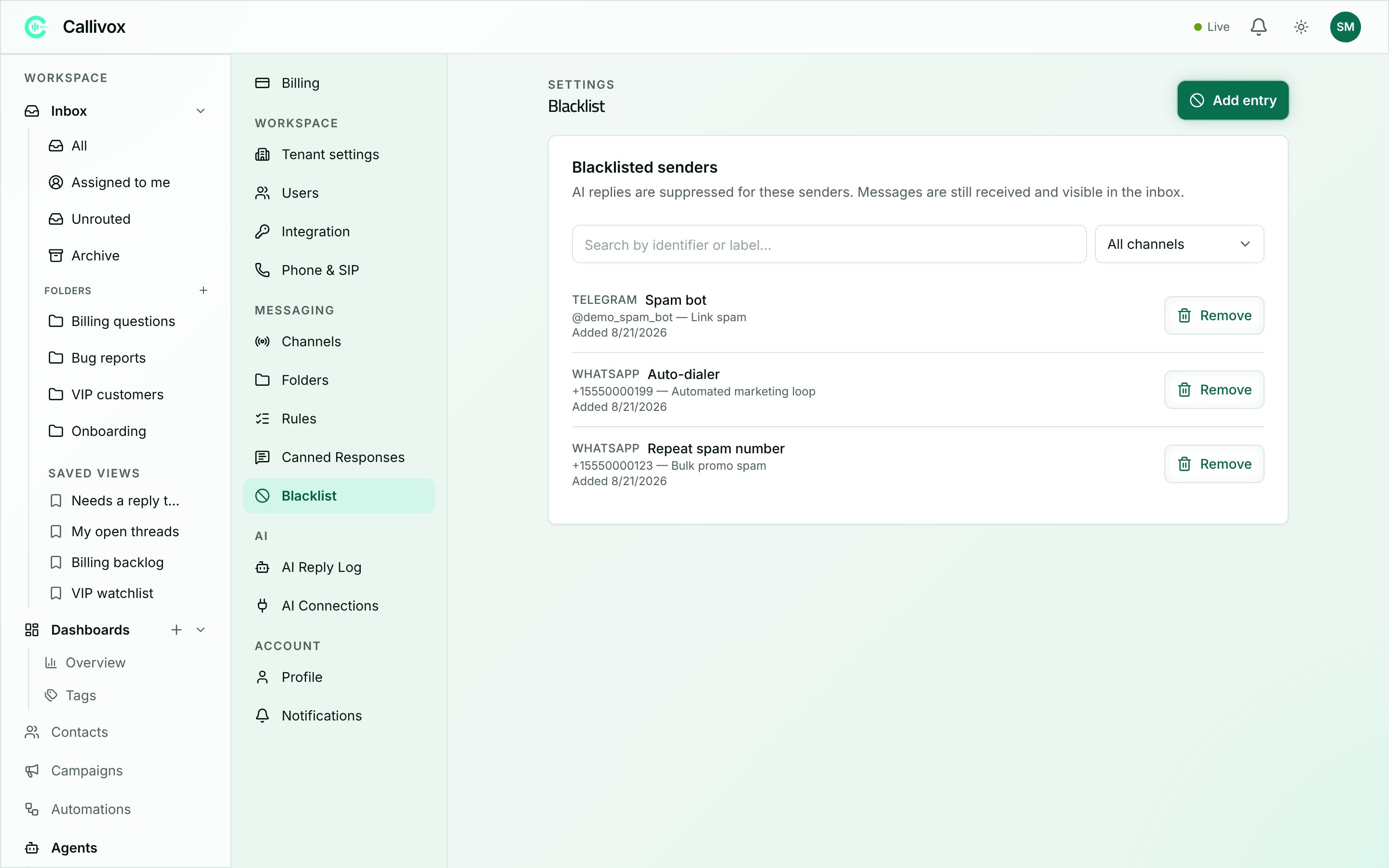 The card is titled **Blacklisted senders** and states what blocking does:
> AI replies are suppressed for these senders. Messages are still received and visible in the inbox.
That is the whole behaviour, and it is worth being clear about:
* **What it stops:** the AI answering that sender. No automatic reply goes out.
* **What it does not stop:** the messages themselves. They still arrive, still appear in the inbox,
and a human can still read and reply to them.
Use it for spam, for a contact who must only ever hear from a person, or for a number that has got
into an unproductive back-and-forth with an agent.
### Blocking a sender
Click **Add entry**. The dialog reads *"AI replies will be suppressed for this sender. Messages will
still appear in the inbox."*
| Field | Notes |
| ---------------------------- | -------------------------------------------------------- |
| **Channel** | **WhatsApp**, **Instagram**, **Telegram** or **TikTok**. |
| **Sender identifier** | Required — the phone number or username. |
| **Display label (optional)** | A friendly name so the row is readable later. |
| **Reason (optional)** | For example *Spam*. Shown on the row. |
Click **Add to blacklist**.
A block is **per channel**. Blocking a number on WhatsApp does not block the same person on
Telegram — add a separate entry for each channel.
Phone numbers are tidied up for you, so you can paste a number in any format and it is stored
consistently. Usernames on Instagram, Telegram and TikTok are stored as typed and are
case-sensitive.
### Finding and removing entries
Search by identifier or label, or filter by channel. To unblock someone, click **Remove** on their
row — the AI can answer them again from the next message.
## Next steps
How folders behave day to day in the inbox.
Roles, and granting folder access when you create someone.
When the AI replies, and how to pause it on a single conversation.
Saved replies your agents can drop into a conversation.
Where automatic tags come from, and how to manage the tag vocabulary.
Let an AI agent file conversations into folders on its own.
The card is titled **Blacklisted senders** and states what blocking does:
> AI replies are suppressed for these senders. Messages are still received and visible in the inbox.
That is the whole behaviour, and it is worth being clear about:
* **What it stops:** the AI answering that sender. No automatic reply goes out.
* **What it does not stop:** the messages themselves. They still arrive, still appear in the inbox,
and a human can still read and reply to them.
Use it for spam, for a contact who must only ever hear from a person, or for a number that has got
into an unproductive back-and-forth with an agent.
### Blocking a sender
Click **Add entry**. The dialog reads *"AI replies will be suppressed for this sender. Messages will
still appear in the inbox."*
| Field | Notes |
| ---------------------------- | -------------------------------------------------------- |
| **Channel** | **WhatsApp**, **Instagram**, **Telegram** or **TikTok**. |
| **Sender identifier** | Required — the phone number or username. |
| **Display label (optional)** | A friendly name so the row is readable later. |
| **Reason (optional)** | For example *Spam*. Shown on the row. |
Click **Add to blacklist**.
A block is **per channel**. Blocking a number on WhatsApp does not block the same person on
Telegram — add a separate entry for each channel.
Phone numbers are tidied up for you, so you can paste a number in any format and it is stored
consistently. Usernames on Instagram, Telegram and TikTok are stored as typed and are
case-sensitive.
### Finding and removing entries
Search by identifier or label, or filter by channel. To unblock someone, click **Remove** on their
row — the AI can answer them again from the next message.
## Next steps
How folders behave day to day in the inbox.
Roles, and granting folder access when you create someone.
When the AI replies, and how to pause it on a single conversation.
Saved replies your agents can drop into a conversation.
Where automatic tags come from, and how to manage the tag vocabulary.
Let an AI agent file conversations into folders on its own.