> ## Documentation Index
> Fetch the complete documentation index at: https://docs.callivox.com/llms.txt
> Use this file to discover all available pages before exploring further.
# Working with conversations
> Reading a thread, replying, adding internal notes, assigning, snoozing, closing — and what happens to a conversation after it is closed.
This page covers the work you do inside a single conversation: reading what has been said, answering it, handing it to the right person, and finishing it.
 ## Opening a conversation
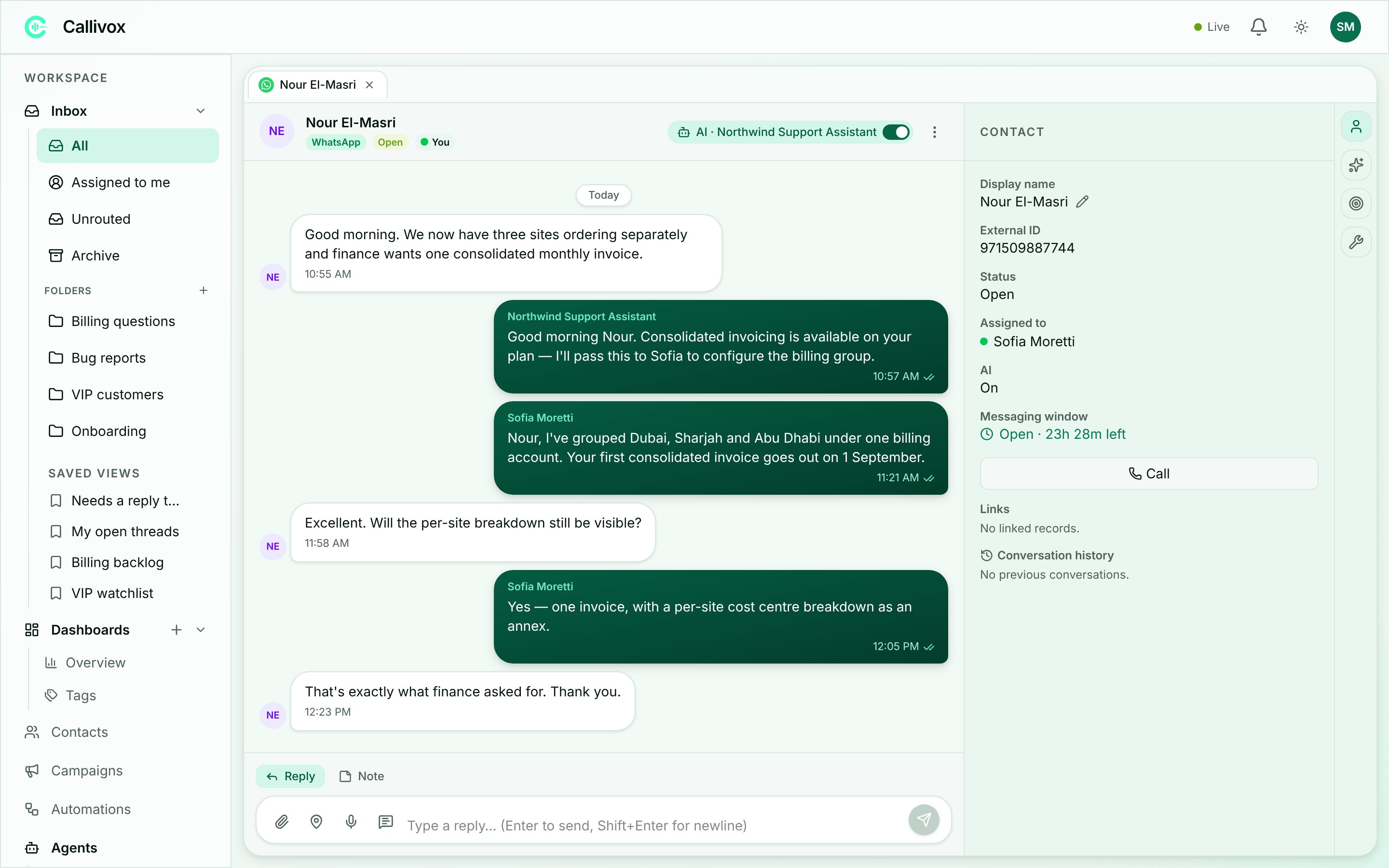
Click a row in the list. The conversation opens, its unread count clears immediately, and it becomes a tab in the strip above the pane.
If a conversation cannot be opened you will see "This conversation is unavailable." — "It may have been removed or you don't have access."
## The header
The bar across the top of the conversation carries the contact's name and a row of pills that tell you where things stand.
| Pill | What it means |
| ------------ | ---------------------------------------------------------------------------------------------------------------------------------------------- |
| **Channel** | Which channel the contact wrote in — WhatsApp, Telegram, Instagram, Messenger, TikTok, Web chat. |
| **Status** | **Open** (green), **Snoozed** (amber) or **Closed** (grey). |
| **Assignee** | The teammate handling it, with a dot showing whether they are online. Reads **You** when it is yours, **Unassigned** when nobody has taken it. |
| **Blocked** | Shown in red when the sender is on your blacklist: "AI replies are off — sender is blacklisted". |
| **AI** | The AI reply switch for this conversation. See [AI in the inbox](/inbox/ai-in-the-inbox). |
On the right sit the **AI** toggle, the **More actions** menu, and — for agents that follow a flow — a **View flow** button that shows where the conversation has reached in the script.
## Reading the thread
Messages run oldest to newest, split by **Today** / **Yesterday** / date separators. Messages sent close together by the same side are grouped so the thread stays readable.
### Who wrote what
Every outgoing message carries a small name above it:
* A **teammate's name** when a person sent it.
* The **AI agent's name** when an agent answered on its own.
Incoming messages are the customer's, anchored by their avatar at the end of each run.
### Delivery state
Outgoing messages carry a tick indicator, WhatsApp style:
| Indicator | Meaning |
| ----------------- | ---------------------------- |
| Clock | Queued — waiting to be sent. |
| One check | Sent to the channel. |
| Two checks | Delivered to the recipient. |
| Two tinted checks | Read by the recipient. |
| Alert circle | Failed. |
A failed message sometimes carries an explanation underneath it. On Meta channels, for example, a missing payment method on your Meta account shows a link to **Add a payment method in Meta Business Manager** "to send template messages — free-form replies are unaffected".
Under the whole thread, a **Read by** line names the teammates who have read the conversation, excluding you.
### Media, voice notes and templates
* **Images** render inline. **Documents** appear as a download row.
* **Voice notes** get an audio player. Once Callivox has transcribed them, a **Transcript:** block appears below the player. If transcription fails it reads "Transcript unavailable".
* **Templates** show as **Template · \** with the list of variables that were filled in and the values used.
* **Locations** render as a map card.
### Email messages
Email is not chat, and it does not pretend to be. Each email in the thread is a card, not a bubble: subject header, a **From / To / Cc** line, the formatted body, inline images, and attachment chips with their sizes and download links.
Replies normally carry the whole history quoted below them. Callivox collapses that behind a **••• Show quoted history** toggle so the thread stays readable; click it again to hide it.
Each email card has its own **Reply**, **Reply all** and **Forward** actions, which prefill the composer with the right recipients.
### System markers
Some events show as a centred line across the thread rather than a message:
| Marker | What happened |
| ------------------------------------------------- | ------------------------------------------------------------------------------- |
| **AI turned on** / **AI turned off** | Someone changed the AI switch. |
| **AI paused** / **AI resumed** | The AI stepped aside, or came back. |
| **Conversation reassigned** | The assignee changed. |
| **Moved to a different folder** | The conversation was filed elsewhere. |
| **⇄ \ transferred to \ — "reason"** | One AI agent handed the conversation to another. See [Teams](/ai-agents/teams). |
Repeated identical markers collapse into one line with a **×N** count, so a busy day of toggling does not bury the conversation.
## Replying
## Opening a conversation
Click a row in the list. The conversation opens, its unread count clears immediately, and it becomes a tab in the strip above the pane.
If a conversation cannot be opened you will see "This conversation is unavailable." — "It may have been removed or you don't have access."
## The header
The bar across the top of the conversation carries the contact's name and a row of pills that tell you where things stand.
| Pill | What it means |
| ------------ | ---------------------------------------------------------------------------------------------------------------------------------------------- |
| **Channel** | Which channel the contact wrote in — WhatsApp, Telegram, Instagram, Messenger, TikTok, Web chat. |
| **Status** | **Open** (green), **Snoozed** (amber) or **Closed** (grey). |
| **Assignee** | The teammate handling it, with a dot showing whether they are online. Reads **You** when it is yours, **Unassigned** when nobody has taken it. |
| **Blocked** | Shown in red when the sender is on your blacklist: "AI replies are off — sender is blacklisted". |
| **AI** | The AI reply switch for this conversation. See [AI in the inbox](/inbox/ai-in-the-inbox). |
On the right sit the **AI** toggle, the **More actions** menu, and — for agents that follow a flow — a **View flow** button that shows where the conversation has reached in the script.
## Reading the thread
Messages run oldest to newest, split by **Today** / **Yesterday** / date separators. Messages sent close together by the same side are grouped so the thread stays readable.
### Who wrote what
Every outgoing message carries a small name above it:
* A **teammate's name** when a person sent it.
* The **AI agent's name** when an agent answered on its own.
Incoming messages are the customer's, anchored by their avatar at the end of each run.
### Delivery state
Outgoing messages carry a tick indicator, WhatsApp style:
| Indicator | Meaning |
| ----------------- | ---------------------------- |
| Clock | Queued — waiting to be sent. |
| One check | Sent to the channel. |
| Two checks | Delivered to the recipient. |
| Two tinted checks | Read by the recipient. |
| Alert circle | Failed. |
A failed message sometimes carries an explanation underneath it. On Meta channels, for example, a missing payment method on your Meta account shows a link to **Add a payment method in Meta Business Manager** "to send template messages — free-form replies are unaffected".
Under the whole thread, a **Read by** line names the teammates who have read the conversation, excluding you.
### Media, voice notes and templates
* **Images** render inline. **Documents** appear as a download row.
* **Voice notes** get an audio player. Once Callivox has transcribed them, a **Transcript:** block appears below the player. If transcription fails it reads "Transcript unavailable".
* **Templates** show as **Template · \** with the list of variables that were filled in and the values used.
* **Locations** render as a map card.
### Email messages
Email is not chat, and it does not pretend to be. Each email in the thread is a card, not a bubble: subject header, a **From / To / Cc** line, the formatted body, inline images, and attachment chips with their sizes and download links.
Replies normally carry the whole history quoted below them. Callivox collapses that behind a **••• Show quoted history** toggle so the thread stays readable; click it again to hide it.
Each email card has its own **Reply**, **Reply all** and **Forward** actions, which prefill the composer with the right recipients.
### System markers
Some events show as a centred line across the thread rather than a message:
| Marker | What happened |
| ------------------------------------------------- | ------------------------------------------------------------------------------- |
| **AI turned on** / **AI turned off** | Someone changed the AI switch. |
| **AI paused** / **AI resumed** | The AI stepped aside, or came back. |
| **Conversation reassigned** | The assignee changed. |
| **Moved to a different folder** | The conversation was filed elsewhere. |
| **⇄ \ transferred to \ — "reason"** | One AI agent handed the conversation to another. See [Teams](/ai-agents/teams). |
Repeated identical markers collapse into one line with a **×N** count, so a busy day of toggling does not bury the conversation.
## Replying
 The composer sits at the bottom of the conversation and has two tabs.
### Reply
**Reply** sends to the customer on their channel. The box reads "Type a reply… (Enter to send, Shift+Enter for newline)". Press **Enter** to send.
The icon buttons to the left of the box:
* **Attach file** — images, PDFs, ZIPs, Office documents and text files. You can pick several; each becomes a chip showing its upload progress, with cancel and retry.
* **Share location** — pick a point and send it as a location message.
* **Record voice message** — records in place, showing "Recording… m:ss" with **Stop** and **Discard recording**.
* **Insert canned response** — opens the saved-reply picker. See [Canned responses](/inbox/canned-responses).
Hover any message and click **Reply** on it to answer that specific message. A banner appears above the composer reading **Replying to them** or **Replying to yourself**, with the message previewed; the **X** cancels it.
If a send fails, your text and attachments stay in the box so you can try again.
### Note
**Note** writes an internal note. The composer turns amber to make the difference unmistakable, and the box reads "Add an internal note — type @ to mention a teammate…".
Notes are for your team only. They are **never** sent to the customer. In the thread they appear centred, in an amber card headed **INTERNAL NOTE**.
Type `@` to mention a teammate — a list of names appears, and the person you pick is notified.
Check which tab is selected before you press Enter. The colour change is the cue: amber composer means the message stays internal, plain composer means it goes to the customer.
### Writing an email
Email conversations get a different composer: a **To** field with recipient chips, **Cc** and **Bcc** links, a **Subject** line, and a rich text editor with formatting, links, images and tables.
Above it, **Replying in thread** shows that your message will be threaded under the customer's. Click its **X** to send it as a new email instead. To the right, **Sending as \** confirms which mailbox it goes out from.
After sending, the recipients and subject stay in place — the body and attachments clear — so a back-and-forth exchange takes one click less.
### When you cannot reply
Two things replace the composer:
You will see: "This conversation is closed — a new message from the contact starts a new conversation."
Use **Reopen** in the **More actions** menu if you need to carry on in this conversation.
You will see: "24-hour reply window expired. Send an approved template to reopen the conversation."
Meta only allows free-form replies within 24 hours of the customer's last message. After that, the only way to reach them is an approved template. Click **New Message** — the dialog opens with this channel and contact already filled in, and you pick a template. Their reply reopens the window, and the exchange continues in the same conversation.
Telegram, email and the website widget have no such window.
See [WhatsApp](/channels/whatsapp) for how to create and submit templates.
## Assigning
The composer sits at the bottom of the conversation and has two tabs.
### Reply
**Reply** sends to the customer on their channel. The box reads "Type a reply… (Enter to send, Shift+Enter for newline)". Press **Enter** to send.
The icon buttons to the left of the box:
* **Attach file** — images, PDFs, ZIPs, Office documents and text files. You can pick several; each becomes a chip showing its upload progress, with cancel and retry.
* **Share location** — pick a point and send it as a location message.
* **Record voice message** — records in place, showing "Recording… m:ss" with **Stop** and **Discard recording**.
* **Insert canned response** — opens the saved-reply picker. See [Canned responses](/inbox/canned-responses).
Hover any message and click **Reply** on it to answer that specific message. A banner appears above the composer reading **Replying to them** or **Replying to yourself**, with the message previewed; the **X** cancels it.
If a send fails, your text and attachments stay in the box so you can try again.
### Note
**Note** writes an internal note. The composer turns amber to make the difference unmistakable, and the box reads "Add an internal note — type @ to mention a teammate…".
Notes are for your team only. They are **never** sent to the customer. In the thread they appear centred, in an amber card headed **INTERNAL NOTE**.
Type `@` to mention a teammate — a list of names appears, and the person you pick is notified.
Check which tab is selected before you press Enter. The colour change is the cue: amber composer means the message stays internal, plain composer means it goes to the customer.
### Writing an email
Email conversations get a different composer: a **To** field with recipient chips, **Cc** and **Bcc** links, a **Subject** line, and a rich text editor with formatting, links, images and tables.
Above it, **Replying in thread** shows that your message will be threaded under the customer's. Click its **X** to send it as a new email instead. To the right, **Sending as \** confirms which mailbox it goes out from.
After sending, the recipients and subject stay in place — the body and attachments clear — so a back-and-forth exchange takes one click less.
### When you cannot reply
Two things replace the composer:
You will see: "This conversation is closed — a new message from the contact starts a new conversation."
Use **Reopen** in the **More actions** menu if you need to carry on in this conversation.
You will see: "24-hour reply window expired. Send an approved template to reopen the conversation."
Meta only allows free-form replies within 24 hours of the customer's last message. After that, the only way to reach them is an approved template. Click **New Message** — the dialog opens with this channel and contact already filled in, and you pick a template. Their reply reopens the window, and the exchange continues in the same conversation.
Telegram, email and the website widget have no such window.
See [WhatsApp](/channels/whatsapp) for how to create and submit templates.
## Assigning
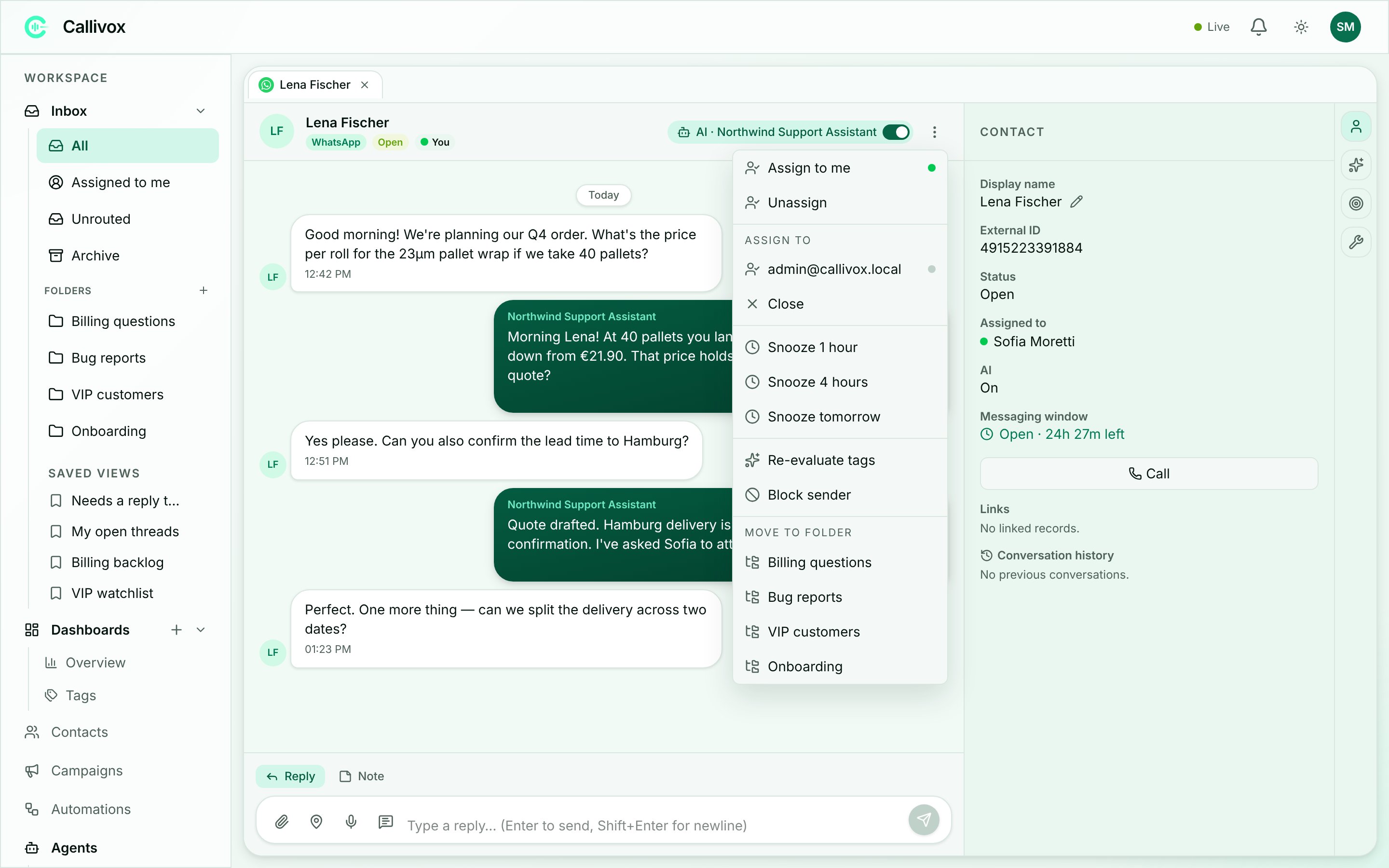 Open the **More actions** menu (the kebab at the top right). Its items, in order:
1. **Assign to me**
2. **Unassign**
3. **ASSIGN TO** — one row per teammate, each with a dot showing whether they are online
4. **Close** (when the conversation is open) or **Reopen** (when it is closed or snoozed)
5. **Snooze 1 hour** / **Snooze 4 hours** / **Snooze tomorrow**
6. **Re-evaluate tags**
7. **Block sender** or **Unblock sender**
8. **MOVE TO FOLDER** — one row per folder
Assigning writes a **Conversation reassigned** marker into the thread and notifies the new assignee. To assign a batch at once, select rows in the list and use **Assign…** in the bulk toolbar.
There is no "transfer to another team" action here — routing between people is done by assigning, and by [routing rules](/settings/folders-and-rules) that assign automatically when a conversation arrives.
## Tags
Conversations are tagged automatically by topic, and the tags show as coloured chips on the list row. They use the same tag vocabulary as your contacts, so "Refund" means the same thing everywhere.
If a conversation has moved on since it was tagged, **Re-evaluate tags** in the **More actions** menu re-reads it and updates the tags. Curate the vocabulary itself — rename, recolour, merge duplicates — on the [Tags page](/dashboards/overview).
## Snoozing, closing and archiving
**Snooze** puts a conversation aside for 1 hour, 4 hours or until tomorrow. It still counts as active and still appears under the **Active** filter; it stops demanding attention.
**Close** finishes the conversation. The status pill turns grey, the composer is replaced by the closed notice, and the conversation moves out of your working views into **Archive**.
The **Archive** row in the sidebar is where closed conversations live. It is not a separate place you move things to — anything closed is there.
A conversation can also close itself: when an AI agent completes the objective you set for it, it closes the conversation on its own. See [Behavior and handoff](/ai-agents/behavior-and-handoff).
## The conversation lifecycle
This is the one piece of behaviour worth understanding properly, because it explains a lot of what you see in the inbox.
**A closed conversation is finished for good.** When the contact writes to you again, their message does **not** land in the closed conversation — it starts a brand-new one.
That is deliberate. Each conversation is a self-contained episode: one enquiry, one outcome, one record. A customer who asks about delivery in March and about a refund in June gets two conversations, not one endless thread, so your reporting and your team's reading of the history both stay meaningful.
What follows from it:
* The **N past** chip on a list row counts that contact's earlier, closed conversations.
* The **Conversation history** section in the contact panel lists those earlier conversations. Click one to read it.
* **Reopen** exists for the case where you closed something too early. It clears the closed state and puts the conversation back in play. A new inbound message never reopens a conversation on its own — only you can.
* For **email**, conversations follow the email thread rather than the sender, because reply-all recipients change over the life of a thread. A late reply to a thread you already closed starts a new conversation that still carries the same thread.
## Blocking a sender
**Block sender** in the **More actions** menu stops the AI from answering that person. Callivox asks you to confirm:
> The AI will stop auto-replying to this contact everywhere they message you — this conversation and any others on the same channel. You can still reply manually, and unblock them anytime.
Blocked senders get a red **Blocked** pill on the conversation header. **Unblock sender** takes effect immediately, with no confirmation.
Blocking is about the AI, not about the person's ability to reach you — their messages still arrive, and your team can still answer. If what you want is to stop sending them marketing, opt the contact out instead. See [Managing contacts](/contacts/managing-contacts).
## The right-hand panels
Open the **More actions** menu (the kebab at the top right). Its items, in order:
1. **Assign to me**
2. **Unassign**
3. **ASSIGN TO** — one row per teammate, each with a dot showing whether they are online
4. **Close** (when the conversation is open) or **Reopen** (when it is closed or snoozed)
5. **Snooze 1 hour** / **Snooze 4 hours** / **Snooze tomorrow**
6. **Re-evaluate tags**
7. **Block sender** or **Unblock sender**
8. **MOVE TO FOLDER** — one row per folder
Assigning writes a **Conversation reassigned** marker into the thread and notifies the new assignee. To assign a batch at once, select rows in the list and use **Assign…** in the bulk toolbar.
There is no "transfer to another team" action here — routing between people is done by assigning, and by [routing rules](/settings/folders-and-rules) that assign automatically when a conversation arrives.
## Tags
Conversations are tagged automatically by topic, and the tags show as coloured chips on the list row. They use the same tag vocabulary as your contacts, so "Refund" means the same thing everywhere.
If a conversation has moved on since it was tagged, **Re-evaluate tags** in the **More actions** menu re-reads it and updates the tags. Curate the vocabulary itself — rename, recolour, merge duplicates — on the [Tags page](/dashboards/overview).
## Snoozing, closing and archiving
**Snooze** puts a conversation aside for 1 hour, 4 hours or until tomorrow. It still counts as active and still appears under the **Active** filter; it stops demanding attention.
**Close** finishes the conversation. The status pill turns grey, the composer is replaced by the closed notice, and the conversation moves out of your working views into **Archive**.
The **Archive** row in the sidebar is where closed conversations live. It is not a separate place you move things to — anything closed is there.
A conversation can also close itself: when an AI agent completes the objective you set for it, it closes the conversation on its own. See [Behavior and handoff](/ai-agents/behavior-and-handoff).
## The conversation lifecycle
This is the one piece of behaviour worth understanding properly, because it explains a lot of what you see in the inbox.
**A closed conversation is finished for good.** When the contact writes to you again, their message does **not** land in the closed conversation — it starts a brand-new one.
That is deliberate. Each conversation is a self-contained episode: one enquiry, one outcome, one record. A customer who asks about delivery in March and about a refund in June gets two conversations, not one endless thread, so your reporting and your team's reading of the history both stay meaningful.
What follows from it:
* The **N past** chip on a list row counts that contact's earlier, closed conversations.
* The **Conversation history** section in the contact panel lists those earlier conversations. Click one to read it.
* **Reopen** exists for the case where you closed something too early. It clears the closed state and puts the conversation back in play. A new inbound message never reopens a conversation on its own — only you can.
* For **email**, conversations follow the email thread rather than the sender, because reply-all recipients change over the life of a thread. A late reply to a thread you already closed starts a new conversation that still carries the same thread.
## Blocking a sender
**Block sender** in the **More actions** menu stops the AI from answering that person. Callivox asks you to confirm:
> The AI will stop auto-replying to this contact everywhere they message you — this conversation and any others on the same channel. You can still reply manually, and unblock them anytime.
Blocked senders get a red **Blocked** pill on the conversation header. **Unblock sender** takes effect immediately, with no confirmation.
Blocking is about the AI, not about the person's ability to reach you — their messages still arrive, and your team can still answer. If what you want is to stop sending them marketing, opt the contact out instead. See [Managing contacts](/contacts/managing-contacts).
## The right-hand panels
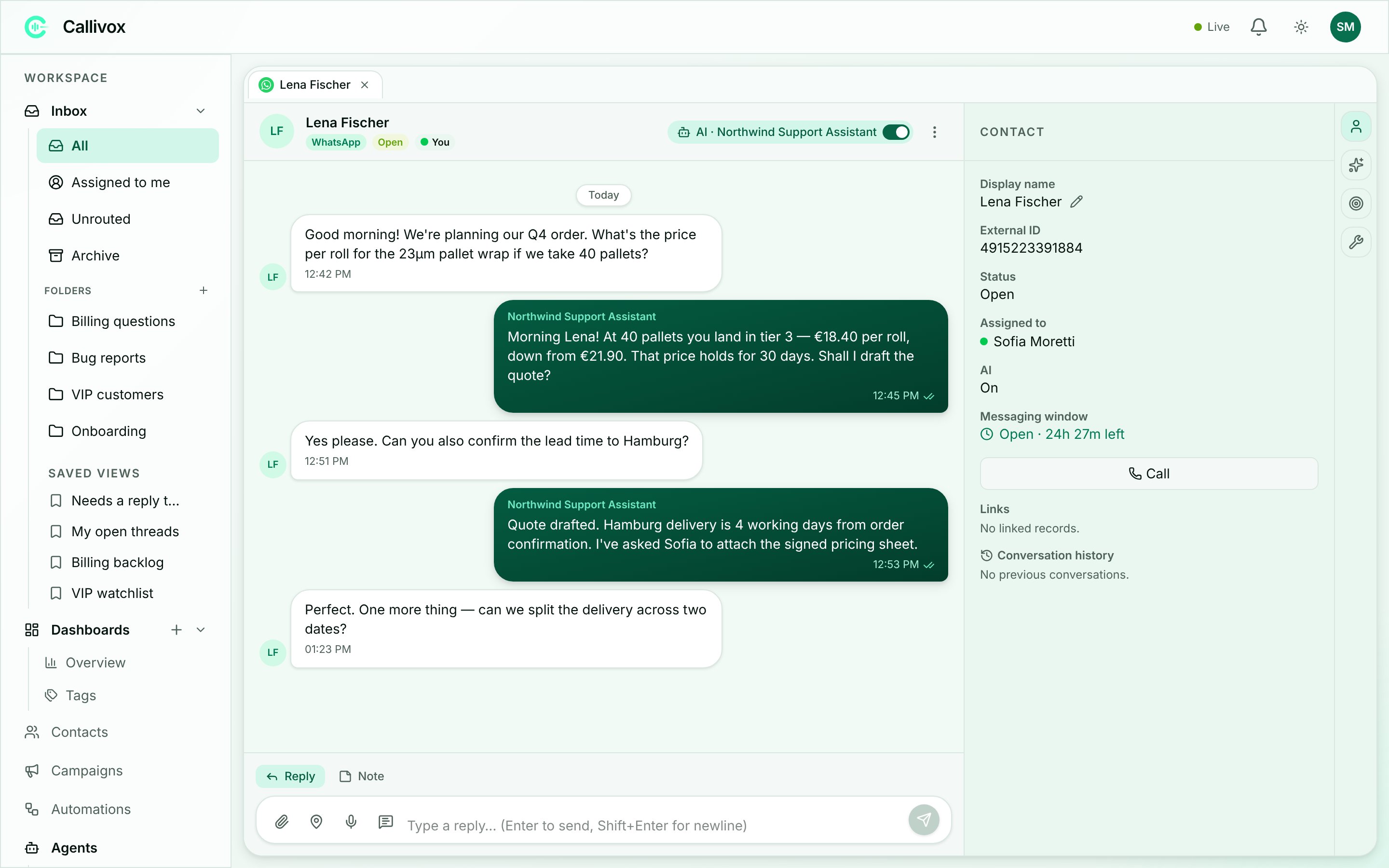 A narrow icon rail runs down the right edge of the conversation. Click an icon to open its panel; click it again to close. One panel is open at a time.
Who you are talking to: **Display name**, **External ID**, **Status**, **Assigned to**, and the **AI** state.
On WhatsApp it also shows the **Messaging window** — "Open · 3h 12m left", "Closed · template required", or "No customer message yet" — refreshed as you watch, so you know before you type whether a free-form reply will go through.
**Links** lists any CRM records connected to this conversation, and website-widget conversations add what is known about the visitor.
At the bottom, **Conversation history** lists this contact's earlier closed conversations with their dates. Click one to read it.
Where your plan includes voice, a **Call** button starts an outbound call to this contact.
A summary of the conversation, the customer's mood, drafted replies you can insert, and answers pulled from your knowledge base. See [AI in the inbox](/inbox/ai-in-the-inbox).
The agent's **Objective** and whether it has been met, the **Collected variables** it has gathered from the conversation, and **Diagnostics** explaining any message the AI chose not to answer.
Every action the agent took during the conversation — the tool it called, how long it took, and what went in and came out.
On a phone the panels are hidden; you see the thread and the composer only.
## Next steps
Drafted suggestions, AI replies, handoffs and automatic tagging.
Save and reuse the replies you send most.
Decide where conversations land and who sees them.
The person behind the conversation, and their whole history with you.
A narrow icon rail runs down the right edge of the conversation. Click an icon to open its panel; click it again to close. One panel is open at a time.
Who you are talking to: **Display name**, **External ID**, **Status**, **Assigned to**, and the **AI** state.
On WhatsApp it also shows the **Messaging window** — "Open · 3h 12m left", "Closed · template required", or "No customer message yet" — refreshed as you watch, so you know before you type whether a free-form reply will go through.
**Links** lists any CRM records connected to this conversation, and website-widget conversations add what is known about the visitor.
At the bottom, **Conversation history** lists this contact's earlier closed conversations with their dates. Click one to read it.
Where your plan includes voice, a **Call** button starts an outbound call to this contact.
A summary of the conversation, the customer's mood, drafted replies you can insert, and answers pulled from your knowledge base. See [AI in the inbox](/inbox/ai-in-the-inbox).
The agent's **Objective** and whether it has been met, the **Collected variables** it has gathered from the conversation, and **Diagnostics** explaining any message the AI chose not to answer.
Every action the agent took during the conversation — the tool it called, how long it took, and what went in and came out.
On a phone the panels are hidden; you see the thread and the composer only.
## Next steps
Drafted suggestions, AI replies, handoffs and automatic tagging.
Save and reuse the replies you send most.
Decide where conversations land and who sees them.
The person behind the conversation, and their whole history with you.