> ## Documentation Index
> Fetch the complete documentation index at: https://docs.callivox.com/llms.txt
> Use this file to discover all available pages before exploring further.
# Folders and views
> How folders, team inboxes and Unrouted organise the inbox, how to create and share folders, and how saved views remember a filter.
Folders decide where conversations land and who sees them. Saved views remember a filter you use often. Together they turn one shared inbox into a set of manageable queues.
 ## The kinds of folder
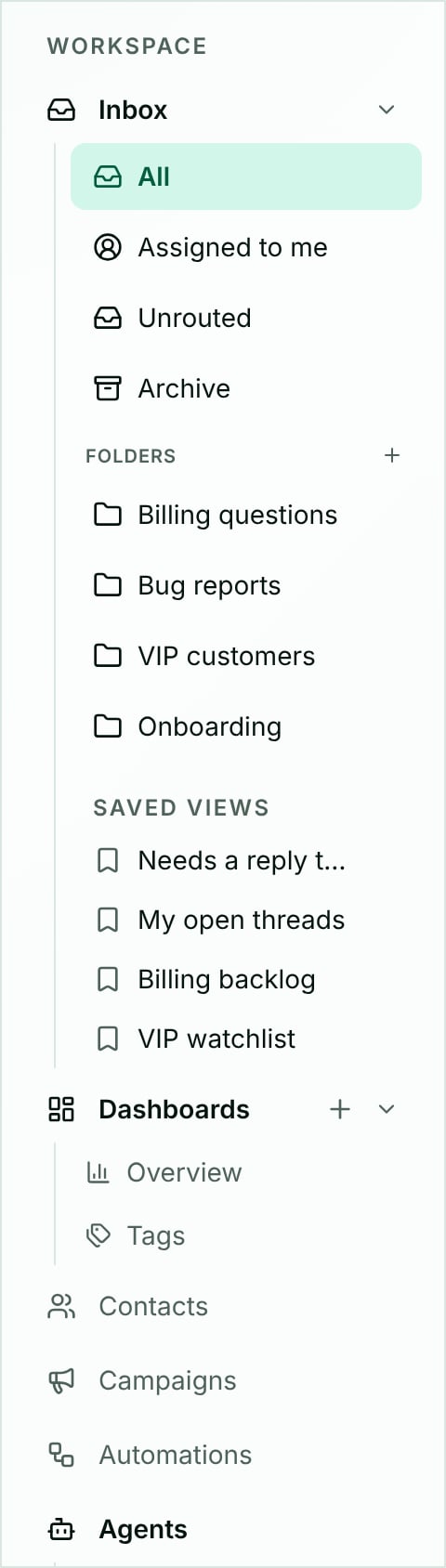
The sidebar groups folders into sections, and each section means something different.
| Section | What it holds |
| ---------------- | ------------------------------------------------------------------------------------------------------ |
| Fixed rows | **All**, **Assigned to me**, **Unrouted**, **Call Logs**, **Archive** — always present, in that order. |
| **System** | Folders Callivox maintains for you. They can be renamed and restyled but not deleted. |
| **Folders** | Folders your workspace created, such as **Support** or **Sales**. |
| **Team inboxes** | Folders that belong to a team rather than to the workspace at large. |
| **Saved views** | Your own saved filters. Not folders — see below. |
**Archive** is not somewhere you file things. It is every closed conversation you have access to, and a conversation lands there by being closed.
**Call Logs** leaves the inbox altogether and opens the [call log](/voice-agents/call-logs). It appears only when your plan includes voice and a voice connection is set up.
## Unrouted
A conversation starts life with no folder. **Unrouted** is where those conversations wait.
If you have [routing rules](/settings/folders-and-rules), they run when a conversation arrives and file it into the right folder — Unrouted stays empty and nothing sits there long. If you have no rules yet, everything collects in Unrouted, which is a perfectly workable way to start: one queue, everyone watching it.
On a brand-new workspace the Unrouted folder does not exist until the first conversation is routed, so the row shows its empty state rather than a list. This is normal — it fills in once messages start arriving.
Deleting a folder moves its conversations back to Unrouted, so nothing is ever orphaned.
## Creating and managing folders
Folders are managed under **Settings → Folders**, which you can reach from the **+** button on the **Folders** heading in the sidebar. The page has the folder list on the left and the selected folder's settings on the right.
Give it a **Name** — something a teammate would recognise, like "Support" or "Billing".
These are what your team scans for in the sidebar, so make them distinct.
In the **Members** section, search for a teammate and add them with an **Access level** of **ReadWrite** or **Read**.
Folder membership is what makes a folder visible to a teammate. Someone who is not a member does not see the folder in their sidebar and does not see its conversations.
* **ReadWrite** — they can read and reply.
* **Read** — they can read only.
Name, colour and icon can be changed at any time from the folder's detail panel. System folders show "System folder — cannot be deleted."
Deleting a folder is confirmed with "Delete '\'? Conversations in this folder will move to Unrouted." The conversations survive; the folder and its membership do not.
## Team inboxes
A folder that belongs to a team appears under **Team inboxes** instead of **Folders**. It behaves exactly like any other folder — the separate section exists so a shared queue for a team reads differently in the sidebar from a folder one person set up.
Use a team inbox when a group of people share responsibility for a queue and the conversations are not assigned to anybody in particular until someone picks one up.
## Moving conversations between folders
Two ways:
* **One at a time** — **More actions** menu on the conversation → **MOVE TO FOLDER** → pick the folder.
* **In bulk** — select rows in the list and use **Move…** in the toolbar that appears.
Moving writes a **Moved to a different folder** marker into the conversation's timeline.
To move conversations automatically as they arrive, use [routing rules](/settings/folders-and-rules) — a rule can file a conversation into a folder, assign it, set its subject and more, based on conditions like the channel, the sender's country or what the message says.
## Saved views
## The kinds of folder
The sidebar groups folders into sections, and each section means something different.
| Section | What it holds |
| ---------------- | ------------------------------------------------------------------------------------------------------ |
| Fixed rows | **All**, **Assigned to me**, **Unrouted**, **Call Logs**, **Archive** — always present, in that order. |
| **System** | Folders Callivox maintains for you. They can be renamed and restyled but not deleted. |
| **Folders** | Folders your workspace created, such as **Support** or **Sales**. |
| **Team inboxes** | Folders that belong to a team rather than to the workspace at large. |
| **Saved views** | Your own saved filters. Not folders — see below. |
**Archive** is not somewhere you file things. It is every closed conversation you have access to, and a conversation lands there by being closed.
**Call Logs** leaves the inbox altogether and opens the [call log](/voice-agents/call-logs). It appears only when your plan includes voice and a voice connection is set up.
## Unrouted
A conversation starts life with no folder. **Unrouted** is where those conversations wait.
If you have [routing rules](/settings/folders-and-rules), they run when a conversation arrives and file it into the right folder — Unrouted stays empty and nothing sits there long. If you have no rules yet, everything collects in Unrouted, which is a perfectly workable way to start: one queue, everyone watching it.
On a brand-new workspace the Unrouted folder does not exist until the first conversation is routed, so the row shows its empty state rather than a list. This is normal — it fills in once messages start arriving.
Deleting a folder moves its conversations back to Unrouted, so nothing is ever orphaned.
## Creating and managing folders
Folders are managed under **Settings → Folders**, which you can reach from the **+** button on the **Folders** heading in the sidebar. The page has the folder list on the left and the selected folder's settings on the right.
Give it a **Name** — something a teammate would recognise, like "Support" or "Billing".
These are what your team scans for in the sidebar, so make them distinct.
In the **Members** section, search for a teammate and add them with an **Access level** of **ReadWrite** or **Read**.
Folder membership is what makes a folder visible to a teammate. Someone who is not a member does not see the folder in their sidebar and does not see its conversations.
* **ReadWrite** — they can read and reply.
* **Read** — they can read only.
Name, colour and icon can be changed at any time from the folder's detail panel. System folders show "System folder — cannot be deleted."
Deleting a folder is confirmed with "Delete '\'? Conversations in this folder will move to Unrouted." The conversations survive; the folder and its membership do not.
## Team inboxes
A folder that belongs to a team appears under **Team inboxes** instead of **Folders**. It behaves exactly like any other folder — the separate section exists so a shared queue for a team reads differently in the sidebar from a folder one person set up.
Use a team inbox when a group of people share responsibility for a queue and the conversations are not assigned to anybody in particular until someone picks one up.
## Moving conversations between folders
Two ways:
* **One at a time** — **More actions** menu on the conversation → **MOVE TO FOLDER** → pick the folder.
* **In bulk** — select rows in the list and use **Move…** in the toolbar that appears.
Moving writes a **Moved to a different folder** marker into the conversation's timeline.
To move conversations automatically as they arrive, use [routing rules](/settings/folders-and-rules) — a rule can file a conversation into a folder, assign it, set its subject and more, based on conditions like the channel, the sender's country or what the message says.
## Saved views
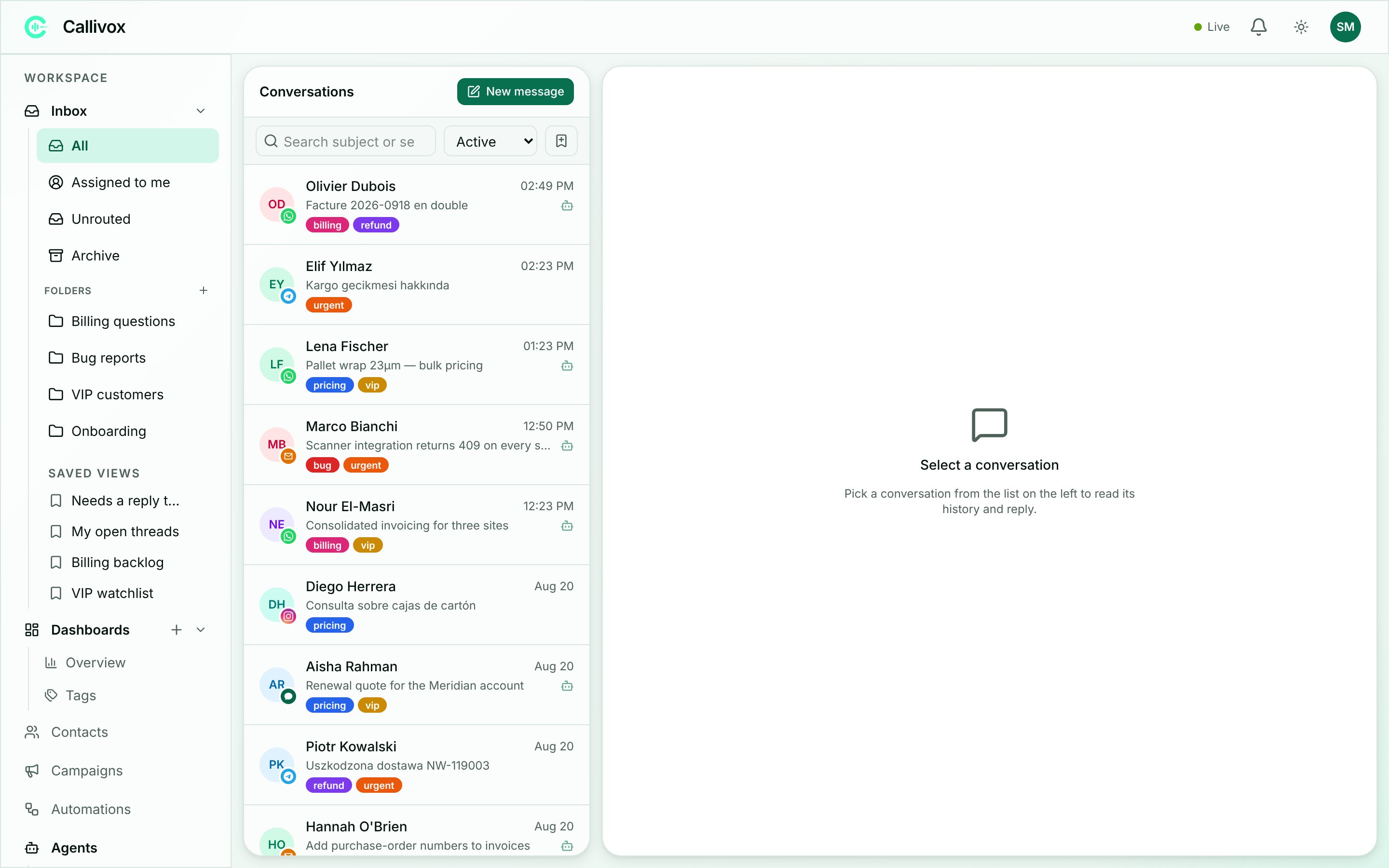 A saved view remembers a combination of **folder**, **status filter** and **search text** under a name of your choosing. It is a shortcut to a list you keep rebuilding by hand — "Support, open only", or "everything mentioning refund".
### Creating one
Pick the folder, set the status filter, type a search term if you want one.
A small box opens with a **View name** field.
Pressing **Enter** saves it too. You will see "View saved", and the view appears under **Saved views** in the sidebar.
Click a saved view to apply it. It restores the folder, the status and the search exactly as they were when you saved it.
### Deleting one
Hover the view in the sidebar and a trash icon appears. Click it and the icon turns into a **Delete?** button — click that to confirm.
### What saved views cannot do
Saved views are **yours alone**. They are not shared with your team, and there is no way to publish one. If a whole team needs the same queue, make it a folder with members instead.
They also cannot be renamed once created — delete the view and save a new one under the right name. And they do not store an assignee: a view saved on **Assigned to me** stays "assigned to whoever is looking", which is what you usually want.
## Choosing between a folder and a saved view
| Use a folder when | Use a saved view when |
| -------------------------------------------------- | ------------------------------------------------------ |
| A group of people needs to see the same queue. | The filter is a personal working habit. |
| You want conversations routed there automatically. | You want to save typing, not change where things live. |
| Access needs controlling. | Nobody else needs it. |
## Next steps
Set up routing rules that file conversations automatically.
Assign, move, close and reopen conversations.
A saved view remembers a combination of **folder**, **status filter** and **search text** under a name of your choosing. It is a shortcut to a list you keep rebuilding by hand — "Support, open only", or "everything mentioning refund".
### Creating one
Pick the folder, set the status filter, type a search term if you want one.
A small box opens with a **View name** field.
Pressing **Enter** saves it too. You will see "View saved", and the view appears under **Saved views** in the sidebar.
Click a saved view to apply it. It restores the folder, the status and the search exactly as they were when you saved it.
### Deleting one
Hover the view in the sidebar and a trash icon appears. Click it and the icon turns into a **Delete?** button — click that to confirm.
### What saved views cannot do
Saved views are **yours alone**. They are not shared with your team, and there is no way to publish one. If a whole team needs the same queue, make it a folder with members instead.
They also cannot be renamed once created — delete the view and save a new one under the right name. And they do not store an assignee: a view saved on **Assigned to me** stays "assigned to whoever is looking", which is what you usually want.
## Choosing between a folder and a saved view
| Use a folder when | Use a saved view when |
| -------------------------------------------------- | ------------------------------------------------------ |
| A group of people needs to see the same queue. | The filter is a personal working habit. |
| You want conversations routed there automatically. | You want to save typing, not change where things live. |
| Access needs controlling. | Nobody else needs it. |
## Next steps
Set up routing rules that file conversations automatically.
Assign, move, close and reopen conversations.