> ## Documentation Index
> Fetch the complete documentation index at: https://docs.callivox.com/llms.txt
> Use this file to discover all available pages before exploring further.
# Canned responses
> Save the replies your team sends over and over, share them, add files and placeholders, and insert them in the composer in two keystrokes.
A canned response is a saved reply. Instead of retyping your opening hours, your returns policy or your handover message for the twentieth time, you save it once and drop it into the composer with a couple of keystrokes.
 ## Where they live
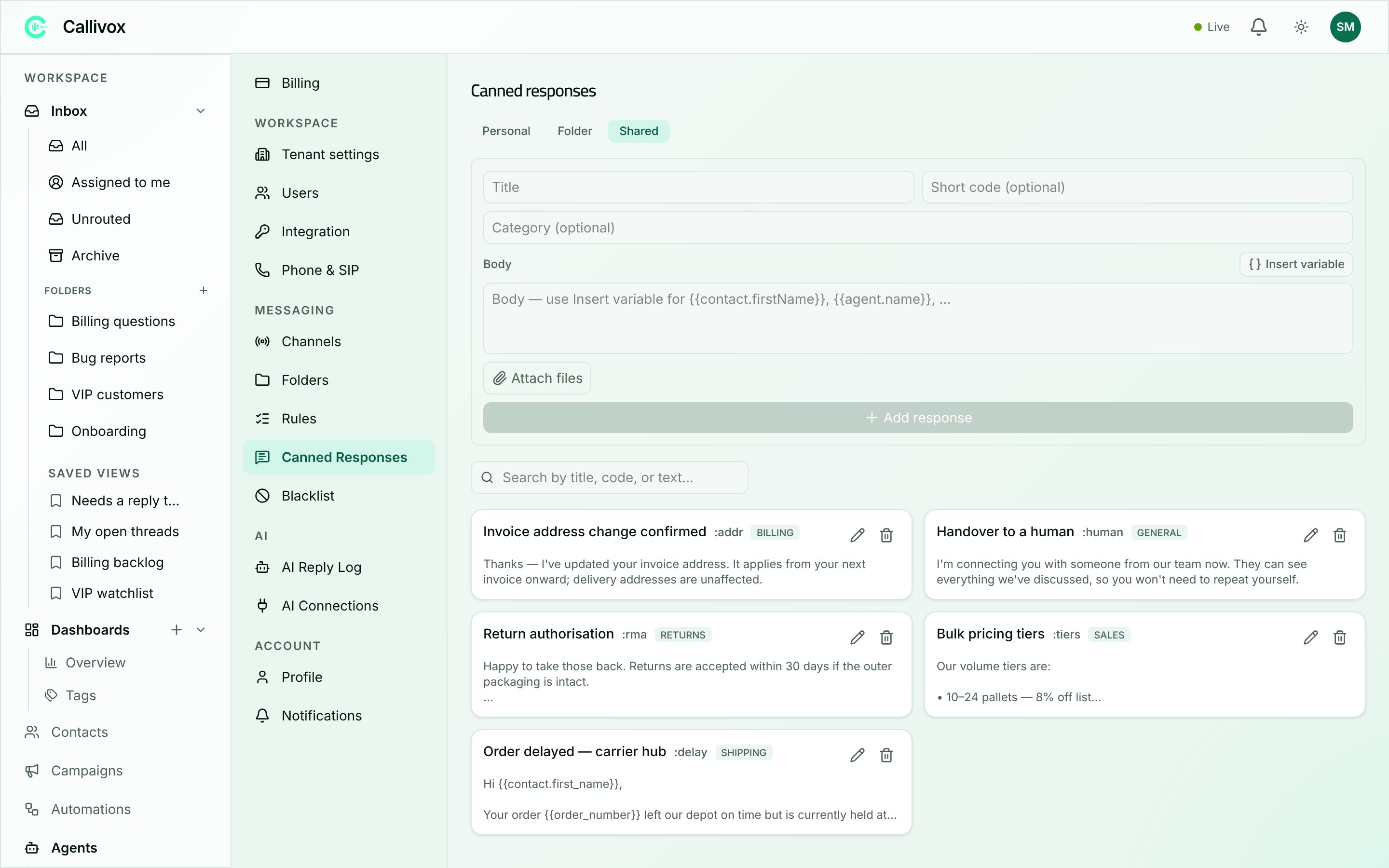
Canned responses are managed under **Settings → Canned responses**. Three tabs at the top decide who a response belongs to:
| Scope | Who can use it |
| ------------ | ----------------------------------------------------------------------------------------- |
| **Personal** | You only. |
| **Folder** | Everyone with access to the folder you pick. Choosing this tab reveals a folder selector. |
| **Shared** | Everyone in the workspace. **Admin** only. |
Start personal. Promote something to **Shared** once you notice a teammate asking for it.
## Creating one
**Personal**, **Folder** (then choose the folder) or **Shared**.
This is what you search for in the picker, so name it the way you would look for it: "Refund policy", not "Reply 3".
A short word you can type to insert the response without opening the picker. Keep it memorable — `refund`, `hours`, `bye`.
Categories group the responses under headings in the picker. Worth it once you have more than a handful.
Use the **Insert variable** dropdown to drop in a placeholder such as the contact's first name.
Upload the price list, the returns form, the setup guide. They travel with the response.
The list below the form has a search box — **Search by title, code, or text…** — and **Edit** and **Delete** buttons on each row.
Deleting a **Shared** or **Folder** response removes it for everyone who uses it, along with its attached files. The confirmation dialog says so.
## Placeholders
A placeholder is filled in from the conversation at the moment you insert the response, so one saved reply greets every customer by their own name.
| Placeholder | Fills in with |
| ----------------------- | ---------------------------------- |
| `{{contact.name}}` | The contact's name |
| `{{contact.firstName}}` | The contact's first name |
| `{{contact.phone}}` | The contact's phone number |
| `{{contact.email}}` | The contact's email address |
| `{{agent.name}}` | Your name |
| `{{folder.name}}` | The folder the conversation is in |
| `{{channel.name}}` | The channel the conversation is on |
Those seven are the whole list. Use the **Insert variable** dropdown rather than typing them — it puts the right token in at the cursor.
When a value is missing — a contact with no first name on file, for example — the placeholder resolves to nothing and leaves a visible gap in the draft. That is on purpose: you see the hole before you press send, and can fix it. Read the text back before sending a response that leans on placeholders.
## Using one in the composer
Three ways, all doing the same thing:
Type `/` in the composer. A searchable list opens, grouped by category. Keep typing to filter, use **↑** and **↓** to move, **Enter** to insert, **Escape** to close. Responses with files show a paperclip. When nothing matches you will see "No canned responses match."
Type `:` followed by the short code and press space — `:refund ` — and the text expands in place, without the picker opening.
The **Insert canned response** button in the composer's icon row opens the same picker.
Inserting puts the text in your draft — it does not send it. Edit it, add to it, then send as normal.
If two responses share a short code, yours wins over a folder's, and a folder's wins over a shared one. That way a personal shortcut always does what you expect.
### Attached files
When a canned response has files saved on it, inserting the response also attaches those files to your draft. You do not need to go and find them.
If the files cannot be attached you will see "Could not attach the saved files" — the text is still inserted, and you can attach them by hand.
## Saving a message you already sent
The quickest way to build up a library is to notice a good reply after the fact.
Hover any text message in a conversation and click the bookmark button — **Save as canned response**. A dialog opens with the message already in it, and asks for:
* **Title**
* **Scope** — **Personal**, or **Shared (admin)** if you are an admin
* **Category**
* **Short code**
Save it and it is available from the next conversation onwards.
## Next steps
Everything else the composer can do.
Let an assist agent draft the reply instead.
## Where they live
Canned responses are managed under **Settings → Canned responses**. Three tabs at the top decide who a response belongs to:
| Scope | Who can use it |
| ------------ | ----------------------------------------------------------------------------------------- |
| **Personal** | You only. |
| **Folder** | Everyone with access to the folder you pick. Choosing this tab reveals a folder selector. |
| **Shared** | Everyone in the workspace. **Admin** only. |
Start personal. Promote something to **Shared** once you notice a teammate asking for it.
## Creating one
**Personal**, **Folder** (then choose the folder) or **Shared**.
This is what you search for in the picker, so name it the way you would look for it: "Refund policy", not "Reply 3".
A short word you can type to insert the response without opening the picker. Keep it memorable — `refund`, `hours`, `bye`.
Categories group the responses under headings in the picker. Worth it once you have more than a handful.
Use the **Insert variable** dropdown to drop in a placeholder such as the contact's first name.
Upload the price list, the returns form, the setup guide. They travel with the response.
The list below the form has a search box — **Search by title, code, or text…** — and **Edit** and **Delete** buttons on each row.
Deleting a **Shared** or **Folder** response removes it for everyone who uses it, along with its attached files. The confirmation dialog says so.
## Placeholders
A placeholder is filled in from the conversation at the moment you insert the response, so one saved reply greets every customer by their own name.
| Placeholder | Fills in with |
| ----------------------- | ---------------------------------- |
| `{{contact.name}}` | The contact's name |
| `{{contact.firstName}}` | The contact's first name |
| `{{contact.phone}}` | The contact's phone number |
| `{{contact.email}}` | The contact's email address |
| `{{agent.name}}` | Your name |
| `{{folder.name}}` | The folder the conversation is in |
| `{{channel.name}}` | The channel the conversation is on |
Those seven are the whole list. Use the **Insert variable** dropdown rather than typing them — it puts the right token in at the cursor.
When a value is missing — a contact with no first name on file, for example — the placeholder resolves to nothing and leaves a visible gap in the draft. That is on purpose: you see the hole before you press send, and can fix it. Read the text back before sending a response that leans on placeholders.
## Using one in the composer
Three ways, all doing the same thing:
Type `/` in the composer. A searchable list opens, grouped by category. Keep typing to filter, use **↑** and **↓** to move, **Enter** to insert, **Escape** to close. Responses with files show a paperclip. When nothing matches you will see "No canned responses match."
Type `:` followed by the short code and press space — `:refund ` — and the text expands in place, without the picker opening.
The **Insert canned response** button in the composer's icon row opens the same picker.
Inserting puts the text in your draft — it does not send it. Edit it, add to it, then send as normal.
If two responses share a short code, yours wins over a folder's, and a folder's wins over a shared one. That way a personal shortcut always does what you expect.
### Attached files
When a canned response has files saved on it, inserting the response also attaches those files to your draft. You do not need to go and find them.
If the files cannot be attached you will see "Could not attach the saved files" — the text is still inserted, and you can attach them by hand.
## Saving a message you already sent
The quickest way to build up a library is to notice a good reply after the fact.
Hover any text message in a conversation and click the bookmark button — **Save as canned response**. A dialog opens with the message already in it, and asks for:
* **Title**
* **Scope** — **Personal**, or **Shared (admin)** if you are an admin
* **Category**
* **Short code**
Save it and it is available from the next conversation onwards.
## Next steps
Everything else the composer can do.
Let an assist agent draft the reply instead.