> ## Documentation Index
> Fetch the complete documentation index at: https://docs.callivox.com/llms.txt
> Use this file to discover all available pages before exploring further.
# Managing contacts
> The contact list and its filters, creating and editing contacts, channel addresses, tags, opt-out, and Human Only AI handling.
Contacts are the people you talk to. Every conversation belongs to one, campaigns are sent to them, and the contact record is where their history lives. Contacts sit under **Contacts** in the sidebar.
 ## The list
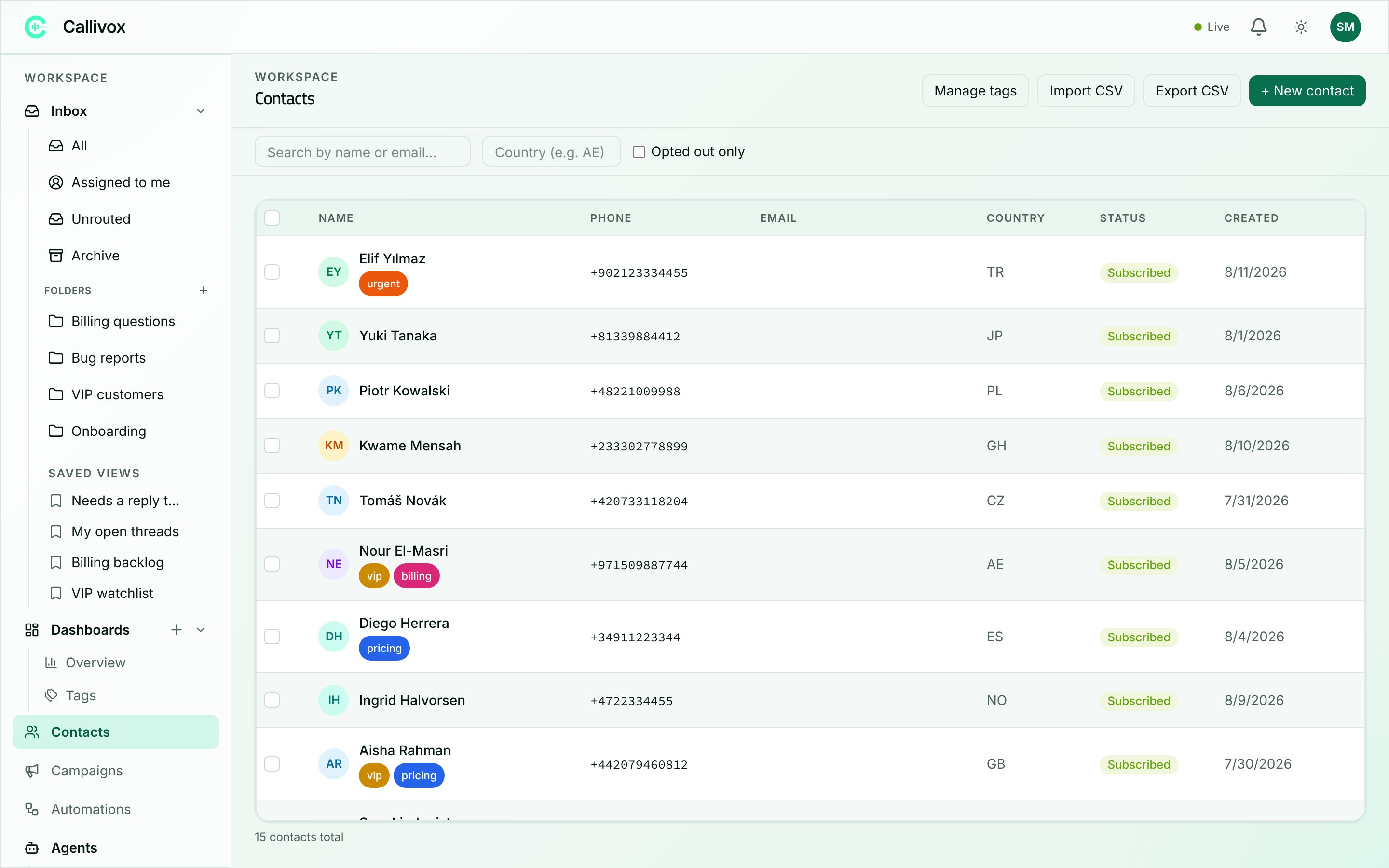
The grid shows these columns:
| Column | What it holds |
| ----------- | -------------------------------------------------------------------------------------------------------------------------- |
| **Name** | The contact's name with their avatar and up to three tag chips (**+N** when there are more). Click it to open the contact. |
| **Phone** | Their phone number, or `—` when you have none. |
| **Email** | Their email address. |
| **Country** | A two-letter country code. |
| **Status** | **Subscribed**, or **Opted out** in red. |
| **Created** | When the contact was first recorded. |
Click a column heading to sort by it. The list loads 50 at a time — the **Load more** button at the bottom brings in the next batch, and the counter beside it reads "N contacts total (M loaded)".
On a phone the grid becomes a list of tappable cards showing the name, status, phone number and tags.
### Finding people
The filter bar above the grid has:
* **Search by name or email…** — filters as you type.
* **Country (e.g. AE)** — narrows to one country, by its two-letter code.
* **Opted out only** — shows only the people who have opted out of marketing.
Once any filter is set, a **Clear filters** link appears to reset them all.
### Acting on several at once
Tick the checkboxes on the rows you want and a toolbar appears reading **N selected**:
* **Opt out** — marks them all as opted out of campaigns.
* **Delete** — removes them, after confirming: "This will permanently delete N contacts. This can't be undone."
* **Clear selection**
Deleting a contact cannot be undone. If your goal is to stop messaging someone, opt them out instead — that keeps their history and their conversations intact.
Bulk selection is a desktop feature.
## Creating a contact
Click **+ New contact**. Only the name is required; everything else can be filled in later.
| Field | Notes |
| --------------------- | ------------------------------------------------------------------------------------------ |
| **Name** | Required. |
| **Phone** | In international format, for example `+966501234567`. |
| **Email** | Also the key used when importing — see [Import and export](/contacts/import-and-export). |
| **Age** | |
| **Country (ISO-2)** | Two letters, such as `AE`. |
| **Gender** | Blank, **Male** or **Female**. |
| **Tags** | Chips you switch on and off. Empty at first: "No tags yet. Create tags via 'Manage tags'." |
| **Channel addresses** | See below. |
| **Notes** | "Internal notes about this contact…" — one free-text field, only your team sees it. |
Click **Create** to save. Editing later uses the same dialog, titled **Edit contact**.
## Channel addresses
A contact record on its own has no way to receive a message. What connects a person to a channel is their **address on that channel** — their WhatsApp number, their Telegram chat, their email address.
Click **Add address** in the contact dialog to add one: pick the channel, then type the identifier. The placeholder tells you what is expected — "Phone (e.g. 966501234567)" for WhatsApp, "Chat / user ID" otherwise.
This link matters in two directions:
* **Inbound** — when a message arrives, Callivox matches its sender to a contact through these addresses. That is how a conversation gets a name instead of a phone number, and how the contact's history stays in one place.
* **Outbound** — a campaign can only reach a contact on a channel they have an address for. Contacts with no address on a campaign's channel are not part of that audience.
Addresses already on a contact are shown read-only when you edit — you can add new ones, but not change or remove existing ones from this dialog. If you have not connected a channel yet, the dialog says "Connect a channel first to associate an address (needed for campaigns)."
A contact can hold several addresses across several channels. Whichever one they write from, their messages land against the same person.
## The contact page
## The list
The grid shows these columns:
| Column | What it holds |
| ----------- | -------------------------------------------------------------------------------------------------------------------------- |
| **Name** | The contact's name with their avatar and up to three tag chips (**+N** when there are more). Click it to open the contact. |
| **Phone** | Their phone number, or `—` when you have none. |
| **Email** | Their email address. |
| **Country** | A two-letter country code. |
| **Status** | **Subscribed**, or **Opted out** in red. |
| **Created** | When the contact was first recorded. |
Click a column heading to sort by it. The list loads 50 at a time — the **Load more** button at the bottom brings in the next batch, and the counter beside it reads "N contacts total (M loaded)".
On a phone the grid becomes a list of tappable cards showing the name, status, phone number and tags.
### Finding people
The filter bar above the grid has:
* **Search by name or email…** — filters as you type.
* **Country (e.g. AE)** — narrows to one country, by its two-letter code.
* **Opted out only** — shows only the people who have opted out of marketing.
Once any filter is set, a **Clear filters** link appears to reset them all.
### Acting on several at once
Tick the checkboxes on the rows you want and a toolbar appears reading **N selected**:
* **Opt out** — marks them all as opted out of campaigns.
* **Delete** — removes them, after confirming: "This will permanently delete N contacts. This can't be undone."
* **Clear selection**
Deleting a contact cannot be undone. If your goal is to stop messaging someone, opt them out instead — that keeps their history and their conversations intact.
Bulk selection is a desktop feature.
## Creating a contact
Click **+ New contact**. Only the name is required; everything else can be filled in later.
| Field | Notes |
| --------------------- | ------------------------------------------------------------------------------------------ |
| **Name** | Required. |
| **Phone** | In international format, for example `+966501234567`. |
| **Email** | Also the key used when importing — see [Import and export](/contacts/import-and-export). |
| **Age** | |
| **Country (ISO-2)** | Two letters, such as `AE`. |
| **Gender** | Blank, **Male** or **Female**. |
| **Tags** | Chips you switch on and off. Empty at first: "No tags yet. Create tags via 'Manage tags'." |
| **Channel addresses** | See below. |
| **Notes** | "Internal notes about this contact…" — one free-text field, only your team sees it. |
Click **Create** to save. Editing later uses the same dialog, titled **Edit contact**.
## Channel addresses
A contact record on its own has no way to receive a message. What connects a person to a channel is their **address on that channel** — their WhatsApp number, their Telegram chat, their email address.
Click **Add address** in the contact dialog to add one: pick the channel, then type the identifier. The placeholder tells you what is expected — "Phone (e.g. 966501234567)" for WhatsApp, "Chat / user ID" otherwise.
This link matters in two directions:
* **Inbound** — when a message arrives, Callivox matches its sender to a contact through these addresses. That is how a conversation gets a name instead of a phone number, and how the contact's history stays in one place.
* **Outbound** — a campaign can only reach a contact on a channel they have an address for. Contacts with no address on a campaign's channel are not part of that audience.
Addresses already on a contact are shown read-only when you edit — you can add new ones, but not change or remove existing ones from this dialog. If you have not connected a channel yet, the dialog says "Connect a channel first to associate an address (needed for campaigns)."
A contact can hold several addresses across several channels. Whichever one they write from, their messages land against the same person.
## The contact page
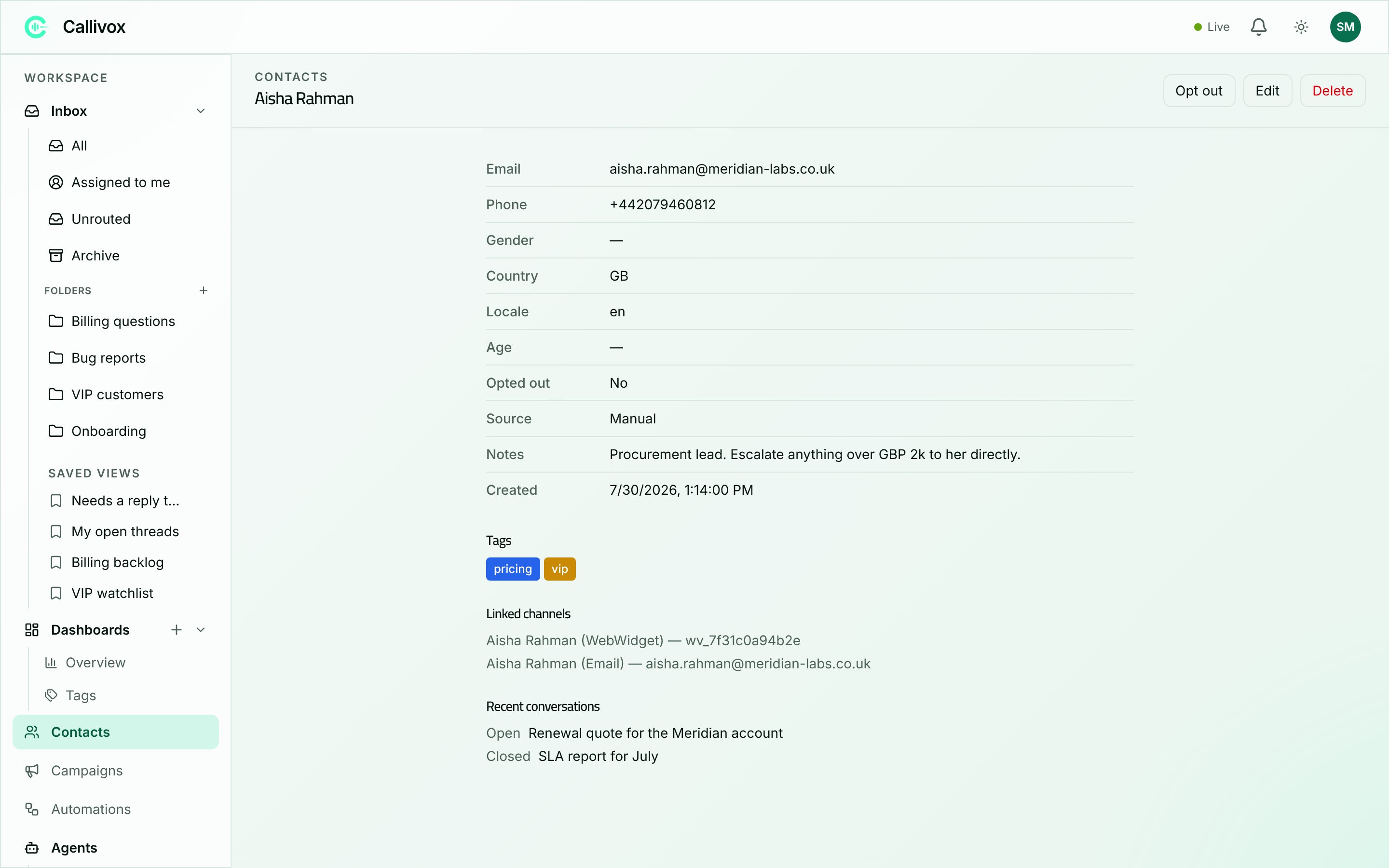 Click a name in the list to open it. The page shows every field on the record — **Email, Phone, Gender, Country, Locale, Age, Opted out, AI handling, Source, Notes, Created** — with `—` where you have nothing, plus three sections:
* **Tags** — the tags on this contact, as coloured chips.
* **Linked channels** — every channel address on the record, with the channel it belongs to.
* **Recent conversations** — their conversations with their statuses and subjects.
Because a closed conversation is never reused — the next message from someone starts a fresh one — this list is a genuine history of separate episodes rather than one long thread. See [the conversation lifecycle](/inbox/working-with-conversations).
The buttons at the top are **Make human only** / **Use default AI policy**, **Opt out** / **Undo opt-out**, **Edit** and **Delete**.
## Human Only AI handling
Every contact starts with **Use workspace default**. In that mode, Callivox decides whether AI answers from the existing conversation, folder, channel and workspace settings.
Choose **Make human only** when this person must always be handled by your team. The policy applies to every linked channel and to both existing and future conversations for that contact.
While **Human Only** is active:
* AI chat agents do not reply.
* AI and hybrid conversation flows do not reply.
* AI voice calls and voice campaigns cannot call the contact.
* Incoming messages still reach the inbox normally.
* Team members can still reply and call using non-AI workflows.
* Ordinary messaging campaigns and the contact's marketing opt-out status are unchanged.
An open conversation shows a **Human only** badge and its AI control is locked. Trying to enable AI through the API is also rejected, so a conversation setting cannot override the contact policy.
To allow AI again, open the contact and choose **Use default AI policy**. This does not force AI on; it returns the contact to the normal workspace AI settings.
Human Only controls customer-facing AI interaction. It is separate from marketing consent and from the channel blacklist.
## Tags
Tags are a shared vocabulary. The same tag can sit on a contact and on a conversation, so "VIP" or "Refund request" means one thing across the whole workspace.
Click **Manage tags** on the contacts list to open the tag manager. Type a name, pick a colour, and add it. Existing tags can be renamed, recoloured and deleted in place.
Conversation tags are also created automatically as Callivox reads your conversations, and they go into this same list. The [Tags page](/dashboards/overview) is the better place to curate a vocabulary that has grown — it can merge near-duplicates like "Refund" and "Refunds" into one, keeping everything that was tagged with either.
Tags are useful on contacts because campaigns can target them: "everyone tagged VIP" is a valid audience. See [Creating a campaign](/campaigns/creating-a-campaign).
## Opt-out, Human Only, and blocking
These three look similar and do different things. It is worth knowing which one you want.
| | **Opt out** | **Human Only** | **Block** |
| ------------- | ------------------------------------------ | ------------------------------------------------------------- | --------------------------------------------------------------------- |
| Lives on | The contact | The contact | A sender's address on one channel |
| Stops | Campaign messages | Customer-facing AI chat, flows and voice calls | Automated replies to that channel address |
| Does not stop | Your team replying, AI replying | Inbound messages, human replies, ordinary messaging campaigns | Your team replying by hand |
| Set from | The contact page, or the list bulk toolbar | The contact page | The conversation's **More actions** menu, or **Settings → Blacklist** |
**Opt out** is a marketing consent flag. An opted-out contact is excluded from every campaign audience, always — there is no way to override it in the campaign builder, and that is deliberate. Their status pill reads **Opted out**, and the **Opted out only** filter finds them all.
**Blocking** is about the AI. A blocked sender stops receiving automatic replies across every conversation on that channel, while your team can still answer them by hand. Their conversations show a red **Blocked** pill. See [Working with conversations](/inbox/working-with-conversations).
**Human Only** is the durable, contact-wide choice for someone who must always be handled by a person. Unlike blocking, it follows all channel addresses linked to the contact and also prevents AI voice calls.
Someone who asks to stop marketing messages should be opted out. Someone who must be handled by a person across every channel should be marked Human Only. Use blocking when you need to suppress automated replies from one specific channel address without changing the contact-wide policy.
## Next steps
Bring a contact list in, or take yours out.
Message a segment of your contacts.
Click a name in the list to open it. The page shows every field on the record — **Email, Phone, Gender, Country, Locale, Age, Opted out, AI handling, Source, Notes, Created** — with `—` where you have nothing, plus three sections:
* **Tags** — the tags on this contact, as coloured chips.
* **Linked channels** — every channel address on the record, with the channel it belongs to.
* **Recent conversations** — their conversations with their statuses and subjects.
Because a closed conversation is never reused — the next message from someone starts a fresh one — this list is a genuine history of separate episodes rather than one long thread. See [the conversation lifecycle](/inbox/working-with-conversations).
The buttons at the top are **Make human only** / **Use default AI policy**, **Opt out** / **Undo opt-out**, **Edit** and **Delete**.
## Human Only AI handling
Every contact starts with **Use workspace default**. In that mode, Callivox decides whether AI answers from the existing conversation, folder, channel and workspace settings.
Choose **Make human only** when this person must always be handled by your team. The policy applies to every linked channel and to both existing and future conversations for that contact.
While **Human Only** is active:
* AI chat agents do not reply.
* AI and hybrid conversation flows do not reply.
* AI voice calls and voice campaigns cannot call the contact.
* Incoming messages still reach the inbox normally.
* Team members can still reply and call using non-AI workflows.
* Ordinary messaging campaigns and the contact's marketing opt-out status are unchanged.
An open conversation shows a **Human only** badge and its AI control is locked. Trying to enable AI through the API is also rejected, so a conversation setting cannot override the contact policy.
To allow AI again, open the contact and choose **Use default AI policy**. This does not force AI on; it returns the contact to the normal workspace AI settings.
Human Only controls customer-facing AI interaction. It is separate from marketing consent and from the channel blacklist.
## Tags
Tags are a shared vocabulary. The same tag can sit on a contact and on a conversation, so "VIP" or "Refund request" means one thing across the whole workspace.
Click **Manage tags** on the contacts list to open the tag manager. Type a name, pick a colour, and add it. Existing tags can be renamed, recoloured and deleted in place.
Conversation tags are also created automatically as Callivox reads your conversations, and they go into this same list. The [Tags page](/dashboards/overview) is the better place to curate a vocabulary that has grown — it can merge near-duplicates like "Refund" and "Refunds" into one, keeping everything that was tagged with either.
Tags are useful on contacts because campaigns can target them: "everyone tagged VIP" is a valid audience. See [Creating a campaign](/campaigns/creating-a-campaign).
## Opt-out, Human Only, and blocking
These three look similar and do different things. It is worth knowing which one you want.
| | **Opt out** | **Human Only** | **Block** |
| ------------- | ------------------------------------------ | ------------------------------------------------------------- | --------------------------------------------------------------------- |
| Lives on | The contact | The contact | A sender's address on one channel |
| Stops | Campaign messages | Customer-facing AI chat, flows and voice calls | Automated replies to that channel address |
| Does not stop | Your team replying, AI replying | Inbound messages, human replies, ordinary messaging campaigns | Your team replying by hand |
| Set from | The contact page, or the list bulk toolbar | The contact page | The conversation's **More actions** menu, or **Settings → Blacklist** |
**Opt out** is a marketing consent flag. An opted-out contact is excluded from every campaign audience, always — there is no way to override it in the campaign builder, and that is deliberate. Their status pill reads **Opted out**, and the **Opted out only** filter finds them all.
**Blocking** is about the AI. A blocked sender stops receiving automatic replies across every conversation on that channel, while your team can still answer them by hand. Their conversations show a red **Blocked** pill. See [Working with conversations](/inbox/working-with-conversations).
**Human Only** is the durable, contact-wide choice for someone who must always be handled by a person. Unlike blocking, it follows all channel addresses linked to the contact and also prevents AI voice calls.
Someone who asks to stop marketing messages should be opted out. Someone who must be handled by a person across every channel should be marked Human Only. Use blocking when you need to suppress automated replies from one specific channel address without changing the contact-wide policy.
## Next steps
Bring a contact list in, or take yours out.
Message a segment of your contacts.