> ## Documentation Index
> Fetch the complete documentation index at: https://docs.callivox.com/llms.txt
> Use this file to discover all available pages before exploring further.
# Website widget
> Create a chat widget for your website, style it, embed it with one script tag, and set up proactive messages.
The website widget is a chat bubble you embed on your own site. Visitors click it, type, and their message lands in your inbox like any other conversation — no account, no app, no phone number needed.
It is the only channel available on every plan, though it still counts toward your plan's channel limit.
## Creating the widget
Unlike the other channels, the widget is not configured in the connect dialog. Pick **Website** in the dialog and you get a hand-off card instead:
> The website chat widget has its own setup page with a **live preview** — name it, pick colors and position, list allowed domains, and grab the embed snippet, all side by side.
Click **Set up website widget →** to open **Set up website widget**: "Name the widget, list the domains it may load on, and style it — the preview shows exactly what visitors will see."
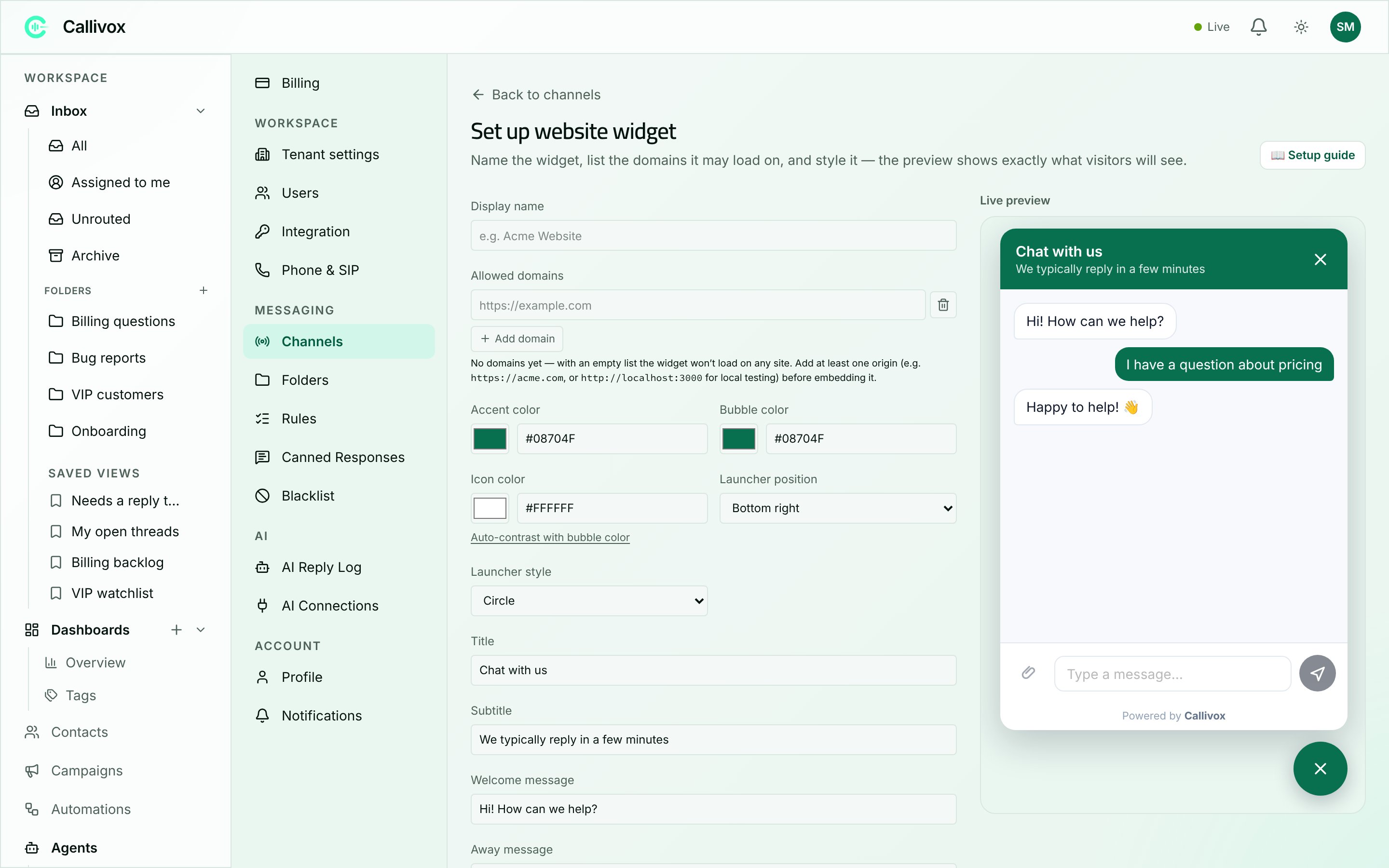 Everything on this page updates the **Live preview** panel as you type. The preview is the real widget, not a mock-up, so what you see is what visitors get.
### Name and domains
| Field | Notes |
| ------------------- | ------------------------------------------------------------------------------------------ |
| **Display name** | Required. How the channel appears in your inbox and settings — for example "Acme Website". |
| **Allowed domains** | The sites this widget may load on. Add one row per site with **Add domain**. |
Allowed domains are a security control: only sites on the list can load your widget, so nobody else can embed it and send messages into your inbox.
An empty list blocks everything. As the page puts it: "No domains yet — with an empty list the widget won't load on any site. Add at least one origin (e.g. [https://acme.com](https://acme.com), or [http://localhost:3000](http://localhost:3000) for local testing) before embedding it."
Enter a full origin — scheme and host, no path. `https://acme.com` is valid; `acme.com/support` is not, and returns "Not a valid domain. Use a full origin like [https://example.com](https://example.com) (no path)."
Add your staging and local development origins too, otherwise the widget will not appear when you test it before going live.
### Appearance
| Field | Default | What it does |
| ------------------------------ | ------------ | ------------------------------------------------------------------------ |
| **Accent color** | `#08704F` | The widget's main colour — header, buttons, your messages. |
| **Bubble color** | `#08704F` | The colour of the launcher bubble itself. |
| **Launcher position** | Bottom right | **Bottom right** or **Bottom left**. |
| **Launcher style** | Circle | **Circle**, **Rounded** or **Bar**. |
| **Logo** | — | Upload an image to show in the widget header. **Remove logo** clears it. |
| **Show "Powered by Callivox"** | On | Uncheck to hide the attribution line. |
Colours must be 6-digit hex values: "Accent color must be a 6-digit hex value, e.g. #08704F."
### Wording
| Field | Default |
| ------------------- | ---------------------------------------------------------- |
| **Title** | `Chat with us` |
| **Subtitle** | `We typically reply in a few minutes` |
| **Welcome message** | `Hi! How can we help?` |
| **Away message** | `We're away — leave your email and we'll get back to you.` |
The away message is "Shown when no agent is online and AI auto-reply is off." Set the subtitle to something you can honestly deliver — it is a promise on every visitor's screen.
Click **Create widget**. You will see "Website channel connected".
## Embedding it on your site
After creating the widget you land on a panel headed **Website widget connected**, with the embed snippet ready to copy.
Everything on this page updates the **Live preview** panel as you type. The preview is the real widget, not a mock-up, so what you see is what visitors get.
### Name and domains
| Field | Notes |
| ------------------- | ------------------------------------------------------------------------------------------ |
| **Display name** | Required. How the channel appears in your inbox and settings — for example "Acme Website". |
| **Allowed domains** | The sites this widget may load on. Add one row per site with **Add domain**. |
Allowed domains are a security control: only sites on the list can load your widget, so nobody else can embed it and send messages into your inbox.
An empty list blocks everything. As the page puts it: "No domains yet — with an empty list the widget won't load on any site. Add at least one origin (e.g. [https://acme.com](https://acme.com), or [http://localhost:3000](http://localhost:3000) for local testing) before embedding it."
Enter a full origin — scheme and host, no path. `https://acme.com` is valid; `acme.com/support` is not, and returns "Not a valid domain. Use a full origin like [https://example.com](https://example.com) (no path)."
Add your staging and local development origins too, otherwise the widget will not appear when you test it before going live.
### Appearance
| Field | Default | What it does |
| ------------------------------ | ------------ | ------------------------------------------------------------------------ |
| **Accent color** | `#08704F` | The widget's main colour — header, buttons, your messages. |
| **Bubble color** | `#08704F` | The colour of the launcher bubble itself. |
| **Launcher position** | Bottom right | **Bottom right** or **Bottom left**. |
| **Launcher style** | Circle | **Circle**, **Rounded** or **Bar**. |
| **Logo** | — | Upload an image to show in the widget header. **Remove logo** clears it. |
| **Show "Powered by Callivox"** | On | Uncheck to hide the attribution line. |
Colours must be 6-digit hex values: "Accent color must be a 6-digit hex value, e.g. #08704F."
### Wording
| Field | Default |
| ------------------- | ---------------------------------------------------------- |
| **Title** | `Chat with us` |
| **Subtitle** | `We typically reply in a few minutes` |
| **Welcome message** | `Hi! How can we help?` |
| **Away message** | `We're away — leave your email and we'll get back to you.` |
The away message is "Shown when no agent is online and AI auto-reply is off." Set the subtitle to something you can honestly deliver — it is a promise on every visitor's screen.
Click **Create widget**. You will see "Website channel connected".
## Embedding it on your site
After creating the widget you land on a panel headed **Website widget connected**, with the embed snippet ready to copy.
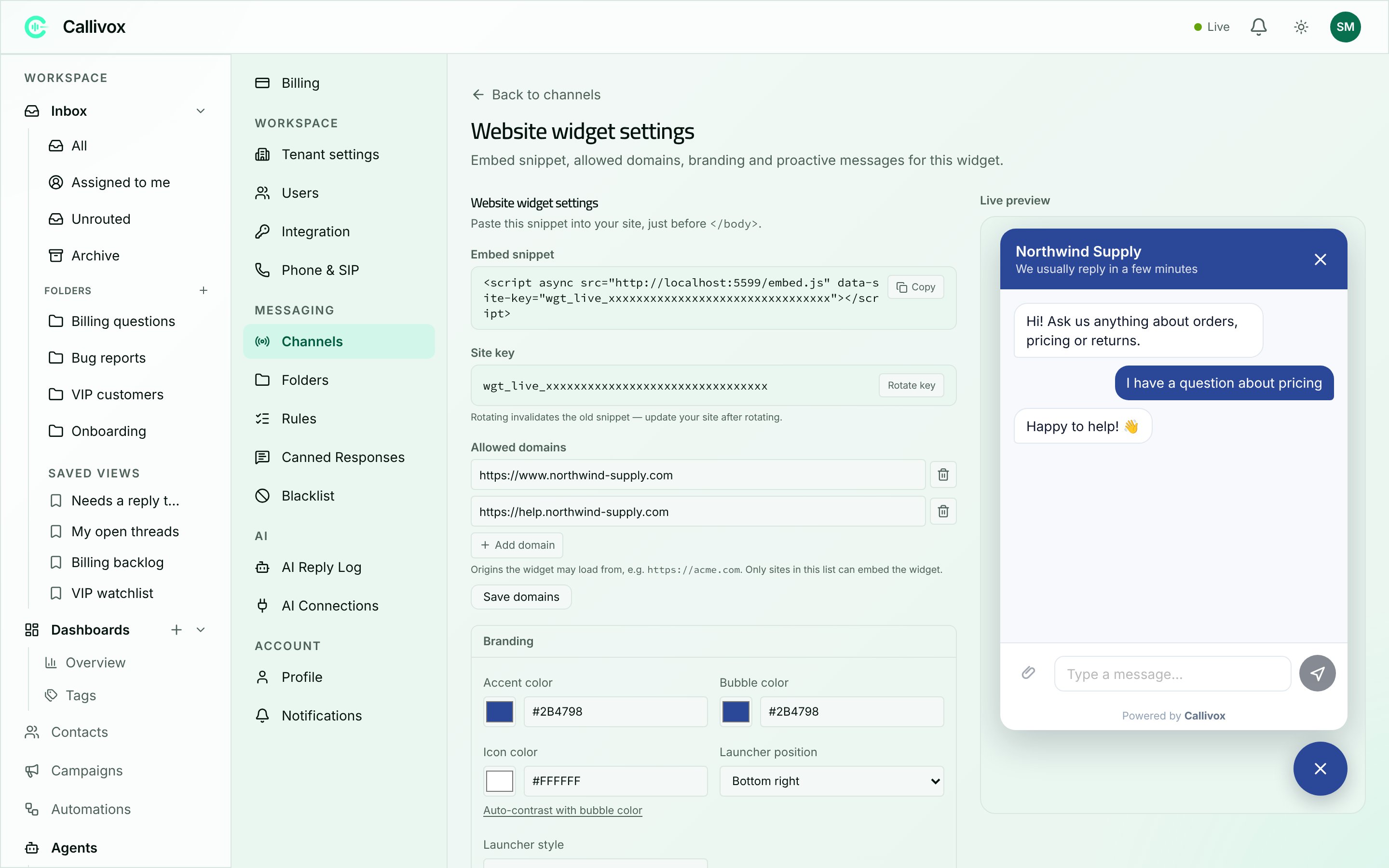 The snippet is a single script tag:
```html theme={null}
```
Paste it into your site's HTML immediately before the closing `` tag, on every page where the widget should appear. In most content management systems there is a "custom code", "footer scripts" or "before body end" box for exactly this.
Then load a page on one of your allowed domains. The launcher should appear in the corner you chose.
The snippet is a single script tag:
```html theme={null}
```
Paste it into your site's HTML immediately before the closing `` tag, on every page where the widget should appear. In most content management systems there is a "custom code", "footer scripts" or "before body end" box for exactly this.
Then load a page on one of your allowed domains. The launcher should appear in the corner you chose.