> ## Documentation Index
> Fetch the complete documentation index at: https://docs.callivox.com/llms.txt
> Use this file to discover all available pages before exploring further.
# Telegram
> Create a Telegram bot with BotFather and connect it to Callivox — the fastest channel to set up, in about two minutes.
Telegram is the quickest channel to connect. You create a bot on Telegram, copy the one token it gives you, and paste it into Callivox. There is no webhook to configure and no developer account to register — Callivox wires up the rest for you.
Anyone who messages your bot on Telegram shows up as a conversation in the inbox.
 ## Before you start
You need a Telegram account. That is the whole list.
## Create the bot
Open Telegram and search for **@BotFather** — the official bot for creating bots. Start a chat with it.
Send `/newbot`. BotFather will walk you through two questions.
First the display name, which is what people see at the top of the chat — "Acme Support" works well.
Then the username, which must be unique across Telegram and must end in `bot` — for example `acme_support_bot`. If the name is taken, BotFather asks again.
BotFather replies with a token that looks like `1234567890:ABC...`. Copy it.
Treat the bot token like a password. Anyone who has it can read and send messages as your bot. Do not paste it into a group chat, a ticket, or a shared document.
Still in BotFather, `/setuserpic` sets the bot's profile picture and `/setdescription` sets the text people see before they start the chat. Both are worth doing — they are the first thing a customer sees.
## Connect it to Callivox
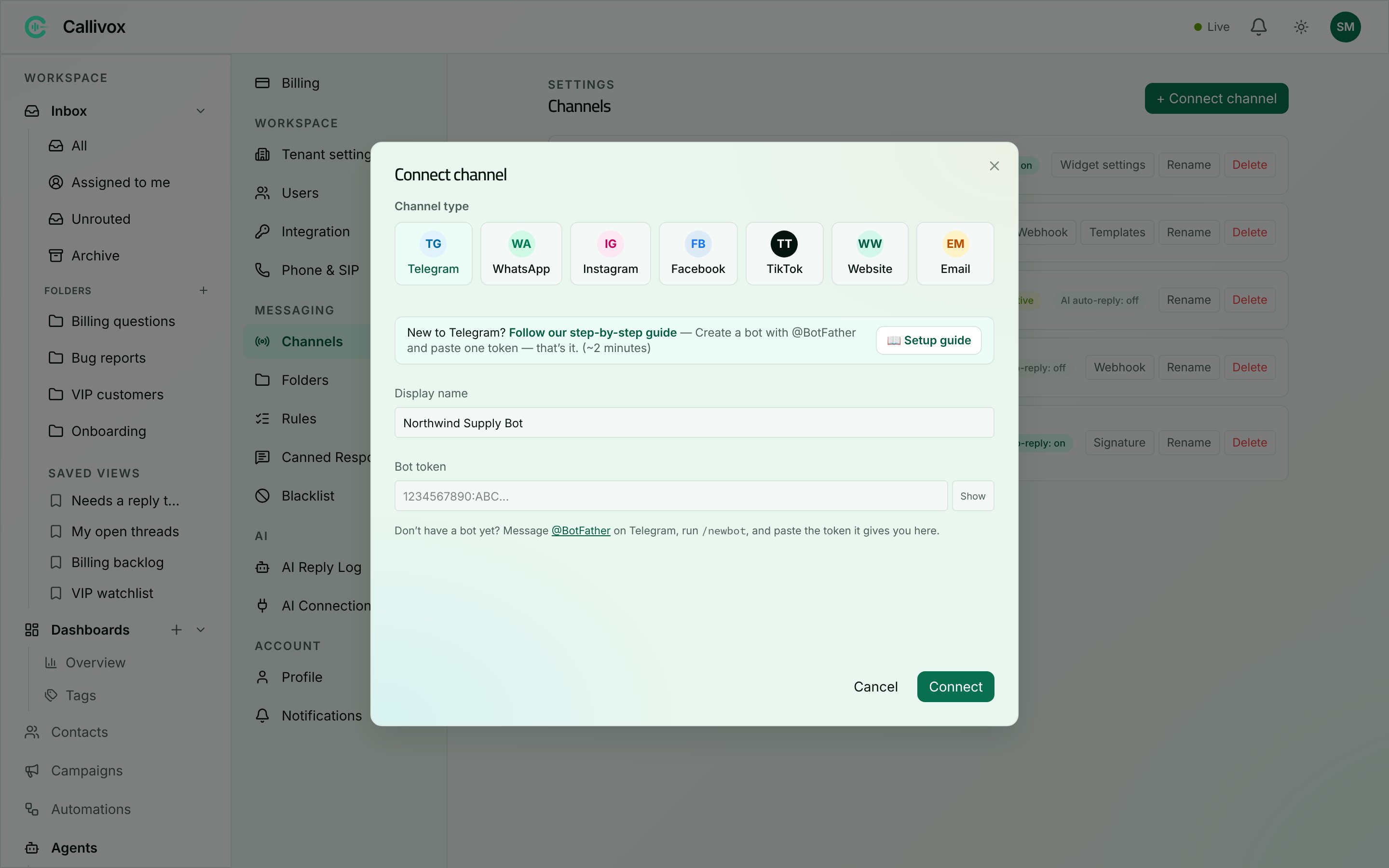
Go to **Settings → Channels**, click **+ Connect channel** and pick **Telegram**.
**Display name** — how the channel appears in your inbox and settings.
**Bot token** — paste the token from BotFather. The field is masked; use **Show** to check it pasted cleanly. Leaving it empty returns "Bot token is required."
You will see the toast "Telegram channel connected" and the channel appears in the list as **Active**. Callivox registers the webhook with Telegram automatically, so there is nothing to copy back — no callback URL, no verify token.
Open your bot in Telegram and send it anything. It should appear in your inbox within seconds.
The connect dialog reminds you of the whole flow in one line: "Don't have a bot yet? Message @BotFather on Telegram, run `/newbot`, and paste the token it gives you here."
For BotFather's own documentation, see [Telegram's guide to creating a bot](https://core.telegram.org/bots/features#creating-a-new-bot).
## Next steps
Put an AI agent on the channel to answer automatically.
Rename, reconnect and delete channels.
## Before you start
You need a Telegram account. That is the whole list.
## Create the bot
Open Telegram and search for **@BotFather** — the official bot for creating bots. Start a chat with it.
Send `/newbot`. BotFather will walk you through two questions.
First the display name, which is what people see at the top of the chat — "Acme Support" works well.
Then the username, which must be unique across Telegram and must end in `bot` — for example `acme_support_bot`. If the name is taken, BotFather asks again.
BotFather replies with a token that looks like `1234567890:ABC...`. Copy it.
Treat the bot token like a password. Anyone who has it can read and send messages as your bot. Do not paste it into a group chat, a ticket, or a shared document.
Still in BotFather, `/setuserpic` sets the bot's profile picture and `/setdescription` sets the text people see before they start the chat. Both are worth doing — they are the first thing a customer sees.
## Connect it to Callivox
Go to **Settings → Channels**, click **+ Connect channel** and pick **Telegram**.
**Display name** — how the channel appears in your inbox and settings.
**Bot token** — paste the token from BotFather. The field is masked; use **Show** to check it pasted cleanly. Leaving it empty returns "Bot token is required."
You will see the toast "Telegram channel connected" and the channel appears in the list as **Active**. Callivox registers the webhook with Telegram automatically, so there is nothing to copy back — no callback URL, no verify token.
Open your bot in Telegram and send it anything. It should appear in your inbox within seconds.
The connect dialog reminds you of the whole flow in one line: "Don't have a bot yet? Message @BotFather on Telegram, run `/newbot`, and paste the token it gives you here."
For BotFather's own documentation, see [Telegram's guide to creating a bot](https://core.telegram.org/bots/features#creating-a-new-bot).
## Next steps
Put an AI agent on the channel to answer automatically.
Rename, reconnect and delete channels.