> ## Documentation Index
> Fetch the complete documentation index at: https://docs.callivox.com/llms.txt
> Use this file to discover all available pages before exploring further.
# Channels overview
> What a channel is, the seven types Callivox supports, and how to connect and manage them from Settings → Channels.
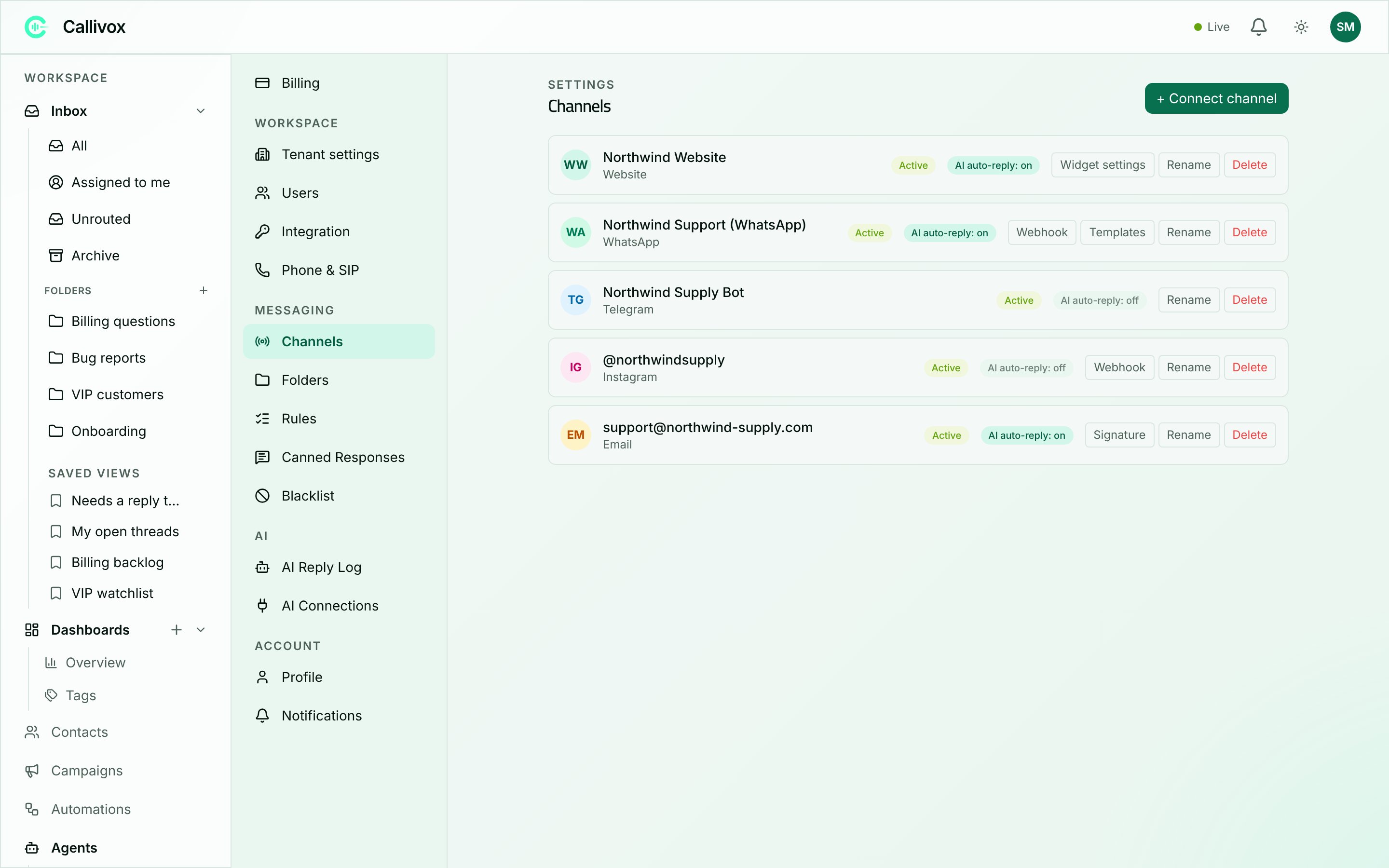
A channel is a connection between Callivox and one of your messaging accounts — a WhatsApp number, a Facebook Page, a mailbox, your website. Once a channel is connected, every message that arrives on it becomes a conversation in your [inbox](/inbox/overview), and every reply you or your AI agents send goes back out through it.
 ## Where channels live
Channels are managed under **Settings → Channels**. The page is **Admin** only — members can work in the inbox, but they cannot connect, rename or delete a channel.
If you have not connected anything yet you will see: "No channels connected yet. Connect a messaging channel to start receiving conversations."
## The seven channel types
| Channel | What it connects | Setup page |
| ------------------ | --------------------------------------------------------- | ---------------------------------------------------- |
| Telegram | A Telegram bot you create with BotFather | [Telegram](/channels/telegram) |
| WhatsApp | A WhatsApp Business number | [WhatsApp](/channels/whatsapp) |
| Instagram | An Instagram professional account | [Facebook & Instagram](/channels/facebook-instagram) |
| Facebook Messenger | A Facebook Page | [Facebook & Instagram](/channels/facebook-instagram) |
| TikTok | A TikTok Business Account | — |
| Website | A chat widget you embed on your own site | [Website widget](/channels/web-widget) |
| Email | A shared mailbox, via Microsoft 365, Google, or IMAP/SMTP | [Email](/channels/email) |
TikTok appears in the channel picker only on plans that include it, and it connects by authorising Callivox on TikTok rather than by pasting credentials. TikTok messaging is still pending review at TikTok, so the channel may not be available to you yet.
## Connecting a channel
Click **+ Connect channel**. The dialog opens on a **Channel type** picker; choose a type and the fields for that channel appear underneath.
## Where channels live
Channels are managed under **Settings → Channels**. The page is **Admin** only — members can work in the inbox, but they cannot connect, rename or delete a channel.
If you have not connected anything yet you will see: "No channels connected yet. Connect a messaging channel to start receiving conversations."
## The seven channel types
| Channel | What it connects | Setup page |
| ------------------ | --------------------------------------------------------- | ---------------------------------------------------- |
| Telegram | A Telegram bot you create with BotFather | [Telegram](/channels/telegram) |
| WhatsApp | A WhatsApp Business number | [WhatsApp](/channels/whatsapp) |
| Instagram | An Instagram professional account | [Facebook & Instagram](/channels/facebook-instagram) |
| Facebook Messenger | A Facebook Page | [Facebook & Instagram](/channels/facebook-instagram) |
| TikTok | A TikTok Business Account | — |
| Website | A chat widget you embed on your own site | [Website widget](/channels/web-widget) |
| Email | A shared mailbox, via Microsoft 365, Google, or IMAP/SMTP | [Email](/channels/email) |
TikTok appears in the channel picker only on plans that include it, and it connects by authorising Callivox on TikTok rather than by pasting credentials. TikTok messaging is still pending review at TikTok, so the channel may not be available to you yet.
## Connecting a channel
Click **+ Connect channel**. The dialog opens on a **Channel type** picker; choose a type and the fields for that channel appear underneath.
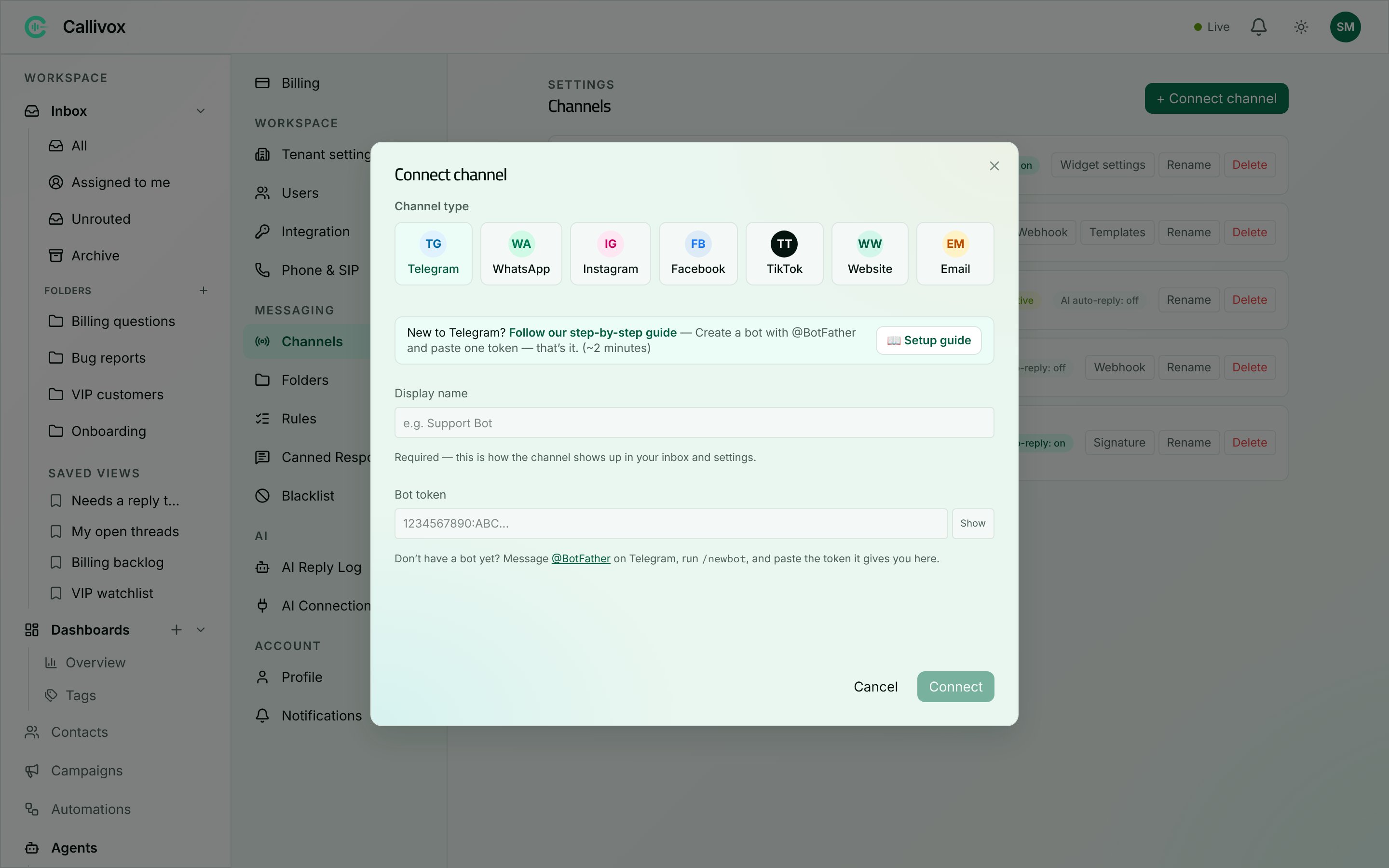 Every channel except TikTok and the website widget asks for a **Display name** first. This is how the channel shows up in your inbox and settings, so use something your team will recognise — "Support WhatsApp", not "Number 2". The dialog will not let you continue without it: "Display name is required."
Secret fields (tokens, passwords, app secrets) are masked. Use **Show** / **Hide** to check what you pasted. Anything Callivox generates for you — a callback URL, a verify token — has a **Copy** button next to it.
When the connection succeeds you get a toast confirming it, for example "Telegram channel connected", and the new channel appears in the list.
You can also connect your first channel during onboarding — it uses the same dialog. See [Connecting your first channel](/getting-started/connecting-your-first-channel).
## Built-in setup guides
Most channels need something set up on the provider's side first. Rather than sending you off to hunt through Meta's or Telegram's documentation, Callivox includes a step-by-step guide for each channel type.
At the top of the connect dialog you will see a banner: "New to WhatsApp? **Follow our step-by-step guide**" with a short teaser and a time estimate. Click **📖 Setup guide** to open it.
Every channel except TikTok and the website widget asks for a **Display name** first. This is how the channel shows up in your inbox and settings, so use something your team will recognise — "Support WhatsApp", not "Number 2". The dialog will not let you continue without it: "Display name is required."
Secret fields (tokens, passwords, app secrets) are masked. Use **Show** / **Hide** to check what you pasted. Anything Callivox generates for you — a callback URL, a verify token — has a **Copy** button next to it.
When the connection succeeds you get a toast confirming it, for example "Telegram channel connected", and the new channel appears in the list.
You can also connect your first channel during onboarding — it uses the same dialog. See [Connecting your first channel](/getting-started/connecting-your-first-channel).
## Built-in setup guides
Most channels need something set up on the provider's side first. Rather than sending you off to hunt through Meta's or Telegram's documentation, Callivox includes a step-by-step guide for each channel type.
At the top of the connect dialog you will see a banner: "New to WhatsApp? **Follow our step-by-step guide**" with a short teaser and a time estimate. Click **📖 Setup guide** to open it.
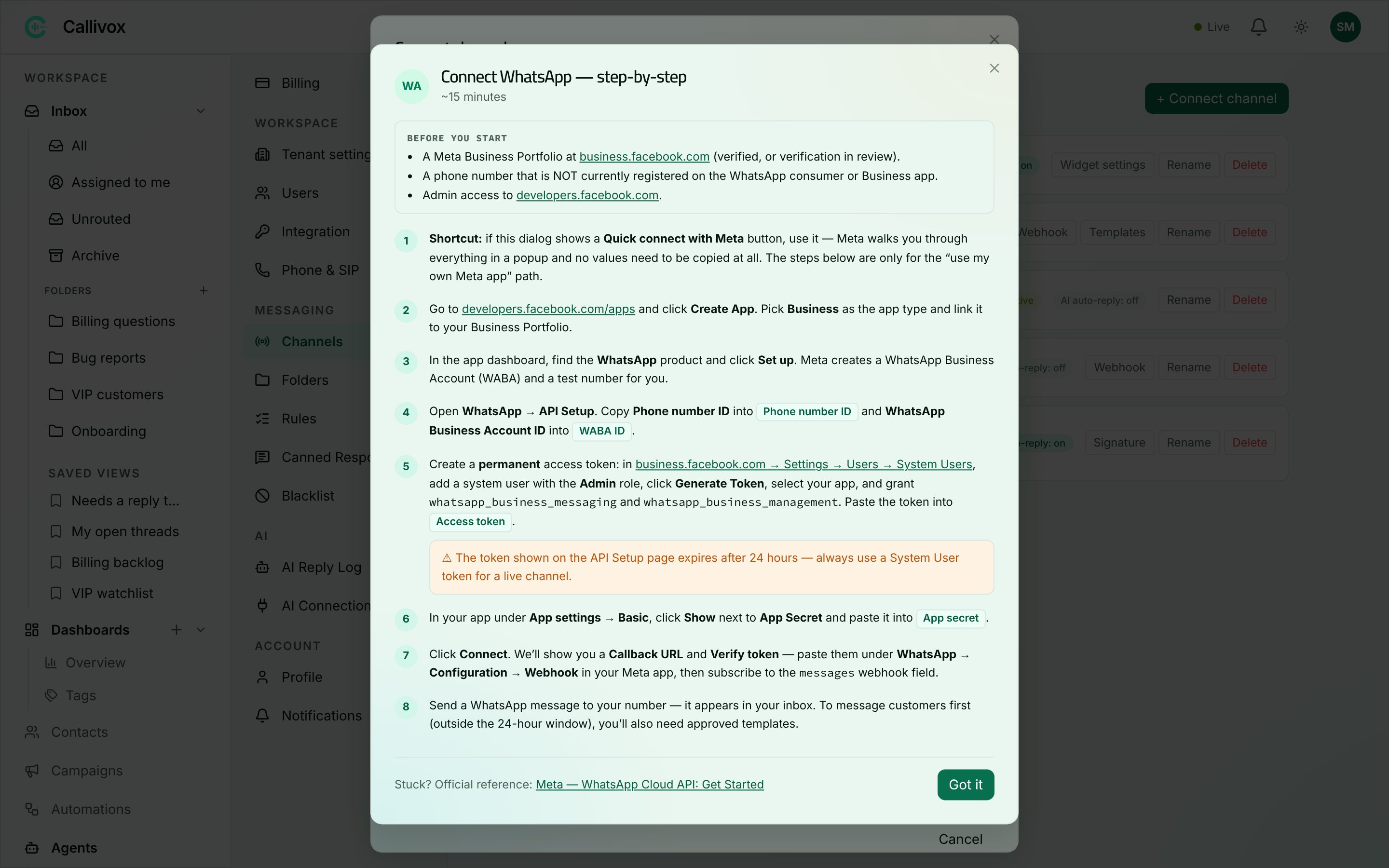 Every guide has the same shape:
* A time estimate under the title, so you know what you are committing to.
* A **Before you start** section listing the prerequisites — the accounts and access you need before any of the steps will work.
* Numbered steps, with the things that commonly go wrong called out as amber ⚠ warnings.
* A "Stuck? Official reference" link to the provider's own documentation.
Rough time estimates: Telegram about 2 minutes, TikTok about 3, email and the website widget about 5, Facebook Messenger about 10, WhatsApp and Instagram about 15.
## What the channel list shows
Each row shows the channel's badge, its display name and its type. Alongside that:
**Status**
| Status | Meaning |
| ------------------- | ------------------------------------------------------------------------------------------------------------------------------------------------------------------------------------------------------ |
| **Active** | Working. Messages are flowing in and out. |
| **Needs reconnect** | The credentials behind the channel have stopped working — an expired token, a revoked permission, a changed password. Messages are not arriving. See [Managing channels](/channels/managing-channels). |
| **Disabled** | The channel is turned off and is not receiving or sending. |
**AI auto-reply**
Each row carries a toggle reading **AI auto-reply: on** or **AI auto-reply: off**. This controls whether your AI agents answer on this channel without a human in the loop.
Until you set it explicitly, a channel inherits your workspace default — connect a new channel and it behaves the way the rest of your workspace does. The moment you flip the toggle on that row, the channel keeps its own setting regardless of the workspace default.
**Email health**
Email channels show an extra line: either "Mailbox checked" with the time of the last poll, or "Sync issue" followed by the error, so you can see at a glance whether mail is still coming in.
## Plans and limits
Two things can stop a channel from connecting:
* **Channel types.** Which types you can connect depends on your plan. Connecting one that is not included returns "This channel type isn't included in your plan."
* **How many channels.** Every plan has a cap on the total number of connected channels. Passing it returns "You've reached your plan's channel limit. Remove a channel or upgrade your plan to connect another."
The website widget is available on every plan, but it still counts toward the channel cap. See [Plans](/billing/plans) for what your plan includes.
## Next steps
Connect a WhatsApp Business number and manage message templates.
Bring Messenger and Instagram DMs into the inbox.
Connect a shared mailbox over Microsoft 365, Google or IMAP.
Rename, reconnect, inspect and delete channels.
Every guide has the same shape:
* A time estimate under the title, so you know what you are committing to.
* A **Before you start** section listing the prerequisites — the accounts and access you need before any of the steps will work.
* Numbered steps, with the things that commonly go wrong called out as amber ⚠ warnings.
* A "Stuck? Official reference" link to the provider's own documentation.
Rough time estimates: Telegram about 2 minutes, TikTok about 3, email and the website widget about 5, Facebook Messenger about 10, WhatsApp and Instagram about 15.
## What the channel list shows
Each row shows the channel's badge, its display name and its type. Alongside that:
**Status**
| Status | Meaning |
| ------------------- | ------------------------------------------------------------------------------------------------------------------------------------------------------------------------------------------------------ |
| **Active** | Working. Messages are flowing in and out. |
| **Needs reconnect** | The credentials behind the channel have stopped working — an expired token, a revoked permission, a changed password. Messages are not arriving. See [Managing channels](/channels/managing-channels). |
| **Disabled** | The channel is turned off and is not receiving or sending. |
**AI auto-reply**
Each row carries a toggle reading **AI auto-reply: on** or **AI auto-reply: off**. This controls whether your AI agents answer on this channel without a human in the loop.
Until you set it explicitly, a channel inherits your workspace default — connect a new channel and it behaves the way the rest of your workspace does. The moment you flip the toggle on that row, the channel keeps its own setting regardless of the workspace default.
**Email health**
Email channels show an extra line: either "Mailbox checked" with the time of the last poll, or "Sync issue" followed by the error, so you can see at a glance whether mail is still coming in.
## Plans and limits
Two things can stop a channel from connecting:
* **Channel types.** Which types you can connect depends on your plan. Connecting one that is not included returns "This channel type isn't included in your plan."
* **How many channels.** Every plan has a cap on the total number of connected channels. Passing it returns "You've reached your plan's channel limit. Remove a channel or upgrade your plan to connect another."
The website widget is available on every plan, but it still counts toward the channel cap. See [Plans](/billing/plans) for what your plan includes.
## Next steps
Connect a WhatsApp Business number and manage message templates.
Bring Messenger and Instagram DMs into the inbox.
Connect a shared mailbox over Microsoft 365, Google or IMAP.
Rename, reconnect, inspect and delete channels.