> ## Documentation Index
> Fetch the complete documentation index at: https://docs.callivox.com/llms.txt
> Use this file to discover all available pages before exploring further.
# Email
> Connect a shared mailbox to Callivox over Microsoft 365, Google, or IMAP/SMTP, and set the signature used on outgoing mail.
Connecting a mailbox turns email into an inbox channel like any other. Mail sent to the address you connect becomes a conversation, replies you write in Callivox go out from that address, and your AI agents can answer email the same way they answer chat.
Connect a shared mailbox — `support@`, `hello@`, `orders@` — rather than a personal one, so the whole team can work it.
## Before you start
* Decide which mailbox you are connecting.
* Have the credentials for it. Which credentials depends on the method you pick below.
Only mail that arrives **after** you connect is imported. Existing messages sitting in the mailbox are not pulled in, so connect before you start pointing customers at the address.
Email is polled rather than pushed. New mail is picked up on a regular check, so a message typically appears in the inbox within about a minute — not instantly like WhatsApp or Telegram.
## Choose a connection method
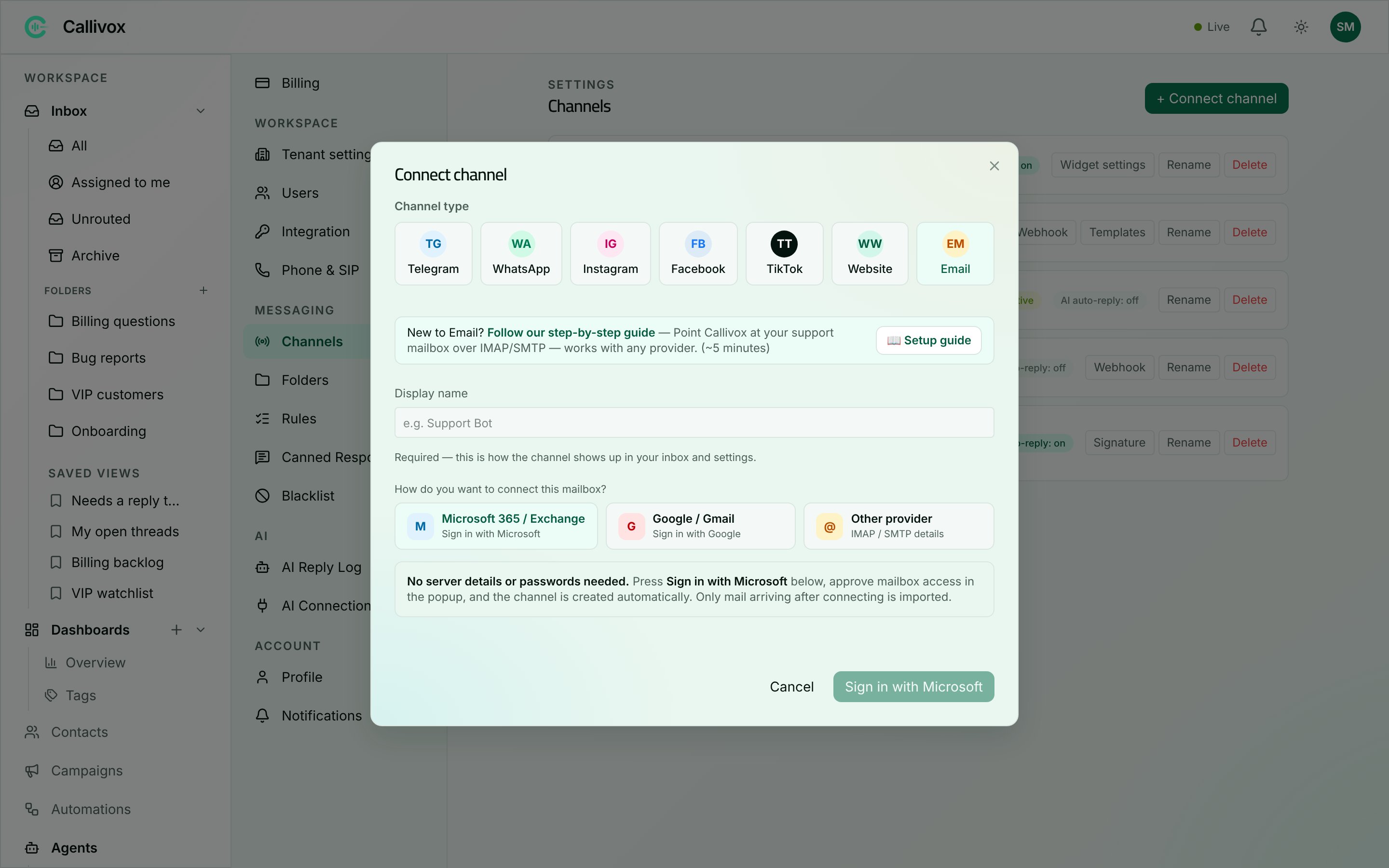
Pick **Email** in the connect dialog and Callivox asks: "How do you want to connect this mailbox?" There are three cards. While Callivox works out which are available to you, the dialog reads **Checking sign-in options…**.
 | Method | What it needs | Best for |
| ---------------------------- | --------------------------------- | ---------------------------------------------------- |
| **Microsoft 365 / Exchange** | Sign in with Microsoft in a popup | Mailboxes on Microsoft 365 or Exchange Online |
| **Google / Gmail** | Sign in with Google in a popup | Gmail and Google Workspace mailboxes |
| **Other provider** | IMAP and SMTP server details | Everything else, and as a fallback for the two above |
If a card shows **Coming soon** and cannot be clicked, that method is not available on your workspace yet — use **Other provider** instead.
The simplest route for a Microsoft mailbox: "**No server details or passwords needed.** Press **Sign in with Microsoft** below, approve mailbox access in the popup, and the channel is created automatically. Only mail arriving after connecting is imported."
Enter a **Display name** for the mailbox.
Click **Sign in with Microsoft**. The dialog shows **Waiting for Microsoft…** while the popup is open.
Sign in with the account that owns the mailbox and approve the permission request. Callivox needs permission to read *and* write mail — reading so conversations arrive, writing so replies can be sent and messages marked as handled.
The channel is created and you will see "Email channel connected".
### If it does not work
| What you see | What to do |
| ------------------------------------------------------------------------------------------------------------------------------- | ------------------------------------------------------------------------------------------------------------------------------------------ |
| "The connected account does not include mailbox access. Sign in again through this dialog so the mail permission is requested." | Run the sign-in again from this dialog and approve the mail permission when asked. |
| "…is already connected as an email channel." | That address is already a channel in this workspace. Use the existing one, or delete it first. |
| The mailbox cannot be checked | Confirm the account you signed in with actually has a mailbox, and that your Microsoft administrator allows third-party apps to access it. |
Works the same way as Microsoft. Click **Sign in with Google**, and the dialog reads **Waiting for Google…** while the popup is open.
Enter a **Display name** for the mailbox.
Click **Sign in with Google** and sign in with the account that owns the mailbox.
Approve the request to read, send and modify mail. Reply sending and message handling both depend on it, so declining any part of it leaves the channel unable to work.
You will see "Email channel connected" and the channel appears in the list.
Google reviews applications that request full mailbox access. Until that review completes, Google sign-in may only work for accounts that have been approved for testing. If sign-in is blocked, connect the same Gmail mailbox through **Other provider** with an app password instead — it works identically once connected.
Use this for any mailbox that is not on Microsoft 365 or Google — and for those two as well, if the sign-in route is not available to you. It takes about 5 minutes.
| Method | What it needs | Best for |
| ---------------------------- | --------------------------------- | ---------------------------------------------------- |
| **Microsoft 365 / Exchange** | Sign in with Microsoft in a popup | Mailboxes on Microsoft 365 or Exchange Online |
| **Google / Gmail** | Sign in with Google in a popup | Gmail and Google Workspace mailboxes |
| **Other provider** | IMAP and SMTP server details | Everything else, and as a fallback for the two above |
If a card shows **Coming soon** and cannot be clicked, that method is not available on your workspace yet — use **Other provider** instead.
The simplest route for a Microsoft mailbox: "**No server details or passwords needed.** Press **Sign in with Microsoft** below, approve mailbox access in the popup, and the channel is created automatically. Only mail arriving after connecting is imported."
Enter a **Display name** for the mailbox.
Click **Sign in with Microsoft**. The dialog shows **Waiting for Microsoft…** while the popup is open.
Sign in with the account that owns the mailbox and approve the permission request. Callivox needs permission to read *and* write mail — reading so conversations arrive, writing so replies can be sent and messages marked as handled.
The channel is created and you will see "Email channel connected".
### If it does not work
| What you see | What to do |
| ------------------------------------------------------------------------------------------------------------------------------- | ------------------------------------------------------------------------------------------------------------------------------------------ |
| "The connected account does not include mailbox access. Sign in again through this dialog so the mail permission is requested." | Run the sign-in again from this dialog and approve the mail permission when asked. |
| "…is already connected as an email channel." | That address is already a channel in this workspace. Use the existing one, or delete it first. |
| The mailbox cannot be checked | Confirm the account you signed in with actually has a mailbox, and that your Microsoft administrator allows third-party apps to access it. |
Works the same way as Microsoft. Click **Sign in with Google**, and the dialog reads **Waiting for Google…** while the popup is open.
Enter a **Display name** for the mailbox.
Click **Sign in with Google** and sign in with the account that owns the mailbox.
Approve the request to read, send and modify mail. Reply sending and message handling both depend on it, so declining any part of it leaves the channel unable to work.
You will see "Email channel connected" and the channel appears in the list.
Google reviews applications that request full mailbox access. Until that review completes, Google sign-in may only work for accounts that have been approved for testing. If sign-in is blocked, connect the same Gmail mailbox through **Other provider** with an app password instead — it works identically once connected.
Use this for any mailbox that is not on Microsoft 365 or Google — and for those two as well, if the sign-in route is not available to you. It takes about 5 minutes.
 ### Provider presets
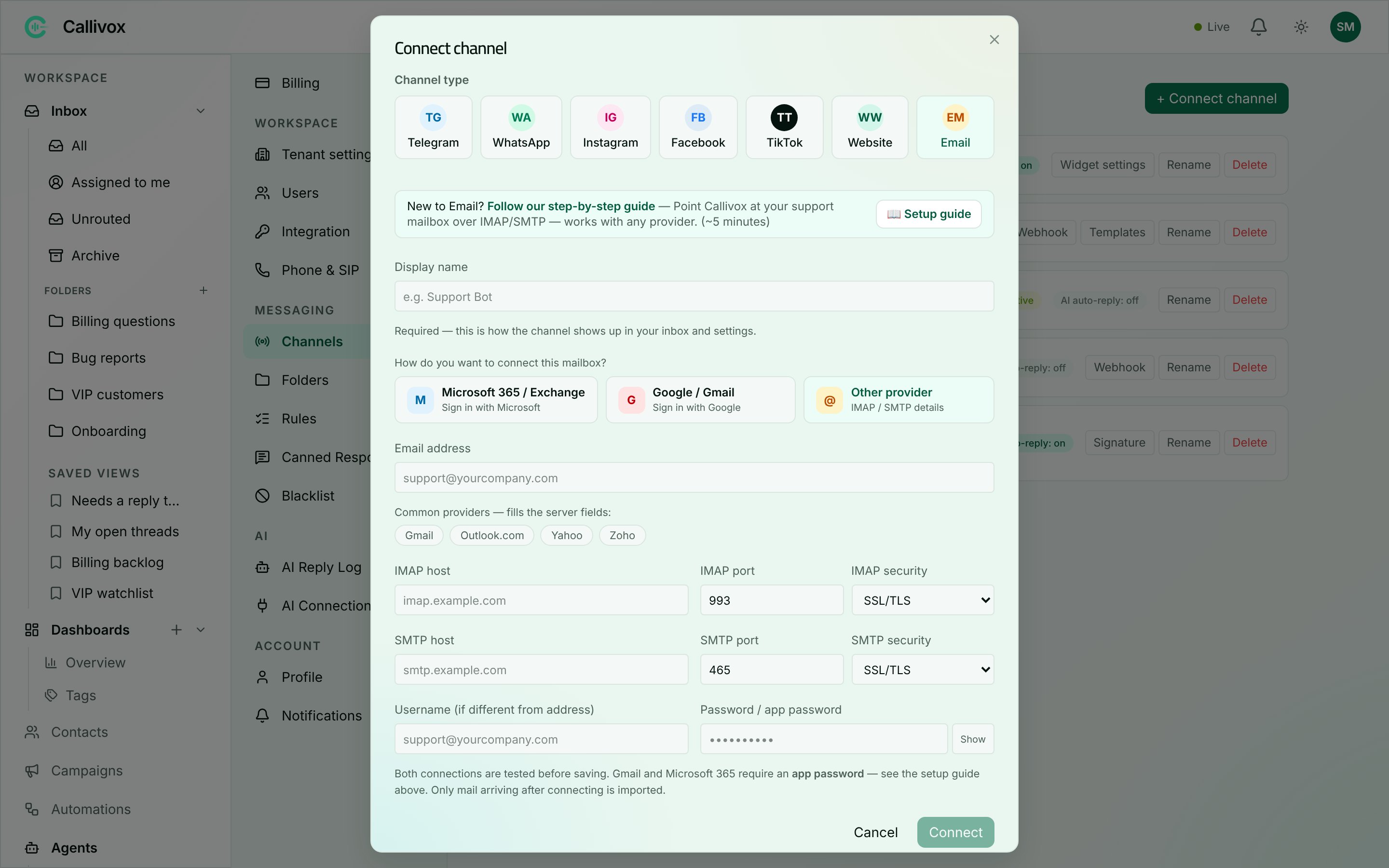
Above the server fields is a row of chips under "Common providers — fills the server fields:". Click one and the hosts, ports and security settings are filled in for you.
| Preset | IMAP | SMTP |
| --------------- | ------------------------------------------ | ------------------------------------------- |
| **Gmail** | `imap.gmail.com`, port 993, SSL/TLS | `smtp.gmail.com`, port 465, SSL/TLS |
| **Outlook.com** | `outlook.office365.com`, port 993, SSL/TLS | `smtp-mail.outlook.com`, port 587, STARTTLS |
| **Yahoo** | `imap.mail.yahoo.com`, port 993, SSL/TLS | `smtp.mail.yahoo.com`, port 465, SSL/TLS |
| **Zoho** | `imap.zoho.com`, port 993, SSL/TLS | `smtp.zoho.com`, port 465, SSL/TLS |
For any other provider, look up "IMAP settings" in their help centre — they all publish the four values.
### The fields
| Field | Notes |
| ---------------------------------------- | ------------------------------------------------------------------------------------------------------------------------------------------------ |
| **Email address** | The mailbox address. Must be a real address: "Enter the mailbox email address (e.g. [support@yourcompany.com](mailto:support@yourcompany.com))." |
| **IMAP host** / **IMAP port** | Where Callivox reads incoming mail. Port 993 by default. |
| **IMAP security** | **SSL/TLS**, **STARTTLS** or **None**. SSL/TLS by default. |
| **SMTP host** / **SMTP port** | Where Callivox sends replies from. Port 465 by default. |
| **SMTP security** | Same three options. |
| **Username (if different from address)** | Leave empty unless your provider uses a separate login name. |
| **Password / app password** | The mailbox password, or an app password. |
Both hosts are required: "Both the IMAP host and the SMTP host are required."
### App passwords
Gmail and Microsoft 365 reject your normal account password for IMAP. You must generate an **app password** — a separate, single-purpose password — in your Google or Microsoft account security settings, and paste that here. Using the normal password returns "Password is required. For Gmail / Microsoft 365 use an app password."
Generating one usually requires two-step verification to be switched on for the account first.
### Saving
Click **Connect**. Both connections are tested before anything is saved, so if the credentials are wrong you find out immediately rather than discovering it later from missing mail. A failure comes back as "Invalid credentials" with the reason from your provider.
## Mailbox health
Email channels carry an extra line on their row in **Settings → Channels** so you can tell at a glance whether mail is still flowing:
* **Mailbox checked** with a time — the last successful poll. If this is a few minutes old, everything is fine.
* **Sync issue** with an error — Callivox could not reach the mailbox on the last attempt. A changed password, a revoked app password or an expired sign-in are the usual causes. Fix the credentials and reconnect the channel.
## Email signature
Every email sent from a Callivox mailbox can carry a signature — replies your team writes and replies your AI agents send alike.
Click **Signature** on the email channel's row. The dialog explains: "Appended to every email sent from your address — replies you write here and AI replies alike. Leave empty for no signature."
The editor is a rich-text one, with **Bold**, **Italic**, **Underline**, font colour, links, images, clear formatting, and undo/redo. Images you paste or upload are embedded in the outgoing message, so they display even when the recipient blocks remote images.
Write it as you would in any mail client — name, role, company, and a link if you use one, for example "Nour · Customer Care — Acme Foods".
Click **Save signature**. You will see "Signature saved", and it applies to the next message sent from that mailbox.
Keep signatures short. They are appended to *every* reply, including one-line answers, and long signatures make a thread hard to read on a phone.
## Next steps
How email threads behave in the inbox.
Reconnect a mailbox whose credentials have changed.
### Provider presets
Above the server fields is a row of chips under "Common providers — fills the server fields:". Click one and the hosts, ports and security settings are filled in for you.
| Preset | IMAP | SMTP |
| --------------- | ------------------------------------------ | ------------------------------------------- |
| **Gmail** | `imap.gmail.com`, port 993, SSL/TLS | `smtp.gmail.com`, port 465, SSL/TLS |
| **Outlook.com** | `outlook.office365.com`, port 993, SSL/TLS | `smtp-mail.outlook.com`, port 587, STARTTLS |
| **Yahoo** | `imap.mail.yahoo.com`, port 993, SSL/TLS | `smtp.mail.yahoo.com`, port 465, SSL/TLS |
| **Zoho** | `imap.zoho.com`, port 993, SSL/TLS | `smtp.zoho.com`, port 465, SSL/TLS |
For any other provider, look up "IMAP settings" in their help centre — they all publish the four values.
### The fields
| Field | Notes |
| ---------------------------------------- | ------------------------------------------------------------------------------------------------------------------------------------------------ |
| **Email address** | The mailbox address. Must be a real address: "Enter the mailbox email address (e.g. [support@yourcompany.com](mailto:support@yourcompany.com))." |
| **IMAP host** / **IMAP port** | Where Callivox reads incoming mail. Port 993 by default. |
| **IMAP security** | **SSL/TLS**, **STARTTLS** or **None**. SSL/TLS by default. |
| **SMTP host** / **SMTP port** | Where Callivox sends replies from. Port 465 by default. |
| **SMTP security** | Same three options. |
| **Username (if different from address)** | Leave empty unless your provider uses a separate login name. |
| **Password / app password** | The mailbox password, or an app password. |
Both hosts are required: "Both the IMAP host and the SMTP host are required."
### App passwords
Gmail and Microsoft 365 reject your normal account password for IMAP. You must generate an **app password** — a separate, single-purpose password — in your Google or Microsoft account security settings, and paste that here. Using the normal password returns "Password is required. For Gmail / Microsoft 365 use an app password."
Generating one usually requires two-step verification to be switched on for the account first.
### Saving
Click **Connect**. Both connections are tested before anything is saved, so if the credentials are wrong you find out immediately rather than discovering it later from missing mail. A failure comes back as "Invalid credentials" with the reason from your provider.
## Mailbox health
Email channels carry an extra line on their row in **Settings → Channels** so you can tell at a glance whether mail is still flowing:
* **Mailbox checked** with a time — the last successful poll. If this is a few minutes old, everything is fine.
* **Sync issue** with an error — Callivox could not reach the mailbox on the last attempt. A changed password, a revoked app password or an expired sign-in are the usual causes. Fix the credentials and reconnect the channel.
## Email signature
Every email sent from a Callivox mailbox can carry a signature — replies your team writes and replies your AI agents send alike.
Click **Signature** on the email channel's row. The dialog explains: "Appended to every email sent from your address — replies you write here and AI replies alike. Leave empty for no signature."
The editor is a rich-text one, with **Bold**, **Italic**, **Underline**, font colour, links, images, clear formatting, and undo/redo. Images you paste or upload are embedded in the outgoing message, so they display even when the recipient blocks remote images.
Write it as you would in any mail client — name, role, company, and a link if you use one, for example "Nour · Customer Care — Acme Foods".
Click **Save signature**. You will see "Signature saved", and it applies to the next message sent from that mailbox.
Keep signatures short. They are appended to *every* reply, including one-line answers, and long signatures make a thread hard to read on a phone.
## Next steps
How email threads behave in the inbox.
Reconnect a mailbox whose credentials have changed.