> ## Documentation Index
> Fetch the complete documentation index at: https://docs.callivox.com/llms.txt
> Use this file to discover all available pages before exploring further.
# Campaigns overview
> What a campaign is, when to use one instead of the inbox, the campaigns list and its statuses, and the rules to know before you launch.
A campaign sends the same message to many contacts at once — a promotion, an appointment reminder, a service notice. You pick an audience, write the message or choose a template, and launch. Replies come back into your [inbox](/inbox/overview) as ordinary conversations, where your team or an AI agent handles them.
 ## When to use a campaign
Use a campaign when you are starting the conversation and the same message goes to more than a handful of people. Use the inbox's **New message** button when it is one person.
Campaigns are one-off sends. They go out once, to the audience you resolve at launch. To message people based on something happening — a form submitted, an order placed, a date reached — use an [automation](/automations/overview) instead.
## The campaigns list
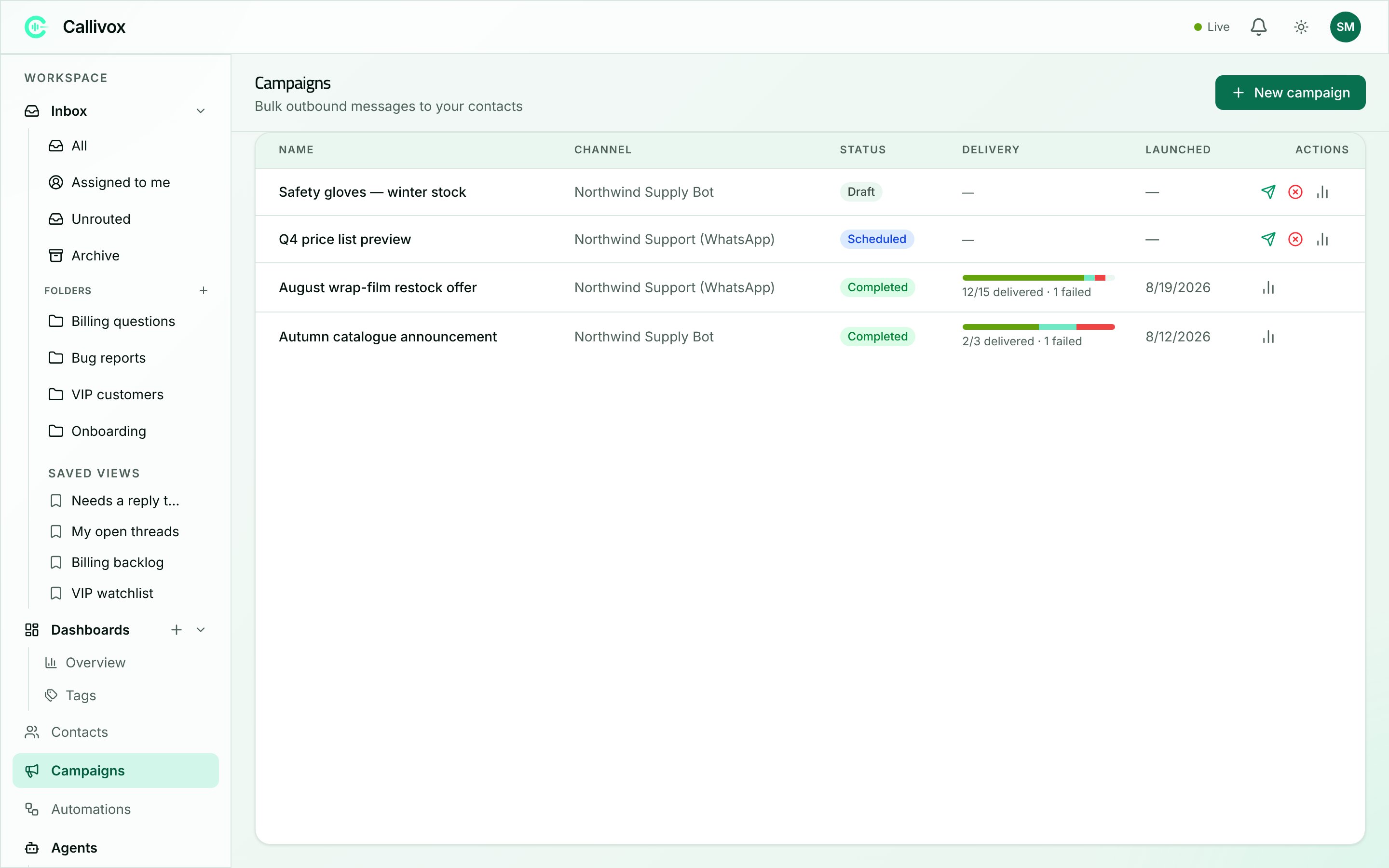
**Campaigns** in the sidebar lists everything you have created, 20 to a page. Each row shows:
| Column | What it holds |
| ------------ | ------------------------------------------------------------------------------------------------------------- |
| **Name** | Click it to open the campaign's report. |
| **Channel** | Where it sends from. |
| **Status** | See the table below. |
| **Delivery** | A three-part bar — delivered, sent-but-not-yet-delivered, failed — with "X/Y delivered · N failed" beside it. |
| **Launched** | When it went out. |
| **Actions** | The controls for that campaign's current state. |
### Statuses
| Status | What it means |
| ------------- | ----------------------------------------------------------- |
| **Draft** | Built but never launched. Nothing has been sent. |
| **Scheduled** | Launched, waiting for its send time. |
| **Sending** | Working through the audience now. |
| **Paused** | You paused it mid-send. Whatever was already sent has gone. |
| **Completed** | Every recipient has been attempted. |
| **Failed** | The campaign could not run. |
| **Cancelled** | You cancelled it. Messages already sent are not recalled. |
### Row actions
The icon buttons on each row match the status:
* **Launch campaign** — on **Draft** and **Scheduled** campaigns.
* **Pause campaign** — while **Sending**.
* **Resume campaign** — while **Paused**.
* **Cancel campaign** — on anything not already completed or cancelled.
* **View campaign report** — always.
If you have never created one, the page reads:
> **No campaigns yet** — Send a bulk WhatsApp, Telegram or voice campaign to a segment of your contacts — pick an audience, choose a template, launch.
## Rules to know before you start
Four things decide whether a campaign will do what you expect. Read them once and the builder makes sense.
A contact who has opted out is removed from every campaign audience, without exception. There is no setting to include them, and no way to override it in the builder.
This is deliberate: consent is handled once, on the contact, so nobody can send to an opted-out person by mistake. Mark opt-outs as soon as you know about them — see [Managing contacts](/contacts/managing-contacts).
Meta does not allow free-form outbound messages to people who have not written to you recently. Every WhatsApp campaign must use a template that Meta has **approved**.
The builder only offers approved templates, so you cannot pick one that will be rejected — but if you have none, the campaign cannot be built until a template is approved. Approval takes time, so submit it before you plan the send date. See [WhatsApp](/channels/whatsapp).
Other channels take plain text.
A campaign reaches a contact through their address on that channel — their WhatsApp number, their Telegram chat. Contacts with no address on the channel you chose are not part of the audience, no matter what your filters say.
That is the usual reason an audience count comes out lower than expected. See [Managing contacts](/contacts/managing-contacts).
Every message a campaign sends is charged like any other outbound message on that channel, at your plan's rate. A campaign to 5,000 people costs 5,000 messages' worth of credits.
Check your balance before a large send — see [How credits are spent](/billing/how-credits-are-spent).
## What happens when you launch
Callivox resolves your audience into a fixed list of recipients at the moment of launch. Contacts added afterwards are not included — relaunching a campaign does not pick them up.
Messages then go out at the rate you set, a batch at a time, and each recipient's message lands in a conversation with them. If one recipient fails — a bad number, a blocked account — it is recorded against that recipient and the rest carry on.
Everything after that is on the [campaign report](/campaigns/campaign-reports).
## Next steps
The five-step builder, from channel to launch.
Read the results, and stop a campaign that is going wrong.
## When to use a campaign
Use a campaign when you are starting the conversation and the same message goes to more than a handful of people. Use the inbox's **New message** button when it is one person.
Campaigns are one-off sends. They go out once, to the audience you resolve at launch. To message people based on something happening — a form submitted, an order placed, a date reached — use an [automation](/automations/overview) instead.
## The campaigns list
**Campaigns** in the sidebar lists everything you have created, 20 to a page. Each row shows:
| Column | What it holds |
| ------------ | ------------------------------------------------------------------------------------------------------------- |
| **Name** | Click it to open the campaign's report. |
| **Channel** | Where it sends from. |
| **Status** | See the table below. |
| **Delivery** | A three-part bar — delivered, sent-but-not-yet-delivered, failed — with "X/Y delivered · N failed" beside it. |
| **Launched** | When it went out. |
| **Actions** | The controls for that campaign's current state. |
### Statuses
| Status | What it means |
| ------------- | ----------------------------------------------------------- |
| **Draft** | Built but never launched. Nothing has been sent. |
| **Scheduled** | Launched, waiting for its send time. |
| **Sending** | Working through the audience now. |
| **Paused** | You paused it mid-send. Whatever was already sent has gone. |
| **Completed** | Every recipient has been attempted. |
| **Failed** | The campaign could not run. |
| **Cancelled** | You cancelled it. Messages already sent are not recalled. |
### Row actions
The icon buttons on each row match the status:
* **Launch campaign** — on **Draft** and **Scheduled** campaigns.
* **Pause campaign** — while **Sending**.
* **Resume campaign** — while **Paused**.
* **Cancel campaign** — on anything not already completed or cancelled.
* **View campaign report** — always.
If you have never created one, the page reads:
> **No campaigns yet** — Send a bulk WhatsApp, Telegram or voice campaign to a segment of your contacts — pick an audience, choose a template, launch.
## Rules to know before you start
Four things decide whether a campaign will do what you expect. Read them once and the builder makes sense.
A contact who has opted out is removed from every campaign audience, without exception. There is no setting to include them, and no way to override it in the builder.
This is deliberate: consent is handled once, on the contact, so nobody can send to an opted-out person by mistake. Mark opt-outs as soon as you know about them — see [Managing contacts](/contacts/managing-contacts).
Meta does not allow free-form outbound messages to people who have not written to you recently. Every WhatsApp campaign must use a template that Meta has **approved**.
The builder only offers approved templates, so you cannot pick one that will be rejected — but if you have none, the campaign cannot be built until a template is approved. Approval takes time, so submit it before you plan the send date. See [WhatsApp](/channels/whatsapp).
Other channels take plain text.
A campaign reaches a contact through their address on that channel — their WhatsApp number, their Telegram chat. Contacts with no address on the channel you chose are not part of the audience, no matter what your filters say.
That is the usual reason an audience count comes out lower than expected. See [Managing contacts](/contacts/managing-contacts).
Every message a campaign sends is charged like any other outbound message on that channel, at your plan's rate. A campaign to 5,000 people costs 5,000 messages' worth of credits.
Check your balance before a large send — see [How credits are spent](/billing/how-credits-are-spent).
## What happens when you launch
Callivox resolves your audience into a fixed list of recipients at the moment of launch. Contacts added afterwards are not included — relaunching a campaign does not pick them up.
Messages then go out at the rate you set, a batch at a time, and each recipient's message lands in a conversation with them. If one recipient fails — a bad number, a blocked account — it is recorded against that recipient and the rest carry on.
Everything after that is on the [campaign report](/campaigns/campaign-reports).
## Next steps
The five-step builder, from channel to launch.
Read the results, and stop a campaign that is going wrong.