> ## Documentation Index
> Fetch the complete documentation index at: https://docs.callivox.com/llms.txt
> Use this file to discover all available pages before exploring further.
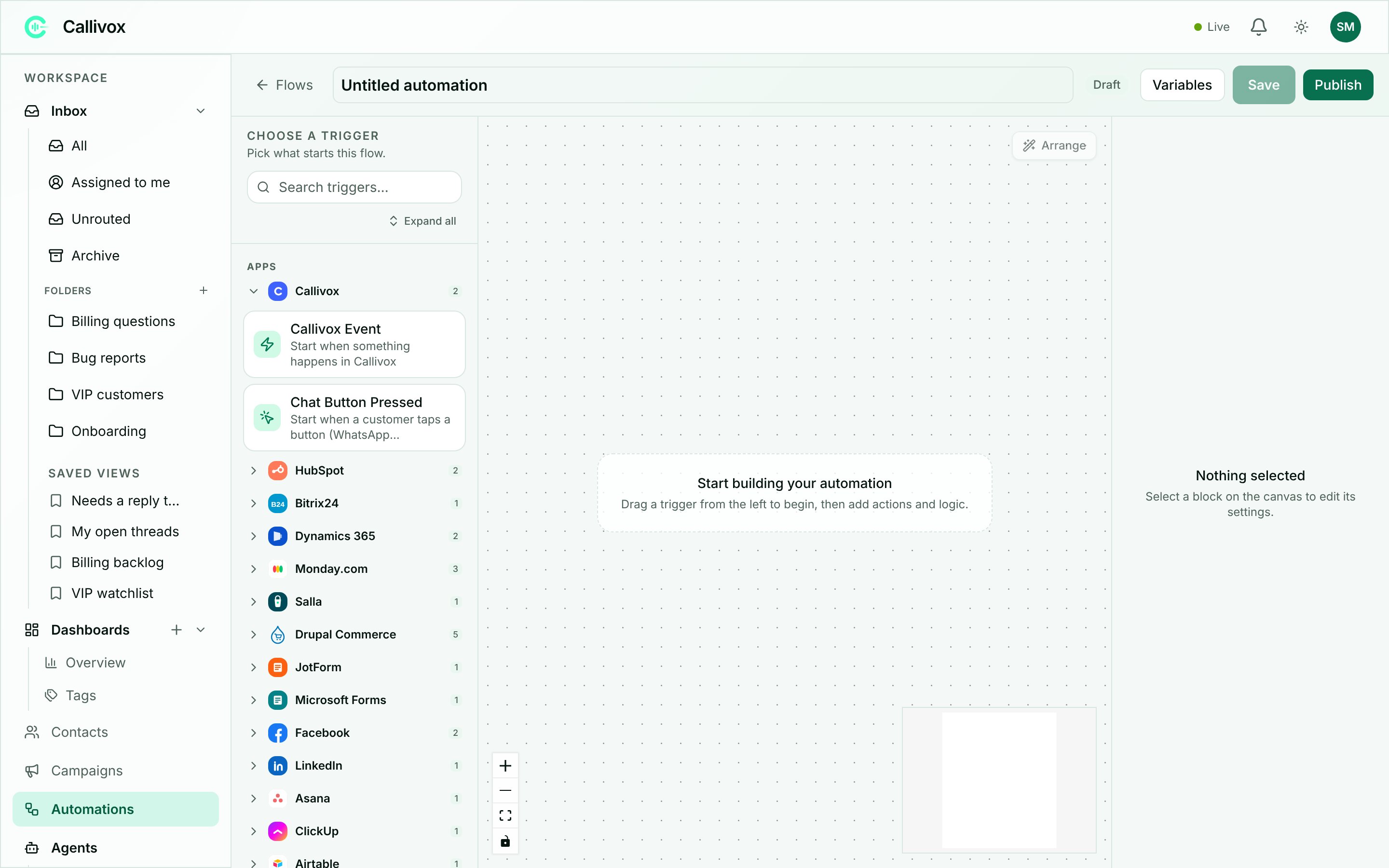
# Triggers
> Every way an automation can start — Callivox events, webhooks, schedules and the triggers each connected app provides.
The trigger is the first block in a flow and decides when it starts. Every automation has exactly
one.
 ## Callivox events
**Callivox Event** — *Start when something happens in Callivox.* Pick one from the **Event**
dropdown:
| Event | Fires when |
| ------------------------- | ------------------------------------------ |
| **Chat message received** | A message arrives on one of your channels. |
| **Conversation closed** | A conversation is closed. |
| **Call ended** | A voice call finishes. |
| **Campaign finished** | A campaign completes. |
| **Contact changed** | A contact record is created or updated. |
This is the trigger to reach for when the automation should react to your own inbox — logging a
closed conversation to a CRM, pushing a new contact into a spreadsheet, or messaging a team channel
when a call ends.
## Webhook
**Webhook** — *Start when an HTTP request hits its unique URL.* Use this when another system needs
to push data into Callivox and there is no dedicated connector for it.
You do not invent a path. Callivox assigns the flow its own unique URL; all you choose is the
**Method** (GET, POST, PUT, PATCH or DELETE) the sender will use.
Drop **Webhook** on the canvas, pick the method, and click **Save**. Until the automation is
saved the panel reads **"Save the automation to get its webhook URL."**
The **Webhook URL** section now shows the address. Copy it and give it to the sending system.
Under **Test event**, click **Listen for a test event**. The panel switches to **"Waiting for an
event…"** and listens on a test address for five minutes. Send a real request from the other
system while it waits. If nothing arrives you will see **"No event received in 5 minutes. Click
to listen again."**
The panel then shows **Captured fields (N)**. Those fields become selectable in the **Use a
previous step** picker, so you can map them straight into later steps without typing field names
by hand.
Pair a **Webhook** trigger with the **HTTP Response** block if the sending system expects a reply
from your flow.
## Schedule
**Schedule** — *Start on a schedule — every few minutes, hourly, or daily/weekly at a time.* This is
also how you build any "do this later" behaviour, since there is no wait block.
Configure it with:
| Field | What it does |
| ---------------------- | ----------------------------------------------------------------------- |
| **Run** | **Every…**, **Daily at…**, or **Weekly on…** |
| **Every** and **Unit** | For **Every…** — a whole number and **Minutes**, **Hours** or **Days**. |
| **Day** | For **Weekly on…** — the day of the week. |
| **Time (24h)** | For daily and weekly schedules, in `HH:mm` — for example `19:00`. |
| **Time zone** | Searchable. Leave blank for UTC. |
Set the time zone to your own, and the schedule keeps to local clock time across daylight-saving
changes — a 9:00 job stays at 9:00 all year.
Saving checks these fields: **"Every must be a whole number of 1 or more."** and **"Time must be in
24-hour HH:mm format (e.g. 19:00)."**
A scheduled flow consumes one automation run every time it fires. A five-minute schedule uses
roughly 8,600 runs a month — check your allowance before setting a short interval.
## Form triggers
* **JotForm Submission** — *Start when a new JotForm submission is received.* Pick the form from a
list of your account's forms; its questions become available as fields in later steps.
* **Microsoft Forms Response** — *Start when a new Microsoft Forms response is received.* Paste the
form id from the form's URL and choose the connection.
## Lead and social triggers
* **Facebook Lead** — *Start when a new Facebook lead arrives.*
* **Facebook Comment** — *Start when a new comment is added to a Facebook page post.*
* **LinkedIn Lead** — *Start when a new LinkedIn lead-gen form response arrives.*
## CRM and work-management triggers
| Trigger | Fires when | Key setting |
| -------------------------------- | --------------------------------------------------- | ----------------------------------------------------------------------------- |
| **HubSpot Record Created** | A HubSpot record of the chosen type is created | Object type: Contact, Company, Deal or Ticket |
| **HubSpot Record Updated** | A HubSpot record of the chosen type changes | Same object types |
| **Bitrix24 CRM Event** | A Bitrix24 record is added or updated | Entity (Lead, Deal, Contact, Company) and Action (Added, Updated, Any action) |
| **ClickUp Task Event** | A ClickUp task is created or updated | Task created, Task updated, or Any task event |
| **Asana Resource Event** | An Asana task, project or story changes | Added, Changed, Removed, Deleted or Any action |
| **Airtable Record Changed** | An Airtable record is created, updated or destroyed | Base id and table id — leave blank for any |
| **Monday: Item Created** | A new item is created on a board | Board id |
| **Monday: Item Updated** | An item is updated on a board | Board id |
| **Monday: Column Changed** | A column value changes on an item | Board id |
| **Dynamics 365: Record Created** | A new record appears in the configured entity set | Entity set and connection |
| **Dynamics 365: Record Updated** | An existing record in that entity set is updated | Entity set and connection |
## E-commerce triggers
* **Salla: Store Event** — *Start when the chosen event happens in a Salla store.* Choose one:
**Order created**, **Order status updated**, **Product updated**, **Customer created** or
**Cart abandoned**.
* **Drupal Commerce: Order Placed** — *Start when a Drupal Commerce order is placed (leaves the
draft cart state).*
* **Drupal Commerce: Order State Changed** — *Start when a Drupal Commerce order moves to a
different workflow state.* Set **To state**, or leave it blank for any.
* **Drupal Commerce: Cart Abandoned** — *Start when a Drupal Commerce cart sits untouched past the
threshold.* Set **Abandoned after (minutes)**, a **Minimum cart total**, and whether to include
**Only carts with an email** or **All carts**.
* **Drupal Commerce: Product Created** — *Start when a new product is created in Drupal Commerce.*
* **Drupal Commerce: Customer Created** — *Start when a new customer account is created in Drupal.*
## Triggers that poll
Most connector triggers are pushed to Callivox the moment something happens. The **Dynamics 365** and
**Microsoft Forms** triggers work differently: Callivox checks for new records on a schedule.
Those triggers get a **Trigger polling** panel in the settings rail showing
`Status: Active | Error | Paused` and when it last polled, plus a **Check now** link to poll
immediately. Before the first check it reads *"Not polling yet. Publish the flow, then 'Check now' —
a new record fires the trigger within \~60s."*
If the status shows **Error**, the connection behind the trigger usually needs reconnecting — see
[Connectors and connections](/automations/connectors).
## Next steps
Turning a trigger into a working automation.
Authorising the apps behind these triggers.
## Callivox events
**Callivox Event** — *Start when something happens in Callivox.* Pick one from the **Event**
dropdown:
| Event | Fires when |
| ------------------------- | ------------------------------------------ |
| **Chat message received** | A message arrives on one of your channels. |
| **Conversation closed** | A conversation is closed. |
| **Call ended** | A voice call finishes. |
| **Campaign finished** | A campaign completes. |
| **Contact changed** | A contact record is created or updated. |
This is the trigger to reach for when the automation should react to your own inbox — logging a
closed conversation to a CRM, pushing a new contact into a spreadsheet, or messaging a team channel
when a call ends.
## Webhook
**Webhook** — *Start when an HTTP request hits its unique URL.* Use this when another system needs
to push data into Callivox and there is no dedicated connector for it.
You do not invent a path. Callivox assigns the flow its own unique URL; all you choose is the
**Method** (GET, POST, PUT, PATCH or DELETE) the sender will use.
Drop **Webhook** on the canvas, pick the method, and click **Save**. Until the automation is
saved the panel reads **"Save the automation to get its webhook URL."**
The **Webhook URL** section now shows the address. Copy it and give it to the sending system.
Under **Test event**, click **Listen for a test event**. The panel switches to **"Waiting for an
event…"** and listens on a test address for five minutes. Send a real request from the other
system while it waits. If nothing arrives you will see **"No event received in 5 minutes. Click
to listen again."**
The panel then shows **Captured fields (N)**. Those fields become selectable in the **Use a
previous step** picker, so you can map them straight into later steps without typing field names
by hand.
Pair a **Webhook** trigger with the **HTTP Response** block if the sending system expects a reply
from your flow.
## Schedule
**Schedule** — *Start on a schedule — every few minutes, hourly, or daily/weekly at a time.* This is
also how you build any "do this later" behaviour, since there is no wait block.
Configure it with:
| Field | What it does |
| ---------------------- | ----------------------------------------------------------------------- |
| **Run** | **Every…**, **Daily at…**, or **Weekly on…** |
| **Every** and **Unit** | For **Every…** — a whole number and **Minutes**, **Hours** or **Days**. |
| **Day** | For **Weekly on…** — the day of the week. |
| **Time (24h)** | For daily and weekly schedules, in `HH:mm` — for example `19:00`. |
| **Time zone** | Searchable. Leave blank for UTC. |
Set the time zone to your own, and the schedule keeps to local clock time across daylight-saving
changes — a 9:00 job stays at 9:00 all year.
Saving checks these fields: **"Every must be a whole number of 1 or more."** and **"Time must be in
24-hour HH:mm format (e.g. 19:00)."**
A scheduled flow consumes one automation run every time it fires. A five-minute schedule uses
roughly 8,600 runs a month — check your allowance before setting a short interval.
## Form triggers
* **JotForm Submission** — *Start when a new JotForm submission is received.* Pick the form from a
list of your account's forms; its questions become available as fields in later steps.
* **Microsoft Forms Response** — *Start when a new Microsoft Forms response is received.* Paste the
form id from the form's URL and choose the connection.
## Lead and social triggers
* **Facebook Lead** — *Start when a new Facebook lead arrives.*
* **Facebook Comment** — *Start when a new comment is added to a Facebook page post.*
* **LinkedIn Lead** — *Start when a new LinkedIn lead-gen form response arrives.*
## CRM and work-management triggers
| Trigger | Fires when | Key setting |
| -------------------------------- | --------------------------------------------------- | ----------------------------------------------------------------------------- |
| **HubSpot Record Created** | A HubSpot record of the chosen type is created | Object type: Contact, Company, Deal or Ticket |
| **HubSpot Record Updated** | A HubSpot record of the chosen type changes | Same object types |
| **Bitrix24 CRM Event** | A Bitrix24 record is added or updated | Entity (Lead, Deal, Contact, Company) and Action (Added, Updated, Any action) |
| **ClickUp Task Event** | A ClickUp task is created or updated | Task created, Task updated, or Any task event |
| **Asana Resource Event** | An Asana task, project or story changes | Added, Changed, Removed, Deleted or Any action |
| **Airtable Record Changed** | An Airtable record is created, updated or destroyed | Base id and table id — leave blank for any |
| **Monday: Item Created** | A new item is created on a board | Board id |
| **Monday: Item Updated** | An item is updated on a board | Board id |
| **Monday: Column Changed** | A column value changes on an item | Board id |
| **Dynamics 365: Record Created** | A new record appears in the configured entity set | Entity set and connection |
| **Dynamics 365: Record Updated** | An existing record in that entity set is updated | Entity set and connection |
## E-commerce triggers
* **Salla: Store Event** — *Start when the chosen event happens in a Salla store.* Choose one:
**Order created**, **Order status updated**, **Product updated**, **Customer created** or
**Cart abandoned**.
* **Drupal Commerce: Order Placed** — *Start when a Drupal Commerce order is placed (leaves the
draft cart state).*
* **Drupal Commerce: Order State Changed** — *Start when a Drupal Commerce order moves to a
different workflow state.* Set **To state**, or leave it blank for any.
* **Drupal Commerce: Cart Abandoned** — *Start when a Drupal Commerce cart sits untouched past the
threshold.* Set **Abandoned after (minutes)**, a **Minimum cart total**, and whether to include
**Only carts with an email** or **All carts**.
* **Drupal Commerce: Product Created** — *Start when a new product is created in Drupal Commerce.*
* **Drupal Commerce: Customer Created** — *Start when a new customer account is created in Drupal.*
## Triggers that poll
Most connector triggers are pushed to Callivox the moment something happens. The **Dynamics 365** and
**Microsoft Forms** triggers work differently: Callivox checks for new records on a schedule.
Those triggers get a **Trigger polling** panel in the settings rail showing
`Status: Active | Error | Paused` and when it last polled, plus a **Check now** link to poll
immediately. Before the first check it reads *"Not polling yet. Publish the flow, then 'Check now' —
a new record fires the trigger within \~60s."*
If the status shows **Error**, the connection behind the trigger usually needs reconnecting — see
[Connectors and connections](/automations/connectors).
## Next steps
Turning a trigger into a working automation.
Authorising the apps behind these triggers.