> ## Documentation Index
> Fetch the complete documentation index at: https://docs.callivox.com/llms.txt
> Use this file to discover all available pages before exploring further.
# Runs and troubleshooting
> Reading the Runs history, tracing a failed automation step by step, and the checks that resolve most failures.
Every time an automation fires it creates a **run**. The Runs view is the record of what happened —
which steps executed, what data went in and out of each one, and where a flow stopped.
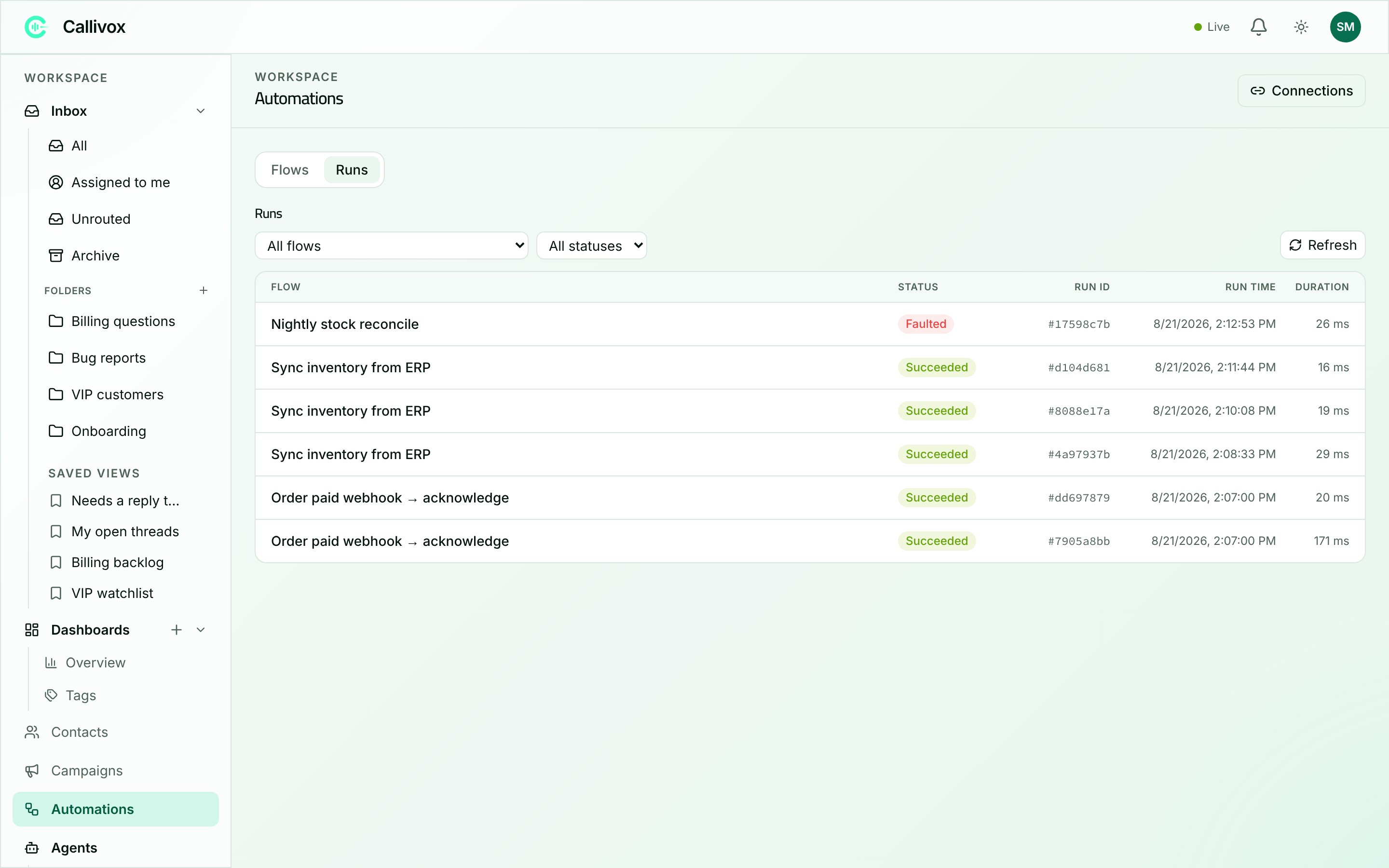 ## The Runs list
Open **Automations** and switch to the **Runs** tab. Each row shows:
| Column | What it tells you |
| ------------ | --------------------------------------------------------------------------------------------------------- |
| **Flow** | Which automation ran. |
| **Status** | **Succeeded** (green), **Faulted** (red), **Cancelled** (grey), or **Running** and **Suspended** (amber). |
| **Run ID** | A short identifier. Hover for the full one — useful when reporting a problem to support. |
| **Run time** | When the run started. |
| **Duration** | How long it took. |
Narrow the list with the flow dropdown (**All flows**) and the status dropdown (**All statuses**),
and use **Refresh** to pull the latest. Runs load 20 at a time with a **Load more** button. Before
anything has executed you will see **"No runs yet. Runs appear here after your automations
execute."**
A **Suspended** run is not stuck — it is waiting, typically inside a step that expects something to
come back. **Running** means it is still going.
## Reading a run
Click any row to open the run detail panel.
### The failure banner
If the run faulted, the first thing you see names the step that broke:
> This run failed at "Create Contact".
Underneath is the raw error the connected app or service returned. That message is usually the
fastest route to the cause — a rejected field, a missing permission, a record that does not exist.
### The run diagram
Below the banner is your flow, drawn read-only, with each block carrying a status chip:
| Chip | Meaning |
| ------------- | ----------------------------------------------------------------- |
| **Succeeded** | The step ran and finished. Its duration is shown in milliseconds. |
| **Faulted** | The step ran and failed. This is where the flow stopped. |
| **Running** | The step is still going. |
| **Not run** | Dimmed. Execution never reached this step. |
Connections that were followed are animated; those that were not fade out. This is how you tell
which side of an **If / Else** a run took, or whether a **For Each** loop ran at all.
### Inputs and outputs
The panel prompts **"Click a step to see its inputs & outputs."** Selecting a step shows:
* **Inputs** — the values that actually reached the step after everything was resolved. This is
where you catch a field that was mapped to the wrong upstream value, or that arrived empty.
* **Outputs** — what the step produced and handed to the steps after it.
* The error text again, if that step is the one that faulted.
A **Variables** section at the bottom lists the final value of every workflow variable in the run.
Comparing a failing run's **Inputs** against a successful run of the same flow is the quickest way
to find a data problem.
## What to check first
Work down this list in order — most failures are one of the first three.
Name the step, read the message. It usually says exactly what the other system objected to.
An empty or wrong-looking input means the mapping is at fault, not the connected app. Open the
flow, select that step, and re-pick the value with the **Use a previous step** picker.
Open **Connections** on the Automations page. A connection showing **ReauthRequired** or
**Error** will fail every step that uses it — click **Reconnect**. See
[Connectors and connections](/automations/connectors).
If the banner at the top of the Automations page reads **Automation runs exhausted**, nothing new
will run until the allowance resets or you upgrade. See
[Running low and running out](/billing/running-low-and-running-out).
A **Draft** flow never runs, and a flow with the **Off** badge has had its trigger retracted.
Publish it, and enable it from the **⋮** menu.
## Common causes
| Symptom | Usual cause |
| ----------------------------------- | ------------------------------------------------------------------------------------------------------------------------------------ |
| No runs at all for a flow | The flow is still **Draft**, or it is **Off**. Publish and enable it. |
| A webhook flow never fires | The sending system is using the wrong URL or the wrong method. Recopy the URL from the trigger panel and confirm the method matches. |
| A polling trigger never fires | The **Trigger polling** panel shows **Error** or was never polled. Publish the flow, then use **Check now**. |
| A connector step fails on every run | The connection needs reconnecting, or the account behind it lost access to the record, list or board you are writing to. |
| A step fails only sometimes | The incoming data varies — a field that is sometimes missing. Add an **If / Else** before the step to handle the empty case. |
| A **For Each** loop only ran once | The last step of the loop body is not connected back to the **For Each** block. |
| An HTTP step fails | Check the URL, method, headers and body on the block, then compare with the error text the endpoint returned. |
| Saving is blocked | Your included runs for the period are used up — saving and publishing are paused until you upgrade. |
## What the Runs view cannot do
There is no re-run, retry or cancel action. To try again, fix the flow and let the trigger fire
again — or, while testing a webhook flow, send another request to its URL.
Deleting a flow does not remove its runs. The history stays available under **Runs**.
## Next steps
The builder, step by step.
Reconnecting an app that has stopped working.
## The Runs list
Open **Automations** and switch to the **Runs** tab. Each row shows:
| Column | What it tells you |
| ------------ | --------------------------------------------------------------------------------------------------------- |
| **Flow** | Which automation ran. |
| **Status** | **Succeeded** (green), **Faulted** (red), **Cancelled** (grey), or **Running** and **Suspended** (amber). |
| **Run ID** | A short identifier. Hover for the full one — useful when reporting a problem to support. |
| **Run time** | When the run started. |
| **Duration** | How long it took. |
Narrow the list with the flow dropdown (**All flows**) and the status dropdown (**All statuses**),
and use **Refresh** to pull the latest. Runs load 20 at a time with a **Load more** button. Before
anything has executed you will see **"No runs yet. Runs appear here after your automations
execute."**
A **Suspended** run is not stuck — it is waiting, typically inside a step that expects something to
come back. **Running** means it is still going.
## Reading a run
Click any row to open the run detail panel.
### The failure banner
If the run faulted, the first thing you see names the step that broke:
> This run failed at "Create Contact".
Underneath is the raw error the connected app or service returned. That message is usually the
fastest route to the cause — a rejected field, a missing permission, a record that does not exist.
### The run diagram
Below the banner is your flow, drawn read-only, with each block carrying a status chip:
| Chip | Meaning |
| ------------- | ----------------------------------------------------------------- |
| **Succeeded** | The step ran and finished. Its duration is shown in milliseconds. |
| **Faulted** | The step ran and failed. This is where the flow stopped. |
| **Running** | The step is still going. |
| **Not run** | Dimmed. Execution never reached this step. |
Connections that were followed are animated; those that were not fade out. This is how you tell
which side of an **If / Else** a run took, or whether a **For Each** loop ran at all.
### Inputs and outputs
The panel prompts **"Click a step to see its inputs & outputs."** Selecting a step shows:
* **Inputs** — the values that actually reached the step after everything was resolved. This is
where you catch a field that was mapped to the wrong upstream value, or that arrived empty.
* **Outputs** — what the step produced and handed to the steps after it.
* The error text again, if that step is the one that faulted.
A **Variables** section at the bottom lists the final value of every workflow variable in the run.
Comparing a failing run's **Inputs** against a successful run of the same flow is the quickest way
to find a data problem.
## What to check first
Work down this list in order — most failures are one of the first three.
Name the step, read the message. It usually says exactly what the other system objected to.
An empty or wrong-looking input means the mapping is at fault, not the connected app. Open the
flow, select that step, and re-pick the value with the **Use a previous step** picker.
Open **Connections** on the Automations page. A connection showing **ReauthRequired** or
**Error** will fail every step that uses it — click **Reconnect**. See
[Connectors and connections](/automations/connectors).
If the banner at the top of the Automations page reads **Automation runs exhausted**, nothing new
will run until the allowance resets or you upgrade. See
[Running low and running out](/billing/running-low-and-running-out).
A **Draft** flow never runs, and a flow with the **Off** badge has had its trigger retracted.
Publish it, and enable it from the **⋮** menu.
## Common causes
| Symptom | Usual cause |
| ----------------------------------- | ------------------------------------------------------------------------------------------------------------------------------------ |
| No runs at all for a flow | The flow is still **Draft**, or it is **Off**. Publish and enable it. |
| A webhook flow never fires | The sending system is using the wrong URL or the wrong method. Recopy the URL from the trigger panel and confirm the method matches. |
| A polling trigger never fires | The **Trigger polling** panel shows **Error** or was never polled. Publish the flow, then use **Check now**. |
| A connector step fails on every run | The connection needs reconnecting, or the account behind it lost access to the record, list or board you are writing to. |
| A step fails only sometimes | The incoming data varies — a field that is sometimes missing. Add an **If / Else** before the step to handle the empty case. |
| A **For Each** loop only ran once | The last step of the loop body is not connected back to the **For Each** block. |
| An HTTP step fails | Check the URL, method, headers and body on the block, then compare with the error text the endpoint returned. |
| Saving is blocked | Your included runs for the period are used up — saving and publishing are paused until you upgrade. |
## What the Runs view cannot do
There is no re-run, retry or cancel action. To try again, fix the flow and let the trigger fire
again — or, while testing a webhook flow, send another request to its URL.
Deleting a flow does not remove its runs. The history stays available under **Runs**.
## Next steps
The builder, step by step.
Reconnecting an app that has stopped working.