> ## Documentation Index
> Fetch the complete documentation index at: https://docs.callivox.com/llms.txt
> Use this file to discover all available pages before exploring further.
# Connectors and connections
> The apps your automations can talk to, what each one can do, and how to authorise, reconnect and remove a connection.
A connector is a set of ready-made blocks for one product — the triggers that listen to it and the
actions that write to it. Before a connector's blocks can run, the app needs a **connection**: the
stored authorisation that lets Callivox act on your account.
 ## The catalogue
### Callivox's own actions
The **Callivox** section of the palette acts on your own workspace:
| Block | What it does |
| ---------------------------------- | ----------------------------------------------------------------------------------------------------------------------------------------------------------- |
| **Send Message** | Send a chat or WhatsApp message. Choose the **Channel** and recipient, then send **Free text** or a **Template** with its variables, optionally with media. |
| **Start Call** | Place an outbound voice call. Set the **Phone number** and pick a **Voice assistant**. |
| **Save Contact** | Create or update a contact from a phone number, with name, email and channel details. |
| **Add to Campaign** | Enroll a contact into a campaign. |
| **Set Conversation Variable** | Attach internal data to a conversation — an order id, a case reference — for later automations and dashboards. |
| **Get Conversation Variable** | Read one internal variable back off a conversation. |
| **List Conversation Variables** | Return every internal variable on a conversation. |
| **Find Conversations by Variable** | Search conversations by an internal variable. Feed the result into a **For Each** loop. |
Conversation variables are internal. They are never shown to the customer.
### Connected apps
* **HubSpot** — create, update, get, find and delete Contacts, Companies, Deals and Tickets;
create Tickets and Notes; associate two records; add a contact to a static list. The settings
rail loads your live properties, lists, pipelines, stages and owners.
* **Bitrix24** — add, update, get and list Leads, Deals, Contacts and Companies, plus **Add
Activity** to log a call, comment or email.
* **Dynamics 365** — **Create Record**, **Update Record**, **Get Record** and **Find Records**
against any entity set. The entity dropdown lists what your organisation has, with a
**Custom…** option for anything not listed.
* **Business Central** — **Create Customer**, **Get Customer**, **Get Item** and **Create Sales
Order** (with a header-and-lines editor).
* **Salla** — **Update Order Status**, **Get Order**, **Create Customer**, **Update Customer**
and **Get Customer**.
* **Drupal Commerce** — **Find Products**, **Get Product**, **Create Product**, **Update
Product**, **Find Orders**, **Get Order**, **Apply Order Transition** (place, validate,
fulfil, complete or cancel), **Find Customer** and **Create Customer**. Stores, product types,
order states and transitions are picked from live lists.
* **JotForm** — **Get Submission**, **List Submissions** and **List Forms**, alongside the
submission trigger.
* **Microsoft Forms** — a response trigger only; there are no Microsoft Forms actions.
* **Google Sheets** — **Append Rows**, **Update Rows**, **Delete Rows**, **Find Rows**, **Read
Columns** and **Read Range**.
* **Microsoft Excel** — **Append Rows**, **Update Rows**, **Delete Rows**, **Find Rows**, **Read
Columns** and **List Rows**. Excel adds a workbook browser so you can search your OneDrive or
SharePoint files, then pick a table and its columns.
* **Asana** — create, update, get, find, complete and delete Tasks; create, get and list
Projects; **Create Section**, **Add Task to Section**, **Add Comment** and **Add Tag**.
* **ClickUp** — create, update, get, delete and list Tasks; **Create Comment**, **Create List**,
**Get List**, **List Folders**, **List Spaces** and **Set Custom Field**.
* **Monday.com** — **Create Item**, **Update Item** and **Create Update**.
* **Airtable** — **List Records**, **Get Record**, **Create Records**, **Update Records**,
**Delete Record**, **List Bases** and **List Tables**.
* **Microsoft Outlook** — **Send Email**.
* **Microsoft Teams** — **Post to Channel** and **Send Chat**. Teams, channels, chats and people
are chosen from live pickers.
* **Facebook** and **LinkedIn** — lead and comment triggers only; there are no actions.
### Anything else — the HTTP blocks
Two blocks in the **HTTP** section cover products that have no dedicated connector:
* **HTTP Request** — *Call an external API.* Set the **URL**, **Method**, **Authorization**,
**Content type** and the body and headers. It has a separate error output, so you can branch on a
failed call.
* **HTTP Response** — *Reply to the incoming webhook request.* Only meaningful in a flow started by
a **Webhook** trigger.
## Authorising a connection
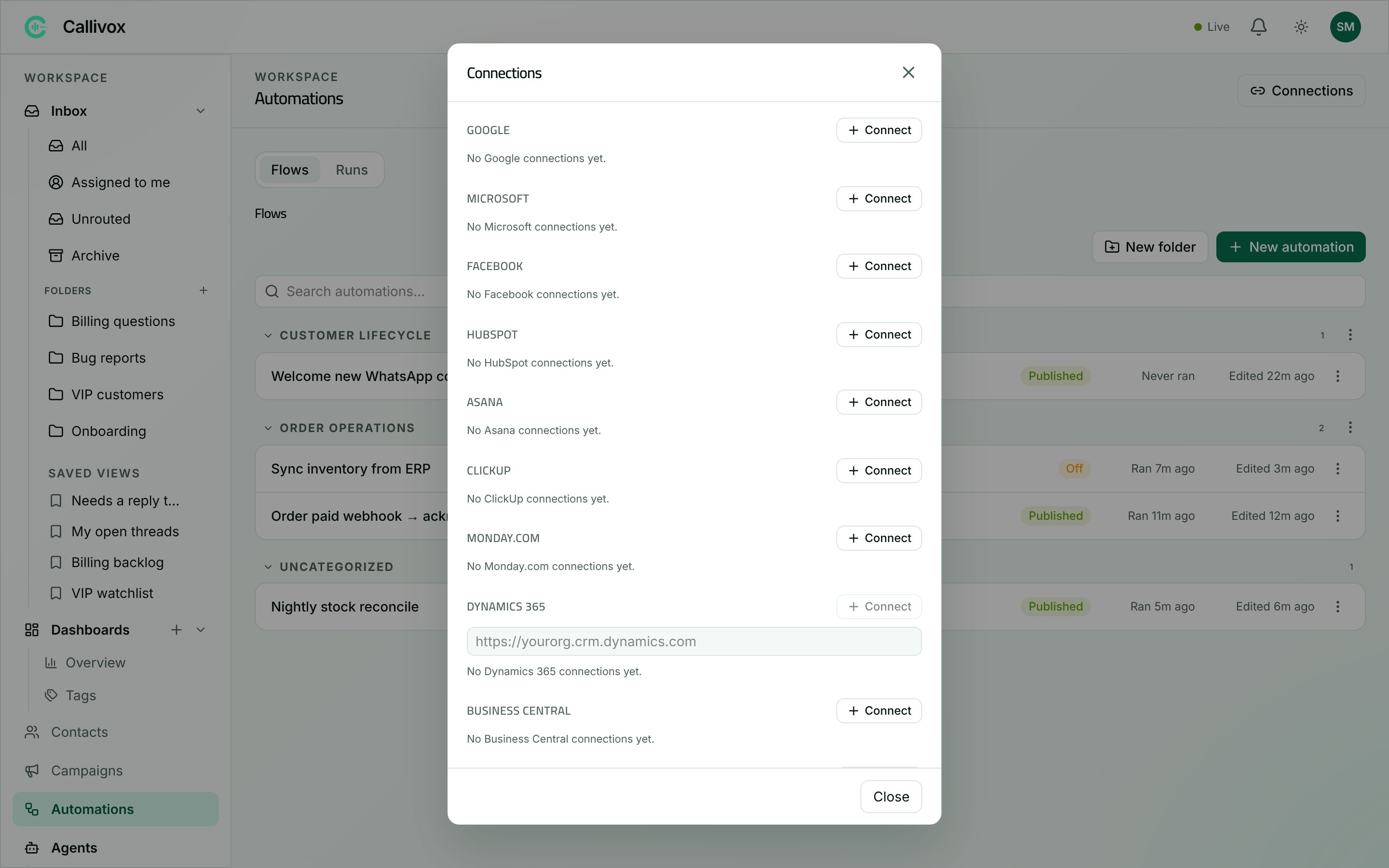
Click **Connections** in the Automations page header. The modal lists every provider, with the
connections you already hold under each.
There are two ways to authorise, depending on the provider.
**Google**, **Microsoft**, **Facebook**, **HubSpot**, **Asana**, **ClickUp**, **Monday.com**,
**Dynamics 365**, **Business Central** and **Salla**.
Find the provider's section and click **Connect**. A sign-in window opens and the section
reads **"Finish signing in to {provider} in the popup window…"**
Sign in to that account and approve the access it asks for. The window closes itself and the
new connection appears in the list.
A few providers need one more detail — see below.
If the window does not appear you will see **"Popup blocked. Allow popups for this site and try
again."** — allow popups for hub.callivox.com and retry.
Three providers ask for a little more:
* **Dynamics 365** — enter your organisation URL *before* clicking Connect. It must look like
`https://yourorg.crm.dynamics.com`; other regions use `crm3`, `crm4`, `crm5` or `crm11`. You
can change it later with **Configure**.
* **Business Central** — after signing in, an environment and company picker opens. The
connection row then shows `{environment} · {company}`. **Configure** reopens the picker.
* **Facebook** — after signing in, a page picker opens so you can choose which pages Callivox may
use. The row shows how many pages are selected; the **Pages** button reopens the picker.
One Microsoft sign-in covers Excel, Outlook, Teams, Microsoft Forms, Dynamics 365 and Business
Central.
If a provider shows **"Not configured on this platform."** with **Connect** greyed out, that
integration is not enabled for your Callivox deployment. Contact support.
Some products authorise with a key you paste in rather than a sign-in window. Use the **Add API
key** section at the bottom of the modal, choose the provider, paste the secret, add an optional
**Display name**, and click **Add API key**. You will see **"API key saved"**.
| Provider | What to paste |
| ------------------- | ----------------------------------------------------------------------------------------------------------------------------------------------------------- |
| **Airtable** | A **Personal access token (PAT)** with the `data.records` and `schema.bases` scopes. |
| **Bitrix24** | The full **inbound webhook URL**, for example `https://your.bitrix24.com/rest/1/abc123/`. |
| **JotForm** | A **Full Access API key** — required so Callivox can register the submission webhook. |
| **Drupal Commerce** | Three fields: your site's **Base URL**, and the **Username** and **Password** of a dedicated API user. Your Drupal site needs basic authentication enabled. |
| **Custom HTTP** | An API token or bearer token used by **HTTP Request** blocks in your flows. |
Fields are validated as you go: `{field} is required.` and
`{field} must be a valid URL, e.g. https://example.com.`
## Using a connection in a flow
Blocks that talk to an outside app show a **Connection** dropdown in the settings rail, set to
**— default connection —**. Pick a specific connection if you hold more than one for that provider —
two HubSpot accounts, two Drupal stores.
If the dropdown shows `{id} (stale — connection may have been deleted)`, the connection it pointed at
is gone. Choose a current one.
## Reconnecting and removing
Each connection row shows its display name and a status:
| Status | Meaning |
| ------------------ | ---------------------------------------------------------------------------------------------------------- |
| **Active** | Working. Callivox refreshes the access in the background, so a healthy connection does not need attention. |
| **ReauthRequired** | The provider needs you to sign in again — a password change, an expired token, or revoked consent. |
| **Error** | Callivox could not use the connection on its last attempt. |
When the status is not Active, a **Reconnect** button appears. Click it and repeat the sign-in, or
paste a fresh key. Everything that used the connection resumes without any change to your flows.
To remove a connection, click its trash icon; the row turns into an inline **Delete?** with **Yes**
and **No**.
Deleting a connection immediately breaks every flow that uses it. Triggers on that connection stop
firing and actions fail on their next run. Reconnect instead if you only need to refresh the
sign-in.
## Next steps
The events each connector can listen for.
Wiring connector blocks together on the canvas.
What to check when a connector step fails.
Flows, runs and your monthly run allowance.
## The catalogue
### Callivox's own actions
The **Callivox** section of the palette acts on your own workspace:
| Block | What it does |
| ---------------------------------- | ----------------------------------------------------------------------------------------------------------------------------------------------------------- |
| **Send Message** | Send a chat or WhatsApp message. Choose the **Channel** and recipient, then send **Free text** or a **Template** with its variables, optionally with media. |
| **Start Call** | Place an outbound voice call. Set the **Phone number** and pick a **Voice assistant**. |
| **Save Contact** | Create or update a contact from a phone number, with name, email and channel details. |
| **Add to Campaign** | Enroll a contact into a campaign. |
| **Set Conversation Variable** | Attach internal data to a conversation — an order id, a case reference — for later automations and dashboards. |
| **Get Conversation Variable** | Read one internal variable back off a conversation. |
| **List Conversation Variables** | Return every internal variable on a conversation. |
| **Find Conversations by Variable** | Search conversations by an internal variable. Feed the result into a **For Each** loop. |
Conversation variables are internal. They are never shown to the customer.
### Connected apps
* **HubSpot** — create, update, get, find and delete Contacts, Companies, Deals and Tickets;
create Tickets and Notes; associate two records; add a contact to a static list. The settings
rail loads your live properties, lists, pipelines, stages and owners.
* **Bitrix24** — add, update, get and list Leads, Deals, Contacts and Companies, plus **Add
Activity** to log a call, comment or email.
* **Dynamics 365** — **Create Record**, **Update Record**, **Get Record** and **Find Records**
against any entity set. The entity dropdown lists what your organisation has, with a
**Custom…** option for anything not listed.
* **Business Central** — **Create Customer**, **Get Customer**, **Get Item** and **Create Sales
Order** (with a header-and-lines editor).
* **Salla** — **Update Order Status**, **Get Order**, **Create Customer**, **Update Customer**
and **Get Customer**.
* **Drupal Commerce** — **Find Products**, **Get Product**, **Create Product**, **Update
Product**, **Find Orders**, **Get Order**, **Apply Order Transition** (place, validate,
fulfil, complete or cancel), **Find Customer** and **Create Customer**. Stores, product types,
order states and transitions are picked from live lists.
* **JotForm** — **Get Submission**, **List Submissions** and **List Forms**, alongside the
submission trigger.
* **Microsoft Forms** — a response trigger only; there are no Microsoft Forms actions.
* **Google Sheets** — **Append Rows**, **Update Rows**, **Delete Rows**, **Find Rows**, **Read
Columns** and **Read Range**.
* **Microsoft Excel** — **Append Rows**, **Update Rows**, **Delete Rows**, **Find Rows**, **Read
Columns** and **List Rows**. Excel adds a workbook browser so you can search your OneDrive or
SharePoint files, then pick a table and its columns.
* **Asana** — create, update, get, find, complete and delete Tasks; create, get and list
Projects; **Create Section**, **Add Task to Section**, **Add Comment** and **Add Tag**.
* **ClickUp** — create, update, get, delete and list Tasks; **Create Comment**, **Create List**,
**Get List**, **List Folders**, **List Spaces** and **Set Custom Field**.
* **Monday.com** — **Create Item**, **Update Item** and **Create Update**.
* **Airtable** — **List Records**, **Get Record**, **Create Records**, **Update Records**,
**Delete Record**, **List Bases** and **List Tables**.
* **Microsoft Outlook** — **Send Email**.
* **Microsoft Teams** — **Post to Channel** and **Send Chat**. Teams, channels, chats and people
are chosen from live pickers.
* **Facebook** and **LinkedIn** — lead and comment triggers only; there are no actions.
### Anything else — the HTTP blocks
Two blocks in the **HTTP** section cover products that have no dedicated connector:
* **HTTP Request** — *Call an external API.* Set the **URL**, **Method**, **Authorization**,
**Content type** and the body and headers. It has a separate error output, so you can branch on a
failed call.
* **HTTP Response** — *Reply to the incoming webhook request.* Only meaningful in a flow started by
a **Webhook** trigger.
## Authorising a connection
Click **Connections** in the Automations page header. The modal lists every provider, with the
connections you already hold under each.
There are two ways to authorise, depending on the provider.
**Google**, **Microsoft**, **Facebook**, **HubSpot**, **Asana**, **ClickUp**, **Monday.com**,
**Dynamics 365**, **Business Central** and **Salla**.
Find the provider's section and click **Connect**. A sign-in window opens and the section
reads **"Finish signing in to {provider} in the popup window…"**
Sign in to that account and approve the access it asks for. The window closes itself and the
new connection appears in the list.
A few providers need one more detail — see below.
If the window does not appear you will see **"Popup blocked. Allow popups for this site and try
again."** — allow popups for hub.callivox.com and retry.
Three providers ask for a little more:
* **Dynamics 365** — enter your organisation URL *before* clicking Connect. It must look like
`https://yourorg.crm.dynamics.com`; other regions use `crm3`, `crm4`, `crm5` or `crm11`. You
can change it later with **Configure**.
* **Business Central** — after signing in, an environment and company picker opens. The
connection row then shows `{environment} · {company}`. **Configure** reopens the picker.
* **Facebook** — after signing in, a page picker opens so you can choose which pages Callivox may
use. The row shows how many pages are selected; the **Pages** button reopens the picker.
One Microsoft sign-in covers Excel, Outlook, Teams, Microsoft Forms, Dynamics 365 and Business
Central.
If a provider shows **"Not configured on this platform."** with **Connect** greyed out, that
integration is not enabled for your Callivox deployment. Contact support.
Some products authorise with a key you paste in rather than a sign-in window. Use the **Add API
key** section at the bottom of the modal, choose the provider, paste the secret, add an optional
**Display name**, and click **Add API key**. You will see **"API key saved"**.
| Provider | What to paste |
| ------------------- | ----------------------------------------------------------------------------------------------------------------------------------------------------------- |
| **Airtable** | A **Personal access token (PAT)** with the `data.records` and `schema.bases` scopes. |
| **Bitrix24** | The full **inbound webhook URL**, for example `https://your.bitrix24.com/rest/1/abc123/`. |
| **JotForm** | A **Full Access API key** — required so Callivox can register the submission webhook. |
| **Drupal Commerce** | Three fields: your site's **Base URL**, and the **Username** and **Password** of a dedicated API user. Your Drupal site needs basic authentication enabled. |
| **Custom HTTP** | An API token or bearer token used by **HTTP Request** blocks in your flows. |
Fields are validated as you go: `{field} is required.` and
`{field} must be a valid URL, e.g. https://example.com.`
## Using a connection in a flow
Blocks that talk to an outside app show a **Connection** dropdown in the settings rail, set to
**— default connection —**. Pick a specific connection if you hold more than one for that provider —
two HubSpot accounts, two Drupal stores.
If the dropdown shows `{id} (stale — connection may have been deleted)`, the connection it pointed at
is gone. Choose a current one.
## Reconnecting and removing
Each connection row shows its display name and a status:
| Status | Meaning |
| ------------------ | ---------------------------------------------------------------------------------------------------------- |
| **Active** | Working. Callivox refreshes the access in the background, so a healthy connection does not need attention. |
| **ReauthRequired** | The provider needs you to sign in again — a password change, an expired token, or revoked consent. |
| **Error** | Callivox could not use the connection on its last attempt. |
When the status is not Active, a **Reconnect** button appears. Click it and repeat the sign-in, or
paste a fresh key. Everything that used the connection resumes without any change to your flows.
To remove a connection, click its trash icon; the row turns into an inline **Delete?** with **Yes**
and **No**.
Deleting a connection immediately breaks every flow that uses it. Triggers on that connection stop
firing and actions fail on their next run. Reconnect instead if you only need to refresh the
sign-in.
## Next steps
The events each connector can listen for.
Wiring connector blocks together on the canvas.
What to check when a connector step fails.
Flows, runs and your monthly run allowance.