> ## Documentation Index
> Fetch the complete documentation index at: https://docs.callivox.com/llms.txt
> Use this file to discover all available pages before exploring further.
# Behavior and handoff
> Control how much history an agent reads, when it pauses for a human, when it files a conversation into a folder, and what information it must collect before a conversation is done.
The **Behavior** tab decides how an agent conducts itself: how much of the conversation it
remembers, when it should stop and fetch a person, when it should file a conversation into a
folder, and what it is trying to achieve. It has four groups.
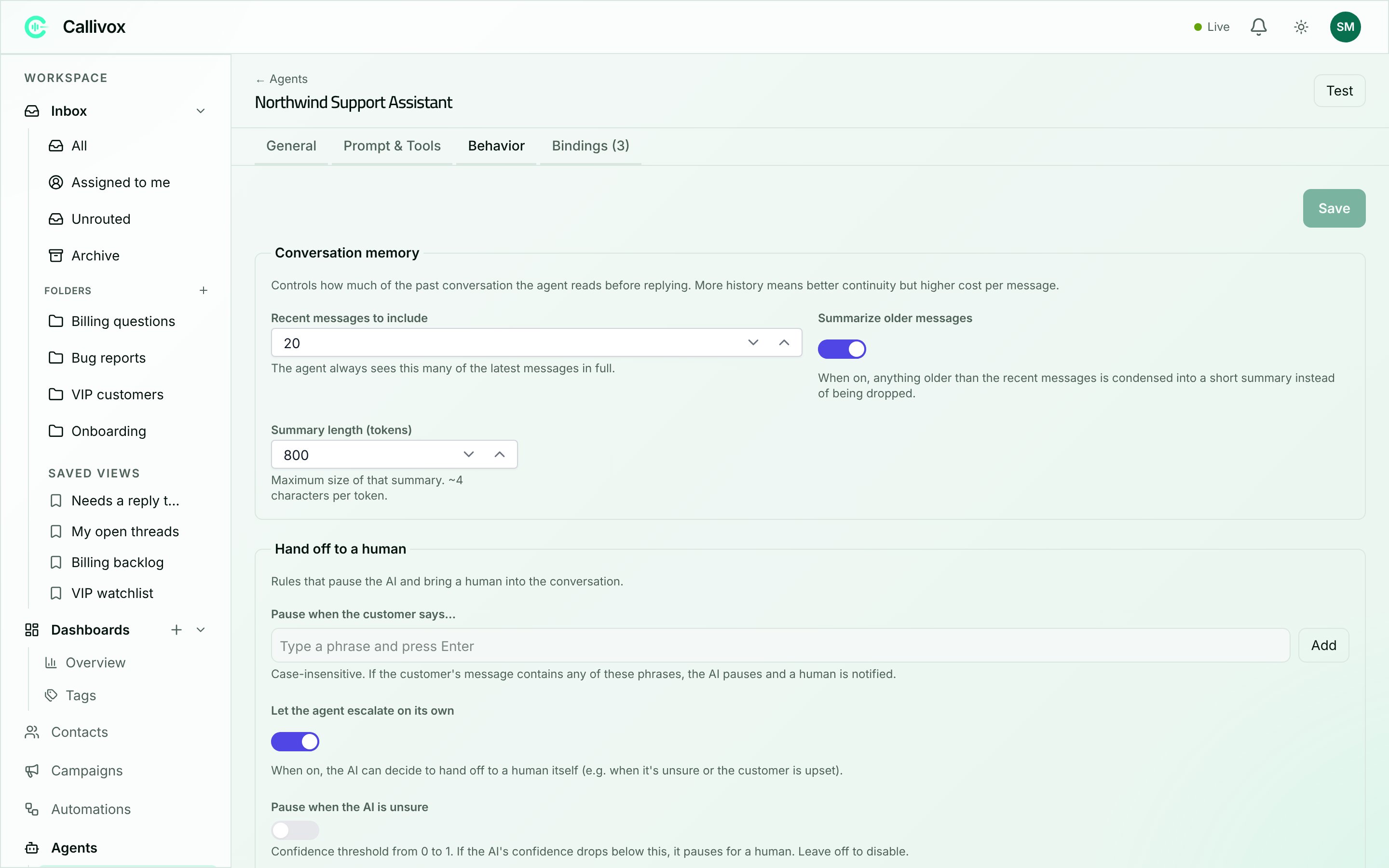 ## Conversation memory
> Controls how much of the past conversation the agent reads before replying. More history means
> better continuity but higher cost per message.
| Setting | What it does |
| ------------------------------ | ------------------------------------------------------------------------------------------------------------------ |
| **Recent messages to include** | "The agent always sees this many of the latest messages in full." Between 1 and 200. |
| **Summarize older messages** | "When on, anything older than the recent messages is condensed into a short summary instead of being dropped." |
| **Summary length (tokens)** | "Maximum size of that summary. \~4 characters per token." Between 50 and 4,000. Only shown when summarizing is on. |
Short support exchanges rarely need more than the recent messages. Turn on **Summarize older
messages** when customers come back over days and expect the agent to remember what happened —
a long-running sales thread, or a complaint that's been through several rounds.
Every message you include is read again on every reply, so raising **Recent messages to include**
raises the cost of each reply. Raise it because the agent is forgetting things, not by default.
## Hand off to a human
> Rules that pause the AI and bring a human into the conversation.
There are three independent triggers, and you can use any combination.
### Pause when the customer says…
A list of phrases. Type one and press **Enter** (or a comma), or click **Add**. Each phrase becomes
a chip you can remove.
> Case-insensitive. If the customer's message contains any of these phrases, the AI pauses and a
> human is notified.
This is the blunt, reliable trigger. Good candidates: `speak to a human`, `agent`, `manager`,
`cancel my account`, `complaint`, `legal`. Match how your customers actually write — including the
languages they write in.
### Let the agent escalate on its own
> When on, the AI can decide to hand off to a human itself (e.g. when it's unsure or the customer
> is upset).
Turn this on when your conversations vary too much to cover with a phrase list. The agent judges
for itself when it is out of its depth.
### Pause when the AI is unsure
Switch this on and you get a confidence threshold between 0 and 1, defaulting to `0.5`.
> Confidence threshold from 0 to 1. If the AI's confidence drops below this, it pauses for a human.
> Leave off to disable.
A higher number makes the agent more cautious and hands off more often. A lower number lets it push
on through uncertainty. Start at the default and move it only after you've read a batch of real
handoffs and decided there were too many or too few.
A handoff pauses the AI — the conversation stays where it is, and your team picks it up in the
[inbox](/inbox/working-with-conversations). Nothing is lost, and you can resume the AI afterwards.
## File into folders
> Let the AI move conversations into the right inbox folder as it works.
When on, the AI can move a conversation into one of your inbox folders once it understands what
it's about — for example filing a billing question into **Billing** without a rule or a person
having to move it there first.
Off by default. Turning it on reveals a **Filing rules** list — one row per rule, each pairing a
free-text condition with a folder, for example:
| Condition | Folder |
| ------------------------------------- | ------- |
| *customer is asking about branch JLT* | **JLT** |
**+ Add rule** adds a row, both sides edit inline, and a row can be removed at any time. **Folder**
is a dropdown of your workspace's real, non-system folders, so a rule can never point at one that
doesn't exist. These rules tell the agent **when** to file and **where** — you no longer need to
spell out a filing policy in the agent's prompt.
A condition is read for meaning, not matched literally — the agent understands rephrasings and
other languages, so *"customer is asking about branch JLT"* also matches "where is your JLT
office?". That is the strength of filing rules, and also why they are the wrong tool for exact,
deterministic routing — a specific sender, a specific channel, or an AI-assigned tag. Use
[inbox routing rules](/settings/folders-and-rules#routing-on-ai-assigned-tags) for those instead.
If a rule's folder is later deleted, its row shows **"(deleted folder)"** and is skipped until you
pick a new folder or remove the rule. When no rule matches, the agent falls back to its own
judgment and only files when the fit is obvious.
Filing is independent of the other sections on this tab, so combine it with escalation or a team
transfer as needed:
* **It doesn't stop the AI replying.** Filing a conversation and escalating it to a human are two
separate things — an agent can file the conversation into the right folder and still hand off to
a person afterwards.
* **It doesn't compete with a transfer to a teammate.** An agent on a [team](/ai-agents/teams) can
file the conversation and still transfer it to a colleague in the same conversation.
Filing only ever happens while the conversation is still unfiled, sitting in **Unrouted**. Neither
a filing rule nor the agent's own judgment ever overrides a folder a person or a
[routing rule](/settings/folders-and-rules#routing-on-ai-assigned-tags) already chose.
If the folder the agent picks has an agent bound to it, that agent takes over automatically on the
customer's next message — the same [binding behaviour](/ai-agents/overview#how-an-agent-gets-attached-to-a-channel)
as any other conversation landing in that folder.
## Objective
> Give the agent a concrete goal to collect structured information from the customer and act on it
> at the end.
An objective turns an open conversation into a job with a finish line: gather these fields, then do
something. Use it for lead capture, ticket intake, booking details, or any hand-off where the next
person needs facts rather than a transcript.
The helper text switches between "Active" and "Off".
For example: "Collect the customer's name, email, and issue description for a support ticket."
This text is added to the agent's instructions, so it knows what it is working towards.
"Each variable is a piece of information the agent must gather from the customer." Click
**+ Add variable** for each one and fill in:
| Column | Notes |
| ----------------------------- | ---------------------------------------------------------------------------------------- |
| **Name** | A short machine-style name, for example `customer_email`. |
| **Type** | **Text (string)**, **Number**, **True / False (boolean)** or **Multiple choice (enum)**. |
| **Required** | Tick when the agent must not finish without it. |
| **Description (optional)** | Tells the agent what counts as a good answer. |
| **Options (comma-separated)** | Enum types only — for example `billing, technical, general`. |
Use **Remove variable** to drop one.
Two checkboxes, and you can tick both, one, or neither:
* **Close the conversation automatically** — the agent has what it needs, so the thread closes.
* **Hand off to a human agent** — a person takes over with the collected details already in hand.
Use **Multiple choice (enum)** whenever the answer should be one of a fixed set. It stops the
agent from recording "billing issue I think" when you wanted `billing`.
## Next steps
What the agent knows and what it can do.
Hand off to another agent instead of a person.
Route conversations into folders with rules, including on AI-assigned tags.
## Conversation memory
> Controls how much of the past conversation the agent reads before replying. More history means
> better continuity but higher cost per message.
| Setting | What it does |
| ------------------------------ | ------------------------------------------------------------------------------------------------------------------ |
| **Recent messages to include** | "The agent always sees this many of the latest messages in full." Between 1 and 200. |
| **Summarize older messages** | "When on, anything older than the recent messages is condensed into a short summary instead of being dropped." |
| **Summary length (tokens)** | "Maximum size of that summary. \~4 characters per token." Between 50 and 4,000. Only shown when summarizing is on. |
Short support exchanges rarely need more than the recent messages. Turn on **Summarize older
messages** when customers come back over days and expect the agent to remember what happened —
a long-running sales thread, or a complaint that's been through several rounds.
Every message you include is read again on every reply, so raising **Recent messages to include**
raises the cost of each reply. Raise it because the agent is forgetting things, not by default.
## Hand off to a human
> Rules that pause the AI and bring a human into the conversation.
There are three independent triggers, and you can use any combination.
### Pause when the customer says…
A list of phrases. Type one and press **Enter** (or a comma), or click **Add**. Each phrase becomes
a chip you can remove.
> Case-insensitive. If the customer's message contains any of these phrases, the AI pauses and a
> human is notified.
This is the blunt, reliable trigger. Good candidates: `speak to a human`, `agent`, `manager`,
`cancel my account`, `complaint`, `legal`. Match how your customers actually write — including the
languages they write in.
### Let the agent escalate on its own
> When on, the AI can decide to hand off to a human itself (e.g. when it's unsure or the customer
> is upset).
Turn this on when your conversations vary too much to cover with a phrase list. The agent judges
for itself when it is out of its depth.
### Pause when the AI is unsure
Switch this on and you get a confidence threshold between 0 and 1, defaulting to `0.5`.
> Confidence threshold from 0 to 1. If the AI's confidence drops below this, it pauses for a human.
> Leave off to disable.
A higher number makes the agent more cautious and hands off more often. A lower number lets it push
on through uncertainty. Start at the default and move it only after you've read a batch of real
handoffs and decided there were too many or too few.
A handoff pauses the AI — the conversation stays where it is, and your team picks it up in the
[inbox](/inbox/working-with-conversations). Nothing is lost, and you can resume the AI afterwards.
## File into folders
> Let the AI move conversations into the right inbox folder as it works.
When on, the AI can move a conversation into one of your inbox folders once it understands what
it's about — for example filing a billing question into **Billing** without a rule or a person
having to move it there first.
Off by default. Turning it on reveals a **Filing rules** list — one row per rule, each pairing a
free-text condition with a folder, for example:
| Condition | Folder |
| ------------------------------------- | ------- |
| *customer is asking about branch JLT* | **JLT** |
**+ Add rule** adds a row, both sides edit inline, and a row can be removed at any time. **Folder**
is a dropdown of your workspace's real, non-system folders, so a rule can never point at one that
doesn't exist. These rules tell the agent **when** to file and **where** — you no longer need to
spell out a filing policy in the agent's prompt.
A condition is read for meaning, not matched literally — the agent understands rephrasings and
other languages, so *"customer is asking about branch JLT"* also matches "where is your JLT
office?". That is the strength of filing rules, and also why they are the wrong tool for exact,
deterministic routing — a specific sender, a specific channel, or an AI-assigned tag. Use
[inbox routing rules](/settings/folders-and-rules#routing-on-ai-assigned-tags) for those instead.
If a rule's folder is later deleted, its row shows **"(deleted folder)"** and is skipped until you
pick a new folder or remove the rule. When no rule matches, the agent falls back to its own
judgment and only files when the fit is obvious.
Filing is independent of the other sections on this tab, so combine it with escalation or a team
transfer as needed:
* **It doesn't stop the AI replying.** Filing a conversation and escalating it to a human are two
separate things — an agent can file the conversation into the right folder and still hand off to
a person afterwards.
* **It doesn't compete with a transfer to a teammate.** An agent on a [team](/ai-agents/teams) can
file the conversation and still transfer it to a colleague in the same conversation.
Filing only ever happens while the conversation is still unfiled, sitting in **Unrouted**. Neither
a filing rule nor the agent's own judgment ever overrides a folder a person or a
[routing rule](/settings/folders-and-rules#routing-on-ai-assigned-tags) already chose.
If the folder the agent picks has an agent bound to it, that agent takes over automatically on the
customer's next message — the same [binding behaviour](/ai-agents/overview#how-an-agent-gets-attached-to-a-channel)
as any other conversation landing in that folder.
## Objective
> Give the agent a concrete goal to collect structured information from the customer and act on it
> at the end.
An objective turns an open conversation into a job with a finish line: gather these fields, then do
something. Use it for lead capture, ticket intake, booking details, or any hand-off where the next
person needs facts rather than a transcript.
The helper text switches between "Active" and "Off".
For example: "Collect the customer's name, email, and issue description for a support ticket."
This text is added to the agent's instructions, so it knows what it is working towards.
"Each variable is a piece of information the agent must gather from the customer." Click
**+ Add variable** for each one and fill in:
| Column | Notes |
| ----------------------------- | ---------------------------------------------------------------------------------------- |
| **Name** | A short machine-style name, for example `customer_email`. |
| **Type** | **Text (string)**, **Number**, **True / False (boolean)** or **Multiple choice (enum)**. |
| **Required** | Tick when the agent must not finish without it. |
| **Description (optional)** | Tells the agent what counts as a good answer. |
| **Options (comma-separated)** | Enum types only — for example `billing, technical, general`. |
Use **Remove variable** to drop one.
Two checkboxes, and you can tick both, one, or neither:
* **Close the conversation automatically** — the agent has what it needs, so the thread closes.
* **Hand off to a human agent** — a person takes over with the collected details already in hand.
Use **Multiple choice (enum)** whenever the answer should be one of a fixed set. It stops the
agent from recording "billing issue I think" when you wanted `billing`.
## Next steps
What the agent knows and what it can do.
Hand off to another agent instead of a person.
Route conversations into folders with rules, including on AI-assigned tags.