> ## Documentation Index
> Fetch the complete documentation index at: https://docs.callivox.com/llms.txt
> Use this file to discover all available pages before exploring further.
# Assist agents
> Set up an internal AI helper that summarizes conversations and drafts replies for your team in the inbox, without ever messaging a customer.
An assist agent works for your team, not for your customers. It reads the conversation your agent
is looking at and offers a summary, a read on the customer's mood, draft replies, and answers from
your knowledge base. Everything it produces is shown only to the human agent — nothing is sent to
the customer, ever.
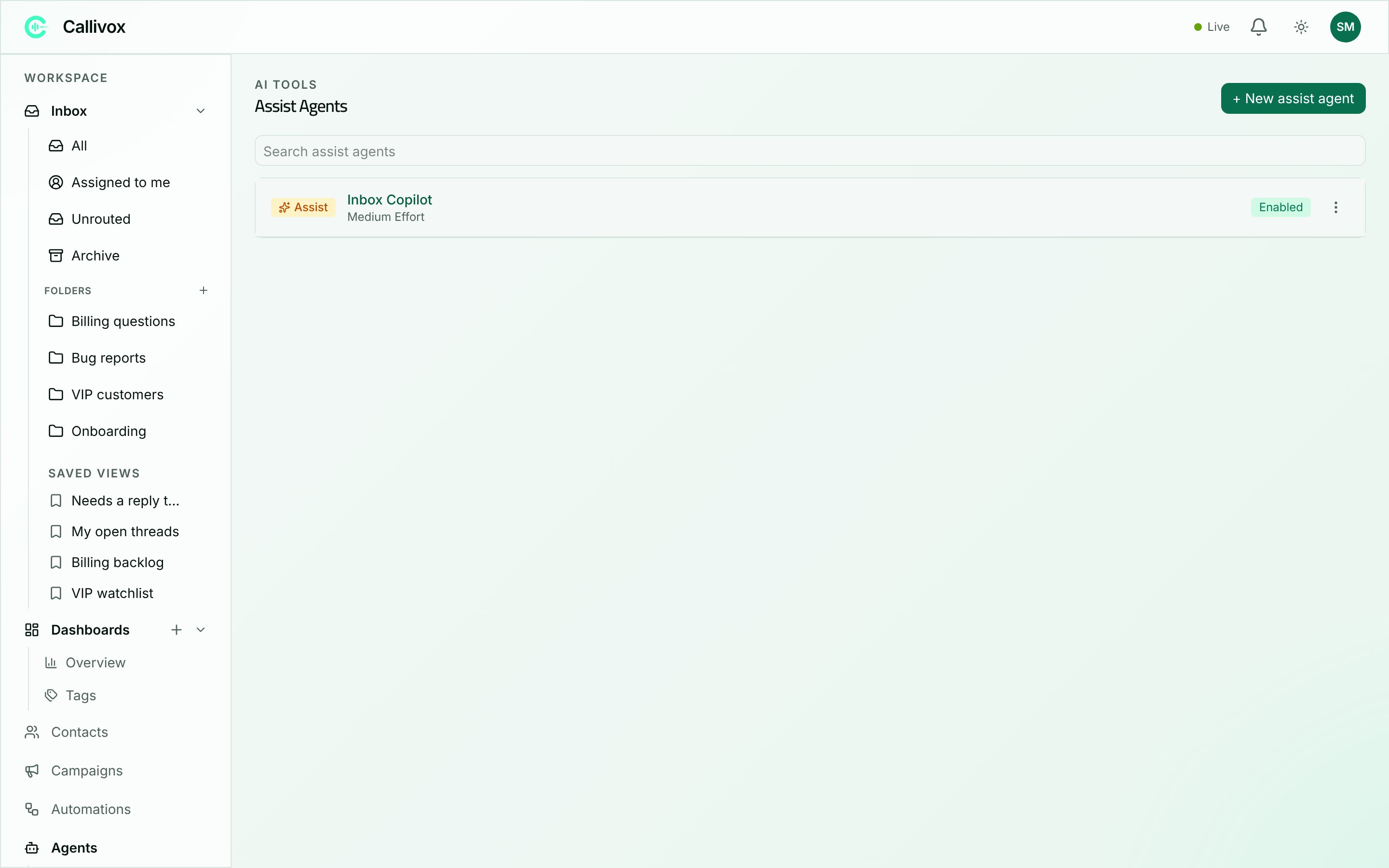 ## Create an assist agent
Assist agents live under **AI → Assist Agents**.
A dialog asks for a **Name**, pre-filled with `New assist agent`. Click **Create**.
On the **Prompt & Knowledge** tab, replace the starting prompt — "You assist a human support
agent. Be concise and helpful." — with something that fits your team. The assist agent's prompt
is added to every task it performs, so its voice carries into summaries and drafts alike.
Tell it about your product, your tone, and how long a draft reply should be. If your team
answers in several languages, you don't need to say so — drafts come back in the customer's
language automatically.
The same tab has a **Knowledge base** picker. Attach one if you want the agent to answer
product questions from your documents. See
[Prompt, knowledge and tools](/ai-agents/prompt-knowledge-and-tools).
See below.
Assist agents have three tabs — **General**, **Prompt & Knowledge** and **Capabilities**. There is
no Bindings tab, no Flow, and no tools picker: an assist agent doesn't reply to anyone, so it has
nothing to bind to and no actions to take.
The first assist agent you create becomes the assistant for the whole workspace automatically.
There's no per-channel setup — one assist agent serves everyone.
## Capabilities
The **Capabilities** tab decides which features the agent offers:
> Choose which assist features this agent offers to human agents in the inbox. Outputs are shown
> only to the agent — nothing is sent to the customer.
| Capability | What it gives your team |
| --------------------- | ------------------------------------------------------------------ |
| **Summary** | "Generate a short recap of the conversation for the human agent." |
| **Sentiment** | "Read the customer's mood (happy / neutral / upset)." |
| **Reply suggestions** | "Draft reply options the agent can edit and send." |
| **Knowledge answers** | "Answer the customer's question from the attached knowledge base." |
All four start switched on. Turn off anything your team doesn't use — each one costs credits when
it runs.
Turning on **Knowledge answers** with no knowledge base attached raises "No knowledge base
attached — add one in Prompt & Knowledge for this to work." Attach one or turn the capability off.
## How your team uses it in the inbox
In a conversation, the icon rail down the right edge has an **Agent Assist** entry. Opening it
shows a panel with four sections, each with its own refresh control.
| Section | What it shows |
| --------------- | -------------------------------------------------------------------------------------------------------------------- |
| **Summary** | A short recap of where the conversation has got to. |
| **Mood** | A badge reading **happy**, **neutral** or **upset**, with a one-line explanation. |
| **Suggestions** | Three draft replies, labelled **concise**, **detailed** and **empathetic**, each with **Insert** and **Regenerate**. |
| **Knowledge** | An answer drawn from your knowledge base, with a chip citing the source document. |
**Summary** and **Mood** refresh on their own — once when the panel first opens, and again a few
seconds after the customer sends something new. **Suggestions** and **Knowledge** run only when
your agent asks for them, so a conversation that nobody needs help with costs nothing extra.
### Insert does not send
Clicking **Insert** on a draft drops the text into the message composer. It does not send it. Your
agent reads it, edits it, and sends it themselves — or deletes it and writes their own. If the
composer already has text, the draft is added on a new line underneath.
**Regenerate** on a draft you nearly like is usually faster than rewriting it. The three drafts
differ in length and warmth, so start from the closest one.
### Turning it on and off
The panel header has an **On** / **Off** pill for the conversation in front of you, plus a
**Turn off by default for me** link to switch it off everywhere.
Both switches are personal. Turning Agent Assist off affects only your own view — your colleagues
keep theirs.
If no assist agent exists yet, the panel reads "Agent Assist not configured."
## Next steps
The other AI controls your team sees in a conversation.
Give the assist agent something to answer from.
## Create an assist agent
Assist agents live under **AI → Assist Agents**.
A dialog asks for a **Name**, pre-filled with `New assist agent`. Click **Create**.
On the **Prompt & Knowledge** tab, replace the starting prompt — "You assist a human support
agent. Be concise and helpful." — with something that fits your team. The assist agent's prompt
is added to every task it performs, so its voice carries into summaries and drafts alike.
Tell it about your product, your tone, and how long a draft reply should be. If your team
answers in several languages, you don't need to say so — drafts come back in the customer's
language automatically.
The same tab has a **Knowledge base** picker. Attach one if you want the agent to answer
product questions from your documents. See
[Prompt, knowledge and tools](/ai-agents/prompt-knowledge-and-tools).
See below.
Assist agents have three tabs — **General**, **Prompt & Knowledge** and **Capabilities**. There is
no Bindings tab, no Flow, and no tools picker: an assist agent doesn't reply to anyone, so it has
nothing to bind to and no actions to take.
The first assist agent you create becomes the assistant for the whole workspace automatically.
There's no per-channel setup — one assist agent serves everyone.
## Capabilities
The **Capabilities** tab decides which features the agent offers:
> Choose which assist features this agent offers to human agents in the inbox. Outputs are shown
> only to the agent — nothing is sent to the customer.
| Capability | What it gives your team |
| --------------------- | ------------------------------------------------------------------ |
| **Summary** | "Generate a short recap of the conversation for the human agent." |
| **Sentiment** | "Read the customer's mood (happy / neutral / upset)." |
| **Reply suggestions** | "Draft reply options the agent can edit and send." |
| **Knowledge answers** | "Answer the customer's question from the attached knowledge base." |
All four start switched on. Turn off anything your team doesn't use — each one costs credits when
it runs.
Turning on **Knowledge answers** with no knowledge base attached raises "No knowledge base
attached — add one in Prompt & Knowledge for this to work." Attach one or turn the capability off.
## How your team uses it in the inbox
In a conversation, the icon rail down the right edge has an **Agent Assist** entry. Opening it
shows a panel with four sections, each with its own refresh control.
| Section | What it shows |
| --------------- | -------------------------------------------------------------------------------------------------------------------- |
| **Summary** | A short recap of where the conversation has got to. |
| **Mood** | A badge reading **happy**, **neutral** or **upset**, with a one-line explanation. |
| **Suggestions** | Three draft replies, labelled **concise**, **detailed** and **empathetic**, each with **Insert** and **Regenerate**. |
| **Knowledge** | An answer drawn from your knowledge base, with a chip citing the source document. |
**Summary** and **Mood** refresh on their own — once when the panel first opens, and again a few
seconds after the customer sends something new. **Suggestions** and **Knowledge** run only when
your agent asks for them, so a conversation that nobody needs help with costs nothing extra.
### Insert does not send
Clicking **Insert** on a draft drops the text into the message composer. It does not send it. Your
agent reads it, edits it, and sends it themselves — or deletes it and writes their own. If the
composer already has text, the draft is added on a new line underneath.
**Regenerate** on a draft you nearly like is usually faster than rewriting it. The three drafts
differ in length and warmth, so start from the closest one.
### Turning it on and off
The panel header has an **On** / **Off** pill for the conversation in front of you, plus a
**Turn off by default for me** link to switch it off everywhere.
Both switches are personal. Turning Agent Assist off affects only your own view — your colleagues
keep theirs.
If no assist agent exists yet, the panel reads "Agent Assist not configured."
## Next steps
The other AI controls your team sees in a conversation.
Give the assist agent something to answer from.